
Store gifts from metaobjects
Show gift-with-purchase tiers you keep in Shopify metaobjects in the Oxify cart drawer, display only, with sample, VIP and collection gift lists and a preview link.
Some stores already give gifts at checkout with another app or a Shopify feature, and keep the tiers (price range, gifts, dates) in Shopify metaobjects. Store gifts reads those metaobjects and shows the progress and the gifts in the Oxify cart drawer, so shoppers see what checkout will add.
It is display only: your checkout adds and discounts the gifts; Oxify adds nothing to the cart and creates no discount. Your existing gift features, Buy X Get Y discounts and discount codes keep working as they do today.
Where to find it: Oxify Cart Drawer → Rewards & Discounts → scroll to Gifts from your store's metaobjects → Set up store gifts.

You don't need gift campaigns for this. Campaigns are a separate feature where Oxify itself gives the gift. If Oxify should add and price the gift, use a gift campaign instead.
Before you start
- The Oxify app embed must be on in your theme (Online Store → Themes → Customize → App embeds → Oxify: Cart Upsell & Gift). The page warns you when it is off. See Enable the app embed.
- Your metaobject definition has a field for each of: a title, the gift variants (a list of product variants), a minimum amount, an optional maximum amount, a quantity, a start date and an end date. Find each field's key in Shopify admin → Settings → Custom data → Metaobject definitions → your definition → click a field.
- Cart Rewards free-gift tiers should be off, so shoppers never see two gift systems. If they are on, this page shows Cart Rewards gift tiers are on with a Switch off in cart Rewards button.
Set it up
Connect your metaobjects. Under Where the entries are listed, choose:
- A shop metafield (list of entries): the entries are listed in a shop metafield. Enter its Metafield namespace and Metafield key, for example
customandgift_tiers. - Every entry of a metaobject type: every entry of one metaobject type is read, without a list. Enter the Metaobject type.
Enter the field keys. Under Field keys, type the key of each field of your definition: Title, Gift variants, Minimum amount, Maximum amount (optional), Quantity, Start date, End date. Any key works; the defaults are only examples.
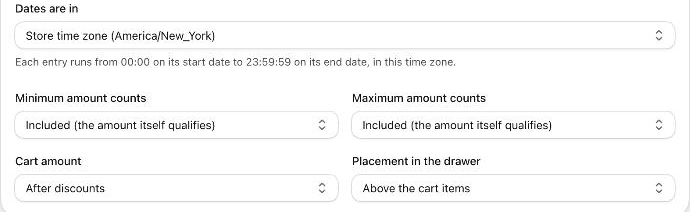
Set the amount rules so the drawer matches your checkout exactly (table below): Dates are in, Minimum amount counts, Maximum amount counts, Cart amount and Placement in the drawer.
Write the drawer texts under Texts, in your store's language.
Add "Included at checkout" lists if your checkout also adds samples, VIP gifts or collection gifts (see below).
Click Save in the bar at the top. Mistakes such as a missing key are listed in a red banner first.
Check your entries in the Entries table (see below). The first time, click Allow so Oxify can read metaobjects.
When everything looks right, switch on Show in the cart drawer and Save again.
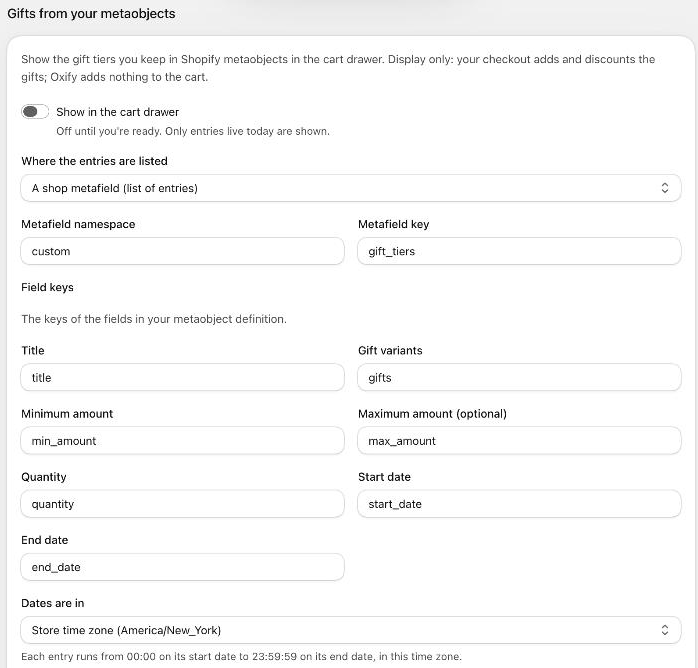
Every setting on the card
| Setting | What it does | Default |
|---|---|---|
| Show in the cart drawer | Shows the gift tiers in the drawer. Leave it off until you're ready. Only entries live today are ever shown. | Off |
| Where the entries are listed | A shop metafield (list of entries) or Every entry of a metaobject type. | A shop metafield |
| Metafield namespace / Metafield key | The shop metafield that lists your entries. | custom and an example key |
| Metaobject type | Appears instead of the metafield fields when you read every entry of a type. | An example type |
| Field keys | The keys of the seven fields in your metaobject definition. | Example keys (title, gifts, min_amount, max_amount, quantity, start_date, end_date) |
| Dates are in | The time zone of the entries' dates. Each entry runs from 00:00 on its start date to 23:59:59 on its end date, in this time zone. | Store time zone |
| Minimum amount counts | Included (the amount itself qualifies): a cart of exactly the minimum gets the gift. Excluded (must be above / below it): it must be above it. | Included |
| Maximum amount counts | The same for the maximum: included, or the cart must be below it. | Included |
| Cart amount | Compare the subtotal After discounts or Before discounts. Use the same subtotal your checkout compares. | After discounts |
| Placement in the drawer | Above the cart items or Below the cart items. | Above the cart items |
Texts
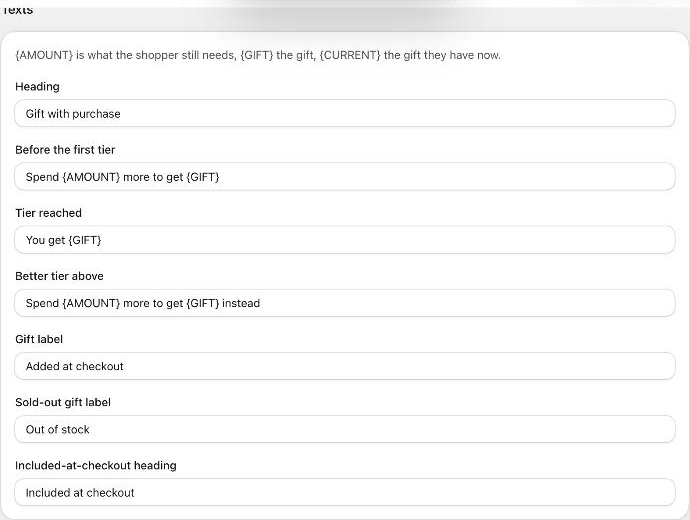
{AMOUNT} is what the shopper still needs to spend, {GIFT} the gift, {CURRENT} the gift they have now.
| Text | When it shows | Default |
|---|---|---|
| Heading | The title of the gift card in the drawer. | Gift with purchase |
| Before the first tier | The cart hasn't reached any tier yet. | Spend {AMOUNT} more to get {GIFT} |
| Tier reached | The cart is in a tier and there's no better one above. | You get {GIFT} |
| Better tier above | The cart has a gift and a bigger one is within reach. | Spend {AMOUNT} more to get {GIFT} instead |
| Gift label | The badge next to each gift. Keep it clear that shoppers don't need to add the gift themselves. | Added at checkout |
| Sold-out gift label | The badge on a gift whose variant is sold out. | Out of stock |
| Included-at-checkout heading | The heading above the "Included at checkout" lists. | Included at checkout |
Included at checkout: samples, VIP and collection gifts
Show other gifts your checkout adds, under their own name. You can add up to three lists with Add a list.
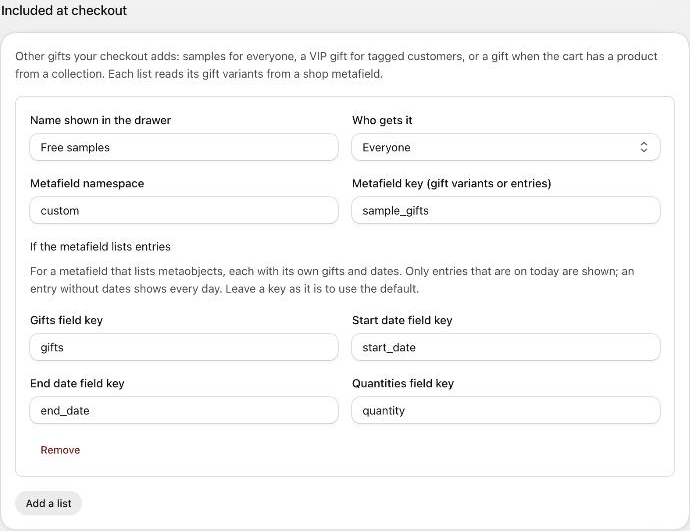
| Setting | What it does |
|---|---|
| Name shown in the drawer | The list's name, for example Free samples. |
| Who gets it | Everyone; Logged-in customers with a tag (enter the Customer tag, for example VIP); or Carts with a product from a collection (enter the Collection handle, the end of the collection's web address, for example skincare). |
| Metafield namespace / Metafield key (gift variants or entries) | The shop metafield that holds the list's gifts: a list of variants, or a list of metaobject entries with their own gifts and dates. |
| If the metafield lists entries | When the metafield points to metaobject entries, enter the keys of their Gifts field key, Start date field key, End date field key and Quantities field key. Only entries that are on today are shown; an entry without dates shows every day. Leave a key as it is to use the default. |
| Remove | Deletes the list. |
How each list shows:
- Everyone: shown to every shopper.
- Logged-in customers with a tag: shown only to a customer signed in to their account who has the tag. Guests never see it. The page never receives the customer's tags, only whether the list applies.
- Carts with a product from a collection: shown only while the cart holds a product from that collection.
These gifts have no add button either. Your checkout adds them.
A list reads a shop metafield. If your VIP or collection gifts are separate metaobject entries, add a shop metafield that lists those entries (a list of metaobject references) and point the list at it. Each list matches one tag or one collection.
Entries

Entries is read only: it shows what Oxify reads from your metaobjects. Before the first save it says Save first to list the entries.
- The first time, a banner Allow Oxify to read metaobjects appears with an Allow button. Click it and approve the request in the Shopify window. This is needed once per store.
- The table lists each entry with its Entry (title), Range (minimum and maximum amount), Dates, Gifts (quantity and gift) and Status: Live (shown today), Scheduled (starts later) or Ended.
- Entries with a problem are listed under Some entries are skipped with the reason, and are not shown in the drawer: the dates are missing or not real dates; the start date is after the end date; the minimum or maximum isn't a number; the maximum is below the minimum; it has no gifts; a gift variant is missing (deleted?); the quantity is missing or not a whole number 1–99.
Edit or delete entries in Shopify admin → Content → Metaobjects. The drawer shows changes on the next page load. If you list entries in a shop metafield, a new entry must also be added to that metafield.
Preview another day
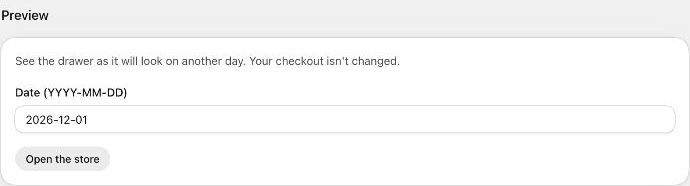
See the drawer as it will look on any day, without waiting and without changing anything for shoppers.
Under Preview, type a date as YYYY-MM-DD, for example 2026-12-01.
Click Open the store. Your store opens in a new tab with that day's tiers. On a password-protected store, enter the store password first.
You can also add ?oxify_gwp_at=YYYY-MM-DD to your store address yourself and share the link with your team. Only the drawer display changes, only in that browser tab: prices, checkout and the gifts your checkout adds are not affected, and other shoppers see the real date. The date is remembered in that tab while you browse. To go back to today, open the link with nothing after the = (?oxify_gwp_at=) or close the tab.
Use it to check a switch between promotions: open the preview for the day before and the day of a start or end date, with the same cart, and compare.
How the schedule works
- An entry is shown from 00:00 on its start date to 23:59:59 on its end date, in the time zone of Dates are in. Before its start date it is never shown; after its end date it disappears.
- The switch happens on time even for a shopper whose cart is already open. The time comes from the server, not the shopper's device.
- When no entry is live, the gift tiers are hidden. "Included at checkout" lists follow their own dates.
- If two live entries cover the same cart amount, the drawer shows the one with the higher minimum.
- Amounts are compared in your store currency.