
Review app integrations
Show product star ratings inside the cart drawer with Judge.me, Quoli, or Rivyo — toggle the app on, then choose whether ratings show on cart items, upsell items, or both.
Oxify integrates with three popular Shopify review apps so customer star ratings appear inside the cart drawer — both on cart line items and on in-cart upsell products. Seeing 4.8★ next to a product in the cart at the moment of decision is one of the highest-impact trust signals you can show.
Open the Cart Editor (Home → Cart Drawer → Manage Cart Drawer), choose Integrations in the left panel, and scroll to the Reviews & Ratings section to configure it.
Supported review apps
Oxify currently supports three review apps:
-
Judge.me Product Reviews App — Oxify reads the rating and review count that Judge.me saves on each product.
-
Quoli — shows Quoli's own star rating in the cart.
-
Rivyo: Reviews & Loyalty App — combines product reviews with loyalty programs in a single app.
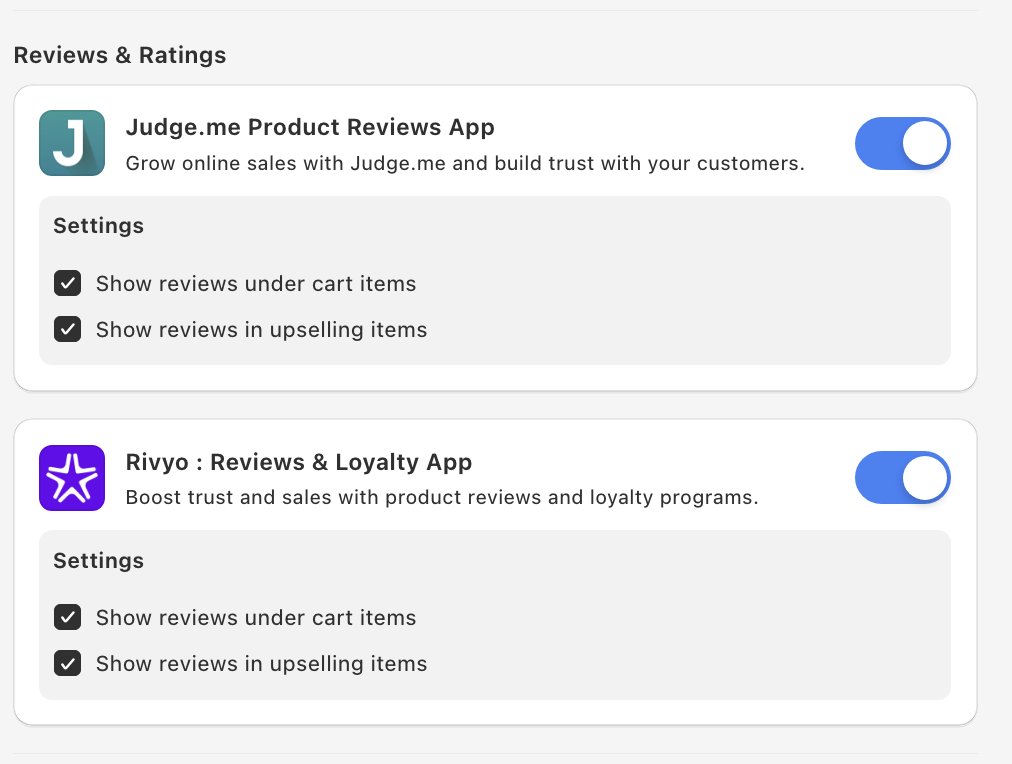
Each app appears as a card in the Reviews & Ratings panel with the app's logo, name, short description, and an on/off toggle on the right.
Step 1: Install the review app on your Shopify store
Before you toggle anything on in Oxify, the review app itself needs to be installed and active on your Shopify store. The integration reads review data the app exposes — if the app isn't installed, there's nothing to read.
If you don't have a review app installed yet, pick one based on your needs:
- Just want product reviews — Judge.me or Quoli.
- Need reviews + a loyalty program in one place — Rivyo combines both.
Install your chosen app from the Shopify App Store, collect a few real reviews, and verify the star ratings show on your product pages first. Then come back to Oxify.
Step 2: Toggle on the app in Oxify
In the Reviews & Ratings panel, find the card for your review app and click the toggle switch on the right.
Once enabled, two configuration checkboxes appear under the app card in a Settings sub-panel.
Step 3: Pick where reviews show
Each enabled review app exposes the same two settings:
- Show reviews under cart items — when checked, star ratings render under each product line item in the cart drawer. So if a customer has a 5-star bestseller in their cart, they see its star rating and review count right under the product name as a final reassurance before checkout.
- Show reviews in upselling items — when checked, star ratings also render on cart upsell offers (including upsells with a discount), empty-cart recommendations, and Product List Widgets shown inside the cart drawer. A good rating on an upsell product can help shoppers decide to add it.
Defaults differ by app: Quoli and Rivyo start with both boxes checked, but Judge.me starts with Show reviews in upselling items checked and Show reviews under cart items unchecked — tick it if you want ratings on your cart lines.
Recommended: enable both. Reviews are most powerful when they appear consistently — showing them on cart items but hiding them on upsell items creates a confusing inconsistency.
However, if your upsell catalog includes products with weak reviews, you might want to hide ratings on upsell items. (Products that have no reviews yet don't show a rating from Judge.me or Rivyo.)
Can I enable multiple review apps?
Yes — Oxify lets you toggle on more than one review app at a time. But you almost certainly shouldn't.
In practice, most stores use only one review app — that's where their existing review data lives. If two apps are switched on and both have reviews for a product, the shopper sees two ratings for the same product, and they may not match — which can confuse shoppers.
If you've recently switched review apps and your old reviews are still in the previous app, migrate the reviews to your new app first, then enable just the new one in Oxify.
Step 4: Save and test
Save your changes, then open your storefront in incognito mode and add a well-reviewed product to the cart. Ratings don't show in the Cart Editor preview, so check them on the live storefront. Open the cart drawer and verify:
- Star ratings appear under the product name in the cart line item.
- If you have cart upsells enabled, star ratings also appear on the upsell products.
- The rating numbers (e.g. "4.9") and review counts (e.g. "(1,247)") match what's shown on the product detail page.
If ratings don't show, check that:
- The review app is actually installed and active on your Shopify store.
- The product has reviews collected in the review app.
- The app's switch is on in Oxify and you saved your changes.
- The relevant checkbox is checked (Show reviews under cart items / Show reviews in upselling items).
Star ratings in the cart drawer have an outsized effect on last-mile conversion — customers see the social proof at the exact moment they're deciding whether to check out. Don't turn this off just because some products have weaker ratings — instead, focus on collecting more reviews for those products through your review app's review-request flows.
If most of your products have under 4.0 stars, that's a product or fulfillment issue, not a UI issue. Showing the ratings honestly is still better than hiding them — customers who don't see ratings often assume the worst.