
How to Set Up Rewards in the Cart Drawer App
Step-by-step setup for cart drawer Rewards: configure tiers, thresholds, and free gifts to lift average order value.
The Rewards feature in the Oxify Cart Drawer app allows you to motivate your customers by offering perks like free gifts or discounts as they increase their cart value. Here's how you can configure it step-by-step:
🔧 Step-by-Step Setup Guide
1. Navigate to Rewards Tab
Open the Cart Editor from Home (the Cart Drawer card → Manage Cart Drawer), then:
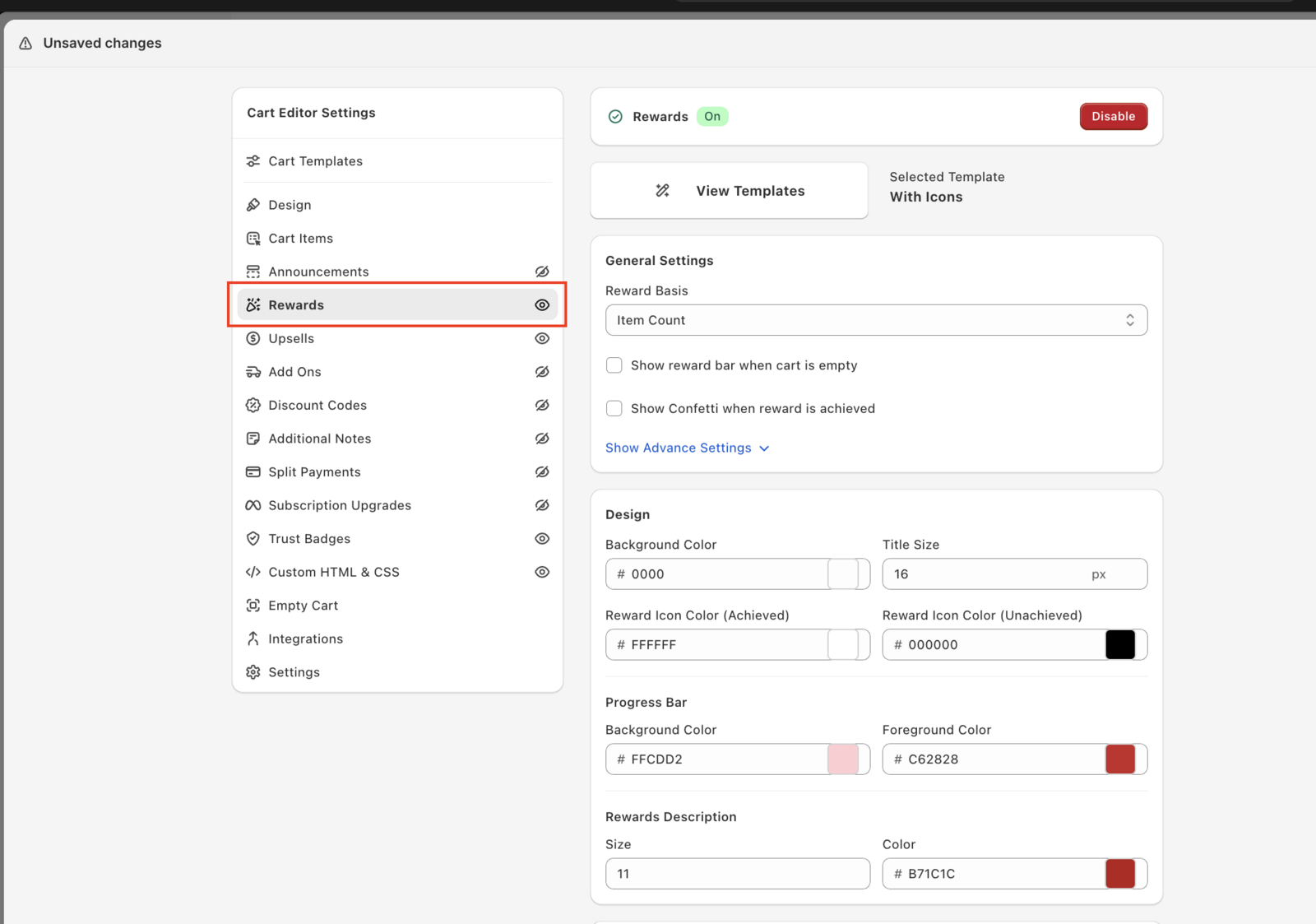
- Click on "Rewards" in the Cart Editor's left menu.
- Click Enable if Rewards is off (the badge changes to On).
2. Configure General Settings
Under the General Settings section:
- Reward Basis: Choose the basis for unlocking the reward — Cart Total (the default) or Item Count.
- ✅ Show reward bar when cart is empty: This ensures users see the reward incentive even before they add items (on by default).
- ☑️ Optional: Show Confetti when reward is achieved – visually celebrates the reward achievement (off by default).
3. Set Up Rewards
Scroll to the Rewards Settings section.
➕ Add a New Reward
- Click on “Add Reward”
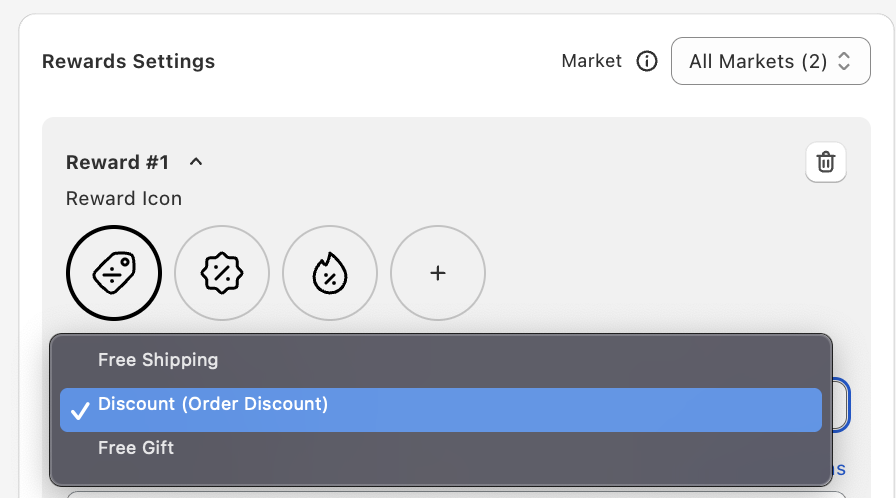
- Choose a Reward Icon (a built-in icon, or add your own) — this option appears when the With Icons template is selected.
- Select Reward Type:
- Free Shipping
- Discount (Eg. 10% off whole order)
- Free Gift Automatic → Auto Gift
- Free Gift Manual → Pick Gift
- Set the goal: Minimum amount (Cart Total) or Item Count (Item Count).
- Add a Reward Description to show below the progress bar
You can add up to 6 rewards, and use either Free Gift Automatic or Free Gift Manual rewards — not both.
4. Set Market-Specific Rewards
You can give each Shopify Market its own set of rewards:
- Click the Market dropdown (top-right in Rewards Settings).
- Choose one of your markets. All Markets is the default set; markets without their own rewards use it.
- Add the rewards for that market with Add Reward. This allows you to offer localized perks (e.g., free shipping in one market, discounts in another).
✅ If you want a different reward for a specific market, make sure you switch to that market and define it there.
5. Set Completion Message
Under Other Settings:
- Customize the Text after completing full rewards bar, e.g.:
- 🎉 Congrats! You have unlocked Free Gift 🎁
- You can add basic formatting (bold, links, color).
6. Enable Rewards Visibility
- If you have a Free Gift Automatic reward, turn “Show rewards to be achieved” to ON (the card near the bottom of the Rewards screen) to show the gifts shoppers can still unlock. For Free Gift Manual rewards, the same area is called Free gift settings and controls the gift picker in the cart.
✅ Final Check
Click Save, then make sure:
- Oxify creates and updates the checkout discount for you (Oxify Cart Unified Discount in Shopify admin → Discounts). You only need to create your own discount for a reward whose Discount Application Strategy (under Show Advance Settings in the reward) is set to Manual.
- You’ve tested it with real cart scenarios.
- All rewards are market-mapped properly if targeting global audiences.