
Announcement bar inside the cart
Add default, carousel, or moving-line promo text inside the cart drawer, with an optional countdown timer.
Promo text inside the cart drawer — drives urgency and surfaces incentives at the moment of decision.
Set it up
- In the Oxify app, go to Home and click Manage Cart Drawer (or Set up Cart Drawer) on the Cart Drawer card to open the Cart Editor.
- In the Cart Editor's left sidebar, click Announcements.
- Click Enable at the top of the panel. The eye icon next to Announcements in the sidebar shows whether the bar is on.
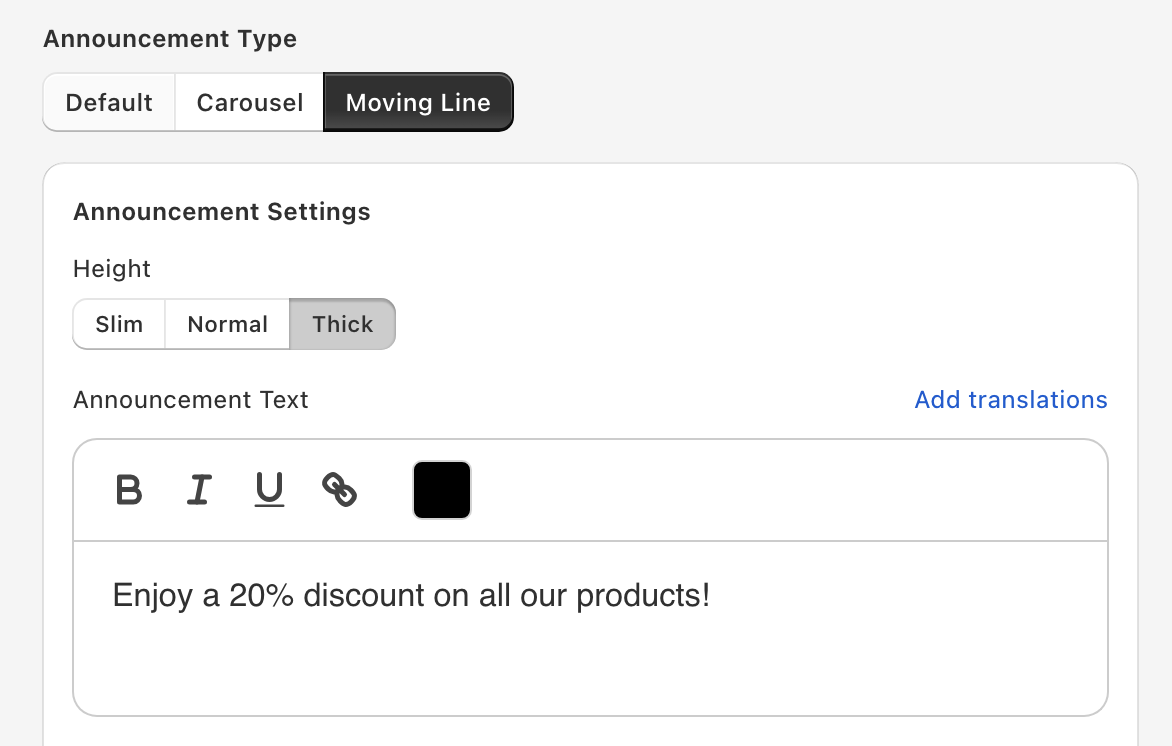
- Choose an Announcement Type: Default, Carousel, or Moving Line.
- Write your text, adjust the settings below, and click Save.
Switching between Default and Moving Line replaces the text with that type's sample text, so pick the type first and edit the text afterwards.
Types
Default
A single message. Use for one persistent value prop ("Free returns within 30 days"). Add {{TIMER}} to the text to turn it into a countdown (see below).
Carousel
A rotating list of messages. Add each one under Multiple Announcement Texts with Add Announcement Text. Use for multiple value props ("Free shipping over $50", "30-day returns", "Verified by Shopify"). Options: Auto-rotate announcements, Auto-rotate duration (2–20 seconds), and Show Navigation Arrows.
Moving Line
Continuous horizontal scroll (a marquee). Eye-catching but harder to read. Use for short promo text ("FLASH SALE — 24h ONLY"). Options: Moving line speed (1–50; the time in seconds for the text to travel from one end to the other) and Gap between two text (px).
Countdown timer
Add {{TIMER}} to the text of a Default announcement (or to any message in a Carousel) and it becomes a live countdown — for example Sale ends in {{TIMER}} shows "Sale ends in 09:59". Best for limited-time offers.
- The timer counts down the number of minutes in Timer (minutes) (default 10). It is not tied to a calendar date or time.
- The shopper's remaining time is kept in their browser, so closing and reopening the cart doesn't restart it.
- For a Default announcement, Announcement Once Timer Ends decides what happens at zero: Hide Announcement Bar (default), Delete Items From Cart (empties the shopper's cart), or Do Nothing.
Style
- Height — Slim, Normal, or Thick (default).
- Announcement Design — Text Size, Background Color, border color, border radius and border width for each side (plus Arrow Design colors for a carousel).
- Text color, bold, italic, underline and links are set inside the Announcement Text editor.
Where it appears
The bar sits near the top of the cart, under the header and above the cart items. There is no position setting. It only shows while the cart has items — it does not appear on the empty-cart screen.
Custom template (advanced)
If you have React (JSX) skills, you can replace this section's built-in layout with your own template. The Custom template card (with Main and Skeleton tabs) appears at the bottom of this panel only after you tick Enable custom template editors under Settings → Custom templates in the Oxify app and save. It needs technical skills, and our support team can't help debug custom templates.
See Custom templates for how to turn the editors on and the props each template receives.