
Pricing display in the cart
Compare-at prices, savings, and unit pricing inside the cart drawer.
Compare-at price
Shows a strikethrough original price next to the price the shopper pays. It appears whenever a line's original price is higher than its current price — either because the product has a real Shopify compare_at_price above the current price (while Use Compare At Price for savings calculation is on, the default), or because a discount lowered the line price. When neither applies, only the final price shows, so you won't accidentally show a strikethrough on undiscounted products.
Line savings
Per-item savings text — by default "(You Save $5)". Renders below the line price, and only on lines where the shopper actually saves something.
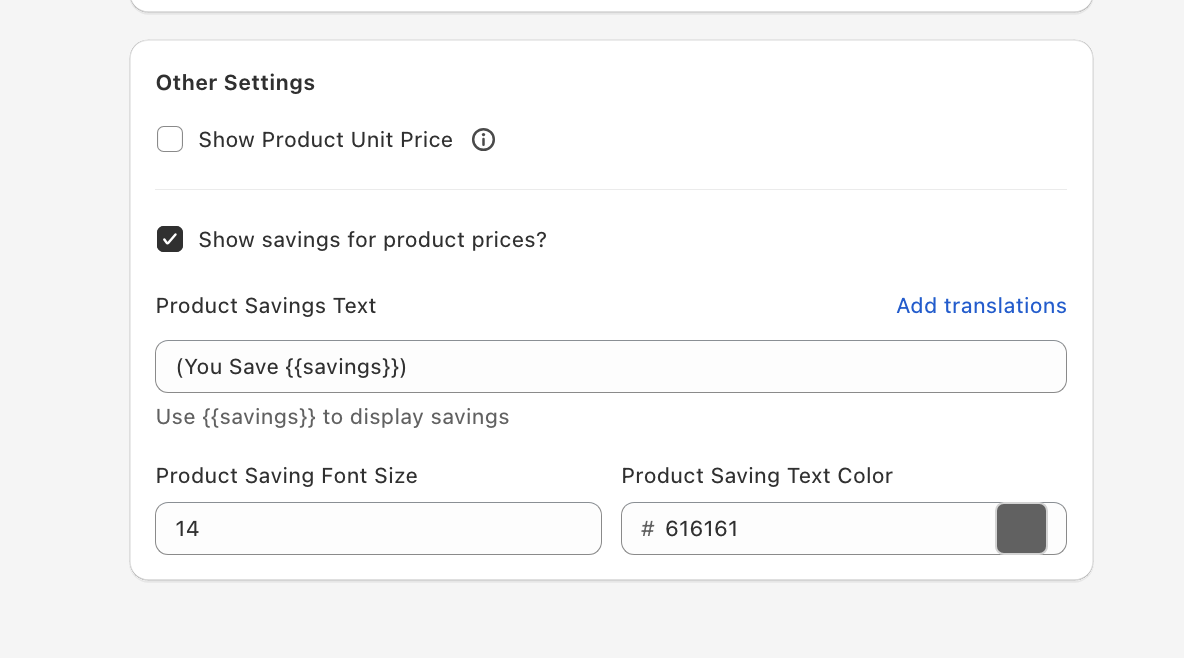
Total savings
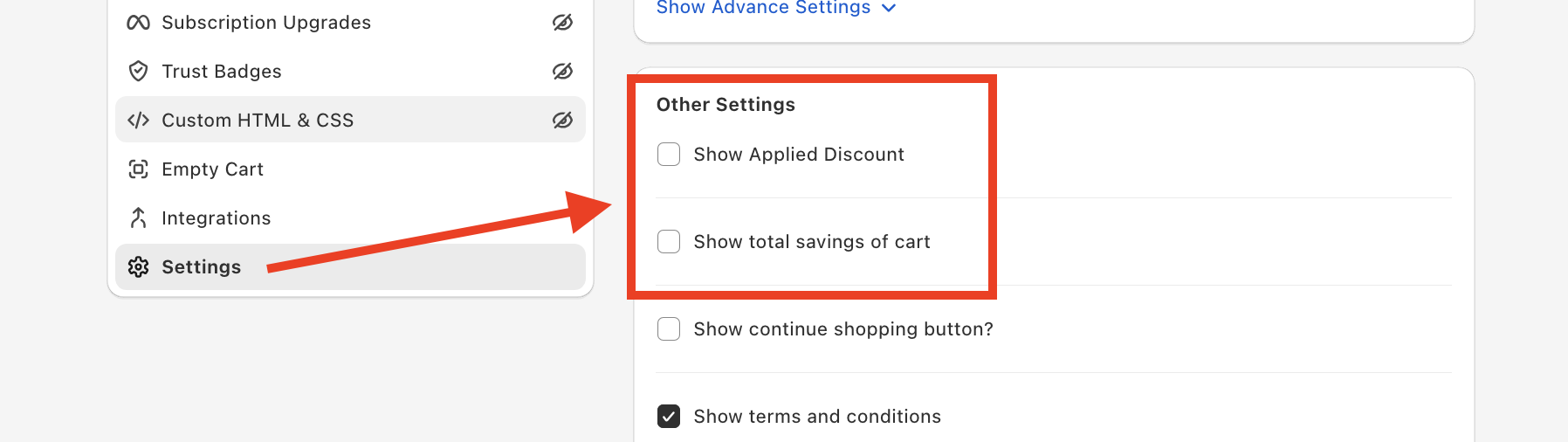
Cart-wide savings summary near the checkout area — e.g. "Your Savings $12". It is the difference between the cart's original total and what the shopper pays after all discounts, so it includes compare-at savings as well as line and cart-level discounts. It only appears when there are savings.
Unit price
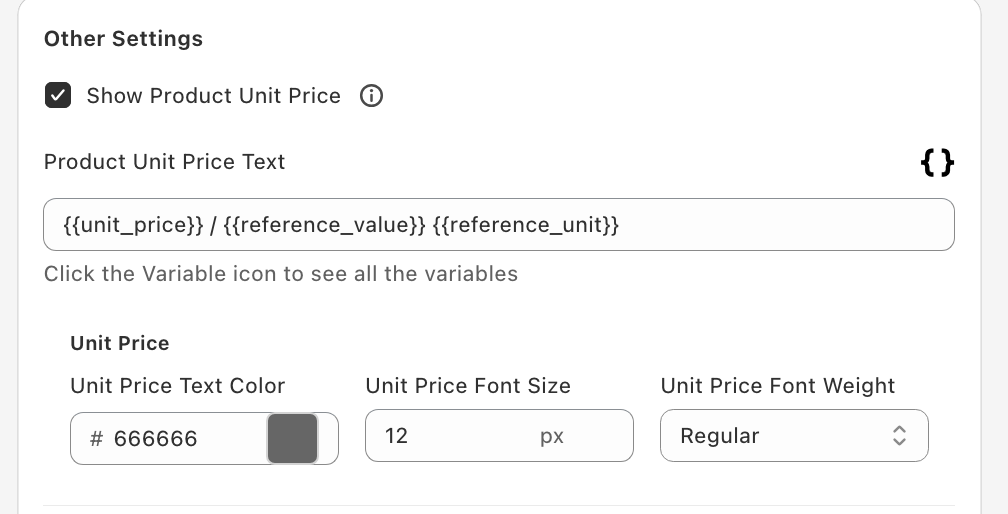
Unit pricing like $5.00 / 1 kg. Common for grocery, beauty, and pet stores. Only renders when unit pricing is set on the product in Shopify; if it's not configured there, this toggle has no effect.
Where to find these
- Line savings and unit price — Cart Editor → Cart Items → Other Settings: Show savings for product prices? and Show Product Unit Price. Style the prices themselves under Original Price and Final Price in the same panel.
- Total savings — Cart Editor → Settings → Other Settings → Show total savings of cart.
- Compare-at price source — Cart Editor → Settings → Show Advance Settings → Use Compare At Price for savings calculation. Turn it off if you want savings to come only from discounts applied in the cart.