
Subscription Upgrades Module
Let customers switch a cart item to a subscription, or back to a one-time purchase, inside the Oxify Cart Drawer, and customize the upgrade button text and styles.
This guide explains how to enable and configure Subscription Upgrades inside the Oxify Cart Drawer, along with how to customize the upgrade button text and styles.
When enabled, Oxify adds a control to each eligible cart item, so customers can change how they buy before checkout:
- Upgrade to a Subscription — a button on a one-time item that has subscription plans.
- Switch to a One-Time Purchase (OTP) — an option in the plan dropdown that appears once the item is on a subscription plan.
An item is eligible when its product has subscription plans (selling plans). Free gift items never show the control.
Turn it on
- In the Oxify app, open Home and click Manage Cart Drawer on the Cart Drawer card (the button reads Set up Cart Drawer until the drawer is live). The Cart Editor opens.
- In the Cart Editor Settings menu, select Subscription Upgrades.
- Click Enable. The module is off by default.
- Adjust the settings below, then save the cart editor with the Save button in the bar at the top.
Upgrade to a Subscription
If a product has subscription plans, Oxify shows an upgrade button on its one-time cart item. One click moves the item onto the first plan of the product's first plan group.
The item then shows a dropdown. When the product has several plans or intervals, the customer picks their preferred one directly in the cart drawer. If allowed, they can also switch back to a one-time purchase.
This friction-free experience helps increase subscription adoption at a critical conversion moment.
Customizing the Upgrade Button Text
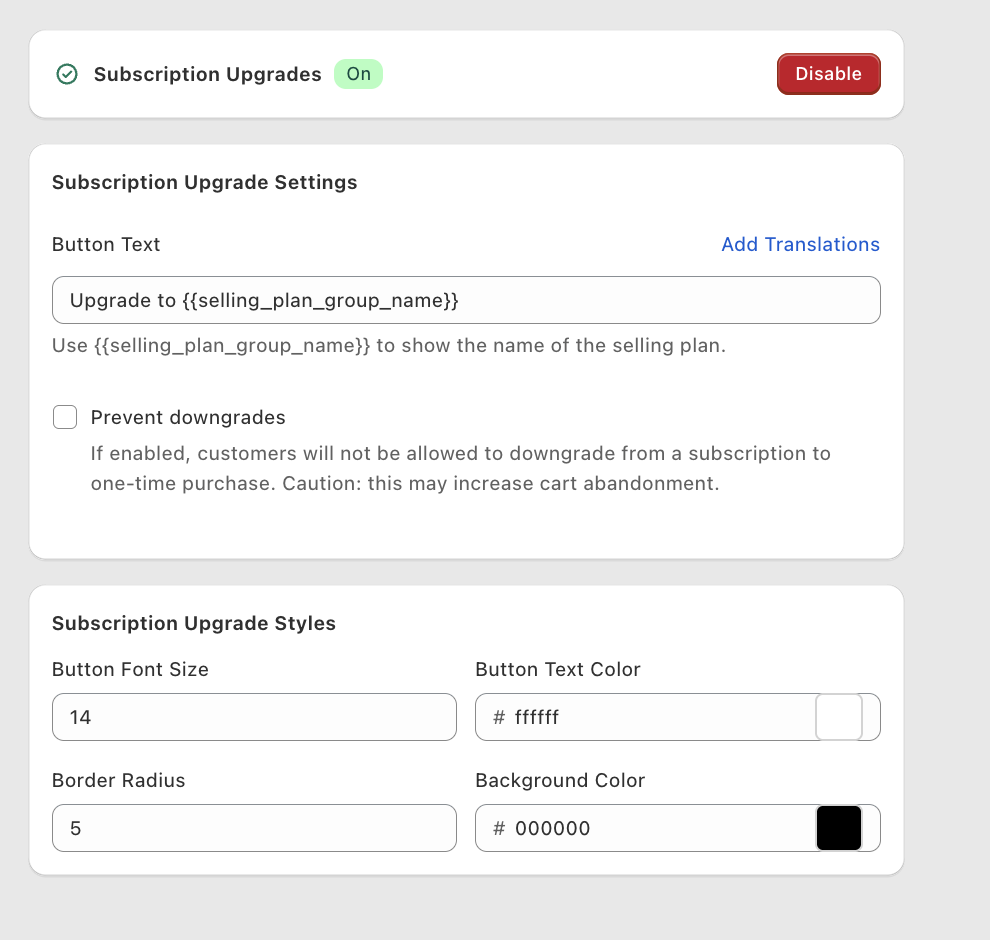
Open Subscription Upgrade Settings and edit Button Text.
By default the text is Upgrade to {{selling_plan_group_name}}. The {{selling_plan_group_name}} variable is replaced with the Selling Plan Group Name, which comes from your connected subscription app.
You can customize this label to better match your brand voice:
- Edit the button text in Button Text.
- Remove the
{{selling_plan_group_name}}variable if you prefer a static label like
“Subscribe & Save” or “Convert to Subscription”. - Use Add translations to set the text per language.
Under Subscription Upgrade Styles you can change the Button Font Size, Button Text Color, Border Radius and Background Color.
The plan dropdown
Once an item is on a subscription plan, the button is replaced by a dropdown. It lists:
- One-time purchase, under the group heading Full price. These two labels can’t be changed in Oxify.
- Each Selling Plan Group Name as a heading, with its Selling Plan Name options below, such as “Delivered every month” or “Ships every 2 weeks”.
Important Note on Subscription Labels
Both the Selling Plan Group Name and Selling Plan Name are generated by your subscription app, not Oxify.
If you need to:
- Translate plan names
- Localize text
- Change frequency wording globally
You should do this inside your subscription app’s settings.
Downgrade to a One-Time Purchase
If a product supports both subscriptions and one-time purchases, Oxify allows customers to switch back by choosing One-time purchase in the same dropdown where subscription plans are selected.
This flexibility can reduce cart abandonment and give customers more control over their purchase.
Preventing Downgrades (Optional)
Oxify includes a Prevent downgrades setting in Subscription Upgrade Settings for merchants who want to prioritize subscriptions.
When enabled:
- The One-time purchase option is removed from the dropdown.
- Customers who are on a subscription plan can only switch between plans.
This may increase subscription conversions, but it can also introduce friction. Some shoppers may remove the item or abandon the cart if flexibility is reduced.
Best practice is to A/B test this setting before rolling it out storewide.
Subscription App Compatibility
Oxify reads the subscription plans (selling plans) that Shopify exposes for each product, so it works with subscription apps that publish their plans to Shopify as selling plans. Oxify does not create subscriptions itself, and products without selling plans don’t show the control.
See Subscription app integrations for more on working with subscription apps.