
Subscription upgrades in the cart
Prompt one-time buyers to switch to subscription right inside the cart line item.
If a product has subscription plans, Oxify shows an upgrade button directly inside the cart line item. One tap converts the line into a subscription on the product's first plan, and the line then shows a dropdown where the customer can pick another plan or go back to One-time purchase.
Turn it on
- In the Oxify app, open Home and click Manage Cart Drawer on the Cart Drawer card (the button reads Set up Cart Drawer until the drawer is live). The Cart Editor opens.
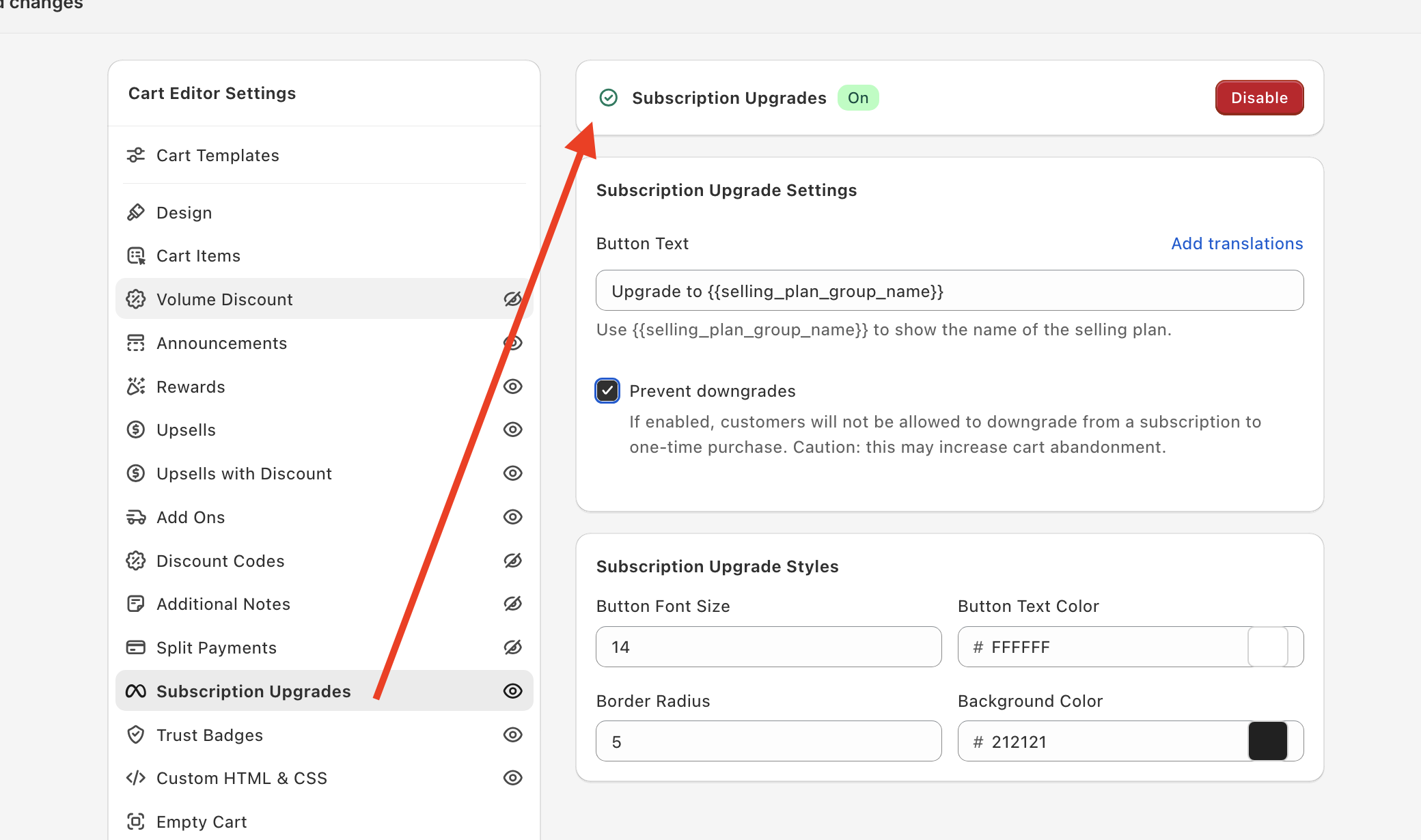
- In the Cart Editor Settings menu, select Subscription Upgrades and click Enable.
- Save the cart editor with the Save button in the bar at the top.
See Subscription Upgrades Module for every setting.
Requirements
The product needs subscription plans that your subscription app publishes to Shopify as selling plans. Free gift items never show the upgrade prompt.
The app reads the subscription options Shopify exposes for that product — it doesn't create the subscription itself.
Wording
Set the text under Subscription Upgrade Settings → Button Text. The default is Upgrade to {{selling_plan_group_name}}, where {{selling_plan_group_name}} is replaced by the plan group's name from your subscription app. Use Add translations to set the text for each language in your store.
When this works best
Consumables — coffee, supplements, pet food, beauty refills — where customers reorder predictably. Less effective on one-off categories.