
Sticky Add-to-Cart Bar
A fixed product-page bar that follows shoppers as they scroll past the buy box.
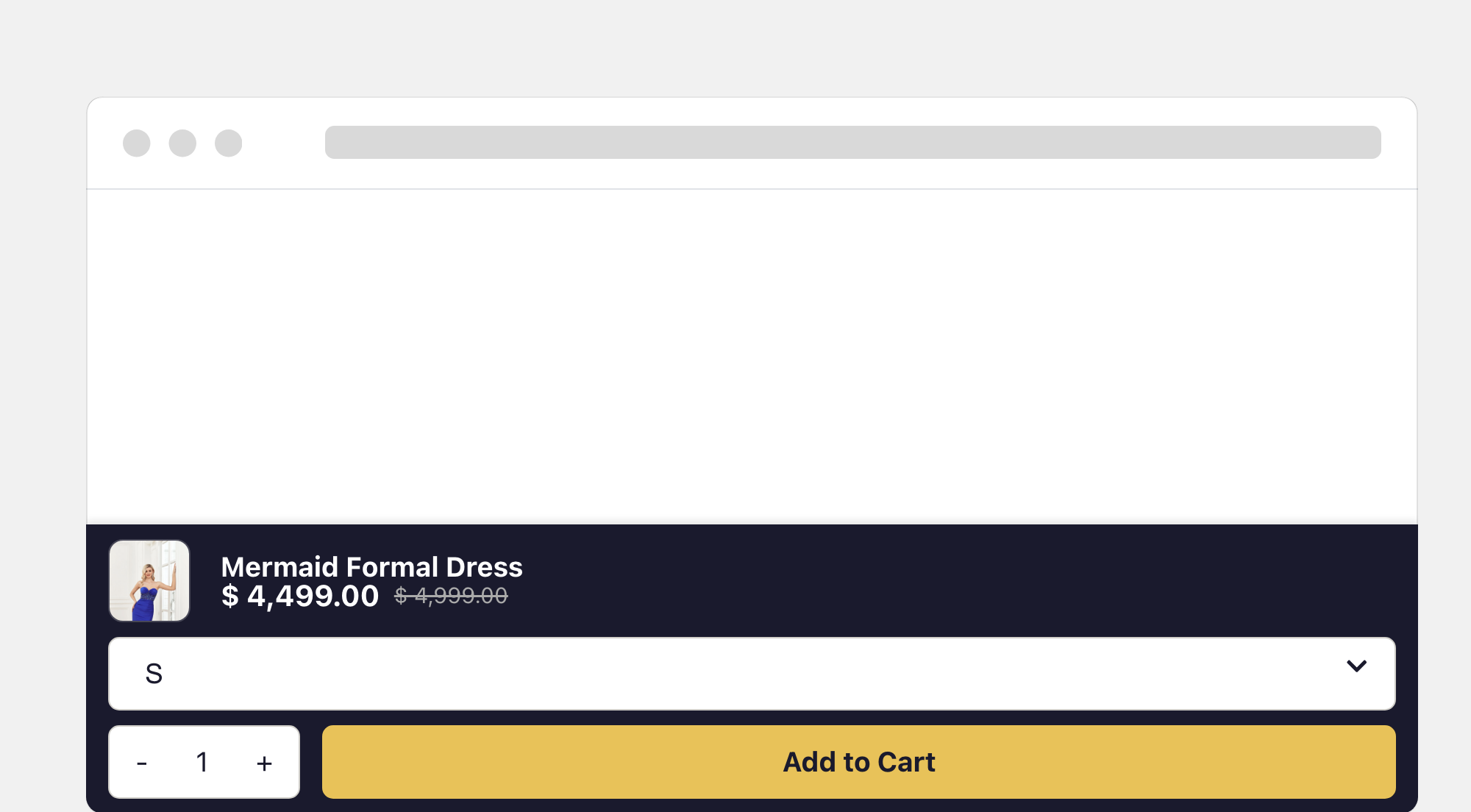
A fixed bar at the bottom of the screen on product pages. It slides up once the theme's own Add to Cart button has scrolled out of view, keeping the add-to-cart action one tap away no matter how long the page is.
Set it up
- In the Oxify app's left menu, click Sticky Add to Cart Bar.
- Click Enable (top right). The page title shows an On badge once it's enabled.
- In Sticky Add To Cart Settings, set the bar's Background Color and where it shows (Show on Desktop, Show on Mobile).
- Go through the cards below (Image, Title, Final Price, Original Price, Variant Selector, Quantity Selector, Add to Cart Button) to choose what appears and how it looks.
- Click Save in the save bar, then check a product page on your storefront.
Content
- Product image (thumbnail) — shows the selected variant's image when it has one
- Product title
- Price (Final Price), plus the struck-through Original Price when the variant has a higher compare-at price
- Variant selector — only shown for products with more than one variant
- Quantity selector
- Add to Cart button
Each element has its own Visibility options (Enable on Desktop and Enable on Mobile), so you can, for example, hide the image on mobile.
Style
Each card has Design Settings — color, font size, and font weight for text, plus width, height, and Image Fit for the image, and border color, radius, and width where it applies. The bar's own Background Color is in Sticky Add To Cart Settings. There is no bar-height setting. Match the Add to Cart Button to your theme's primary action button so the bar feels native.
The Add to Cart Button card also has:
- Add to Cart Button Text (default "Add to Cart") — you can use
{{price}}to show the product's price. - Sold Out Button Text (default "Sold Out") — shown, with the button disabled, when the selected variant is unavailable.
Both have Add translations for other languages.
When the bar shows
- Product pages only — it never appears on collection or other pages.
- Device — Show on Desktop and Show on Mobile (both on by default) control the whole bar. Mobile means screens narrower than 768px. Turning one off hides the bar on that device, including its button.
- Trigger — there is no scroll-distance setting. The bar appears when the theme's main Add to Cart button has scrolled off the top of the screen, and hides again when it comes back into view.
If your theme's Add to Cart button isn't detected, open Show Advance Settings in Sticky Add To Cart Settings and enter its CSS selector in Custom Query Selector. Left empty, Oxify finds the main button automatically and ignores buttons inside sliders and carousels.
Variant picker
The variant selector is an inline dropdown in the bar — shoppers pick the variant right there (unavailable variants are greyed out). Clicking the bar's Add to Cart button adds the selected variant and quantity and opens the cart drawer.