
Schedule, priority and status
Set when a gift campaign starts and ends, in which time zone, switch it on or off, and understand Draft, Scheduled, Live, Paused and Ended.
Campaigns start and stop on their own. You set the dates once, switch the campaign on, and the cart follows the schedule, also for shoppers whose cart is already open.
Where to find it: Oxify Cart Drawer → Rewards & Discounts → open a campaign → Schedule, the switch next to the campaign name, and Advanced settings → Priority and time zone.
Set the dates
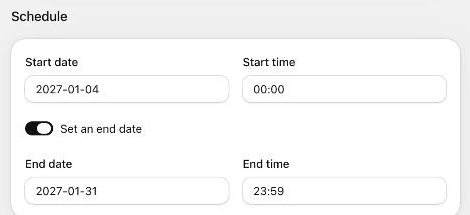
| Setting | What it does | Default |
|---|---|---|
| Start date | The day the campaign starts, as YYYY-MM-DD. | Today |
| Start time | The time it starts, as HH:mm (24-hour). | 00:00 |
| Set an end date | Turn on to give the campaign an end. Off = it runs until you end it. | Off (no end) |
| End date / End time | When it ends. Appear when Set an end date is on. | The start date, 23:59 |
The end must be after the start. If you type a time that doesn't exist on a day the clocks change, the editor tells you which time it uses instead.
Choose the time zone
Dates use your store time zone unless you change it in Advanced settings → Priority and time zone:
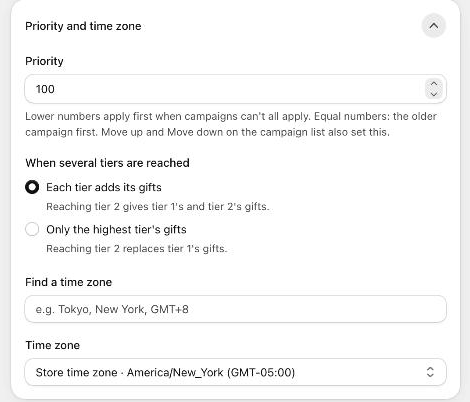
- Find a time zone: type a city or offset, for example
Tokyo,New YorkorGMT+8, to filter the list. - Time zone: the zone the start and end are in. The first option is Store time zone with its name and offset.
Use another zone when a promotion follows a market's local time (a sale that starts at midnight in Tokyo, for example). The campaign list always shows schedules in store time; the column header says which zone.
Switch the campaign on
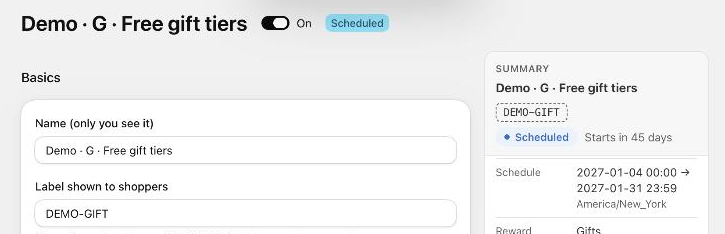
The switch next to the campaign name decides whether the campaign runs at all:
- Off: the campaign is a Draft. The Summary says Off: shoppers don't see it.
- On: the campaign runs on its dates. Before the start date it is Scheduled and the Summary says how long until it starts.
Click Save after you switch it. A new campaign starts Off, so you can set it up and save it as often as you like before anyone sees it.
When you change a campaign that is Live, the editor shows This campaign is live: Shoppers see your changes as soon as you save. Check your changes before you click Save.
Statuses
| Status | What it means |
|---|---|
| Draft | Switched off. Shoppers don't see it. |
| Scheduled | Switched on, but the start date is still ahead. It appears in Next 90 days. |
| Live | Switched on and running now. Shoppers see it in the cart. |
| Paused | Stopped with Pause (bulk action), Pause all campaigns, or End now on a scheduled campaign. Shoppers don't see it. |
| Ended | The end date has passed, or you clicked End now. |
An extra badge can appear next to the status: Awaiting approval (the gifts are worth more than your store's approval limit) or Waits for cart Rewards (an order or shipping campaign while cart Rewards gives the same kind of reward).
End or pause campaigns
- End now (campaign list, Actions): asks End "…" now? A live campaign ends at once. A scheduled one is paused and won't start. You can edit it later.
- Pause all campaigns (page header, shown while a campaign is live or scheduled): asks Pause every active campaign? Every live and scheduled campaign is paused at once. Gifts and discounts from campaigns stop at the shopper's next cart change, and the drawer removes gifts already in carts. Switch campaigns back on one by one, or select them and click Activate.
See Manage campaigns for bulk actions.
Priority
Priority (in Priority and time zone) decides which campaign wins when campaigns can't all apply to the same cart. Lower numbers apply first; with equal numbers, the older campaign goes first. New campaigns start at 100. Move up and Move down on the campaign list also set it. The cart drawer stacks campaigns in the same order.
How a conflict is settled (priority, or the best value for the shopper) is a store rule. See Combinations and store rules.
Timing details
- The cart uses the server's time, not the shopper's device, and switches at the start and end even while the cart is open.
- Checkout catches up within about a minute of each switch. If two campaigns switch less than 2 minutes apart, the list warns Campaigns switch close together: put switches at the same minute or at least 2 minutes apart.
- A shopper already checking out when a campaign ends keeps the gift price for the Grace period after a campaign ends (minutes), set in the Gift discount card (0 to 240 minutes; 0 ends it exactly on time). See How the gift is given.