
Show campaigns in the cart drawer
Place gift campaigns in the Oxify cart drawer from the cart editor, choose their position, preview a campaign in your store and see what shoppers see.
A campaign's card (message, progress bar and gifts) appears in the cart drawer where you place it in the cart editor. You place a campaign once; after that it shows on its own while it is live.
Where to find it: Oxify Cart Drawer → Cart editor → left sidebar → Gift campaigns → Add gift campaign.
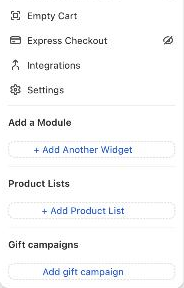
Place a campaign in the cart
Open the Cart editor and scroll the left sidebar to Gift campaigns.
Click Add gift campaign. The window Add a gift campaign to the cart opens. (With no campaigns yet, it says You don't have any gift campaigns yet. and links to Create one.)
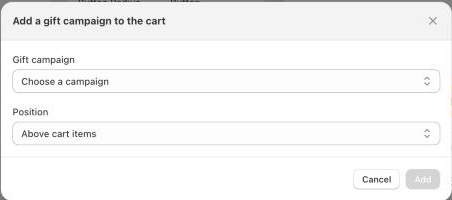
The window opens with Position on Above cart items. Add is greyed out while Gift campaign reads Choose a campaign.
In Gift campaign, choose All live gift campaigns or one campaign. Campaigns that aren't live show their status in brackets, for example "(Scheduled)".
In Position, choose Above cart items, After cart items or Below cart items.
Click Add, then Save the cart editor.
All live gift campaigns is the simplest choice: every live campaign shows in that spot, stacked by priority (or only the top one, if your store rule Cart drawer is set to Show only the top campaign). Choose a single campaign when different campaigns should sit in different places.
The placement in the sidebar
Each placement is listed under Gift campaigns with:
- the campaign's name (or All live gift campaigns); click it to open the campaign in a new tab,
- a status badge when the campaign isn't live or scheduled (for example Draft), and Not on storefront if the campaign was deleted,
- its position (for example Above cart items),
- an eye icon to hide or show it, and a delete icon to remove it.
Remember to Save the cart editor after any change.
The cart editor's live preview doesn't show gift campaigns: campaigns come from your storefront (through the app embed), not from the editor. Check them on your store, or use Preview in store (below).
What shoppers see
Each campaign shows as a card in the drawer:
- the Label shown to shoppers as its heading,
- the progress message (Text while working toward a tier, for example "Spend $25.00 more to get Free energy drink") and a progress bar toward the next tier,
- the gifts the shopper has unlocked, with the Badge on an unlocked gift (default Unlocked),
- the next tier's gifts, greyed out, until the shopper reaches its goal,
- for a tier where the shopper picks, each gift with a button (default Add),
- for order discount and free shipping campaigns, the unlocked reward with the badge,
- a short note when the campaign steps aside, for example Not available with your discount code.
When the last tier is reached, the message changes to Text when every tier is reached and the progress bar disappears.
When Oxify adds the gift, the gift also appears as its own line in the cart. If a shopper removes a gift line, the drawer doesn't add it back in the same visit.
The placement only controls the card. A switched-on campaign where Oxify adds the gift still adds its gifts to qualifying carts even if you haven't placed it, or hid it. To stop a campaign, switch it off or end it on the Rewards & Discounts page.
The app embed Oxify: Cart Upsell & Gift must be on in your theme. If it is off, the Rewards & Discounts page warns The app embed is off in your theme, so the cart shows no campaigns with an Open App embeds button.
Preview a campaign in your store
Check a campaign in the real drawer before it goes live:
On the campaign list, open the campaign's ⋯ menu and click Preview in store.
Your store opens in a new tab. The campaign shows in the cart, labelled Preview, where gift campaigns are placed (a placement of that campaign or All live gift campaigns).
The preview link works for 24 hours and stays on while you browse in that tab. It is display only: it never adds gifts or changes prices, and other shoppers don't see it.