
Create a gift campaign
Step by step: create a scheduled gift campaign with tiers, save it as a draft, then switch it on and show it in the cart.
This guide walks you through a complete gift campaign: spend $75 to get a free product, spend $150 to pick a bonus gift. It takes about ten minutes. Most campaigns only need the cards at the top of the editor; everything under Advanced settings is optional.
Where to find it: Oxify Cart Drawer → Rewards & Discounts → Create campaign.
Before you start
- The app embed Oxify: Cart Upsell & Gift is on in your theme. See Enable the app embed.
- The gift products exist in Shopify and are in stock. Gift cards and bundle products can't be gifts.
- If cart Rewards (cart editor → Rewards) already gives free gifts, decide which system you use. See Rewards & Discounts overview.
The editor at a glance
The editor has the campaign's cards on the left and a Summary on the right that sums up every choice as you go. The switch next to the campaign's name says whether it runs: a new campaign starts Off (Draft).
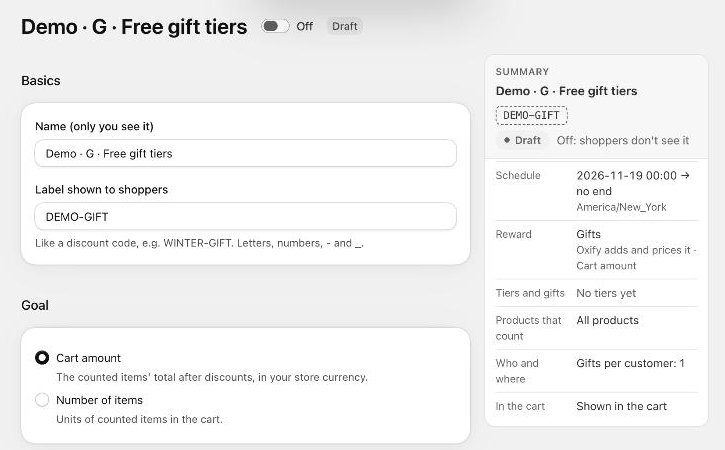
From top to bottom: Basics, Goal, Reward, Tiers and gifts, Products that count, In the cart, Schedule, then Advanced settings (Requirements, How the gift is given, Combinations, Limits, Who and where, Priority and time zone, Cart texts and translations).
Create the campaign
Open the editor. Go to Rewards & Discounts and click Create campaign.
Basics. Enter a Name (only you see it), for example Winter gift. Optionally enter a Label shown to shoppers, like a discount code: letters, numbers, - and _, for example WINTER-GIFT. It appears as the heading of the campaign's card in the cart, in the order tags, and in the campaign list.
Goal. Choose what counts toward the goal: Cart amount (the counted items' total after discounts, in your store currency) or Number of items (units of counted items in the cart).
Reward. Keep Gifts (free or reduced-price products added to the cart). For money off the order or free shipping, see Order discount and free shipping campaigns.
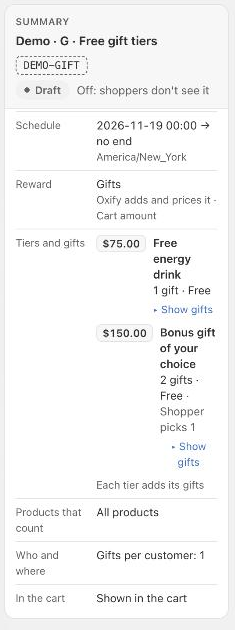
Tiers and gifts. Click Add tier, enter 75 and a Tier name shown to shoppers such as Free energy drink, click Choose gifts and pick the product variant. Click Add tier again, enter 150, name it, choose two gifts, and set Which gifts to Shopper picks 1. Details: Tiers and gifts.
Products that count. Keep All products, or limit the goal to specific products or collections. See Products that count.
In the cart. Keep Show the progress and gifts in the cart on and adjust Text while working toward a tier if you like. See Cart texts and translations.
Schedule. Enter the Start date and Start time. To stop on a date, turn on Set an end date and enter it. See Schedule, priority and status.
Save as a draft. Click Save in the bar at the top. The campaign is saved Off (Draft): shoppers don't see it yet, and you can come back to it.
Switch it on
Check the Summary: schedule, reward, tiers and gifts, products that count, who and where, and whether it shows in the cart.
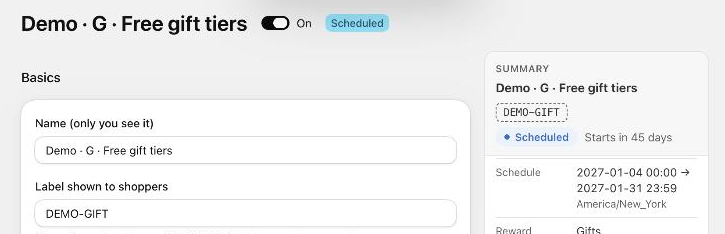
Click the switch next to the campaign name so it says On. The badge changes to Scheduled (start date ahead) or Live.
Click Save.
Make sure the campaign is placed in the cart drawer: Cart editor → Gift campaigns → Add gift campaign (once; All live gift campaigns covers every future campaign). See Show campaigns in the cart drawer.
The first time a campaign lets Oxify apply the gift, Oxify creates the Oxify gift campaigns discount in Shopify → Discounts. The Gift discount card on the campaign list then says Active. See How the gift is given.
Test before shoppers see it
- Try a cart on the campaign list (in Combinations) tells you which campaigns a cart amount would get. See Combinations and store rules.
- Preview in store (campaign list → ⋯) opens your store with the campaign shown in the cart, labelled Preview, without adding gifts. See Show campaigns in the cart drawer.
- Test mode in the Gift discount card runs the cart without adding gifts or discounting, to check a store before a campaign goes live.
If saving is refused
A red banner Fix these before saving lists what to change, for example:
- Fill in the required fields (name; the products or collections you chose to count).
- Each tier needs a goal above 0 (whole numbers for items). / Two tiers have the same goal.
- Each tier needs at least one gift.
- Enter dates as YYYY-MM-DD and times as HH:mm (24-hour). / The end must be after the start.
- The label can use letters, numbers, - and _ (start with a letter or number).
If someone else saved the same campaign while you were editing, you see Someone else saved this campaign: reload to see the latest version (your changes weren't saved).