
Manage campaigns
Read the gift campaign list and its 30-day results, change the priority order, preview, end, delete, and use bulk actions and the 90-day timeline.
The campaign list is the top of the Rewards & Discounts page. It shows every campaign with its status, schedule and results, in priority order (the order the cart stacks them and settles conflicts).
Where to find it: Oxify Cart Drawer → Rewards & Discounts.
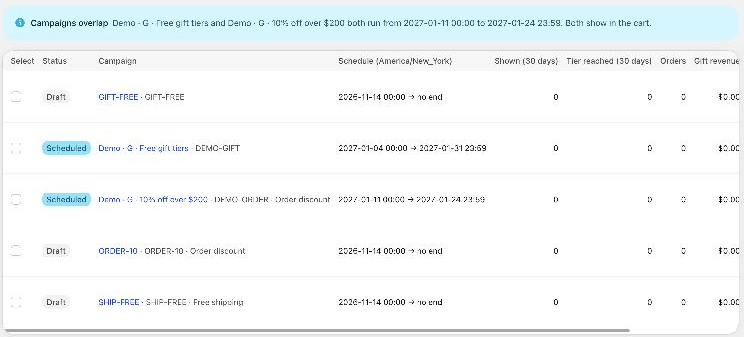
Columns
| Column | What it shows |
|---|---|
| Select | A checkbox for bulk actions. |
| Status | Draft, Scheduled, Live, Paused or Ended, plus Awaiting approval or Waits for cart Rewards when they apply. See Schedule, priority and status. |
| Campaign | The name (a link to the editor), then the Label shown to shoppers and, for non-gift campaigns, Order discount or Free shipping. |
| Schedule | Start → end in your store time zone (shown in the header, for example Schedule (America/New_York)). no end when the campaign has no end date. |
| Shown (30 days) | How many shopping sessions saw the campaign in the cart in the last 30 days (each session counts once). |
| Tier reached (30 days) | How many sessions reached a tier. |
| Orders | Orders that got the campaign's reward. |
| Gift revenue | What those orders paid for the campaign's gift lines (for order discount and free shipping campaigns, the order subtotal). In your store currency. |
| Gift value given | The value given away: the discount on gifts, plus the order or shipping discount. |
| Actions | Edit, and a ⋯ menu with more actions (below). |
On a narrow screen the table scrolls sideways.
Row actions
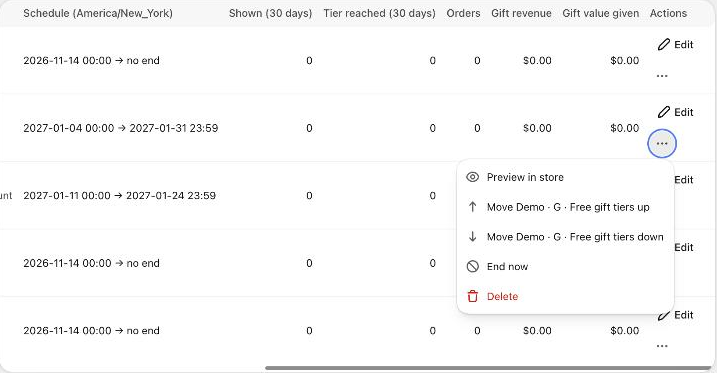
- Edit: opens the campaign editor.
- Preview in store: opens your store in a new tab with this campaign shown in the cart, labelled Preview, even before it goes live. The link works for 24 hours and never adds gifts or changes prices. The campaign shows where gift campaigns are placed in the cart editor. See Show campaigns in the cart drawer.
- Move … up / Move … down: changes the priority order. The top campaign applies first when campaigns can't all apply.
- End now: asks first. A live campaign ends at once; a scheduled one is paused and won't start. You can edit it later.
- Delete: asks Delete "…"?. The campaign disappears from the cart at once and can't be restored. If other campaigns list it under Only these campaigns in their combinations, the dialog names them; it is removed from their lists.
When a campaign waits for a second staff member, Approve appears for it (see Combinations and store rules).
Bulk actions
Tick the Select box of one or more campaigns. A bar shows N selected with:
| Button | What it does |
|---|---|
| Activate | Switches the selected campaigns on. |
| Pause | Pauses them. |
| End | Asks End N campaigns now? They stop at once in the cart and at checkout. You can't undo this, but you can duplicate a campaign to run it again. |
| Duplicate | Copies them as new drafts. |
| Clear selection | Unticks all. |
Bulk actions are all or nothing: if one campaign can't be changed (for example it has a problem that stops it going live), nothing changes and a banner Nothing was changed. Fix these campaigns first: lists each campaign with the reason.
To stop everything at once, use Pause all campaigns in the page header (shown while a campaign is live or scheduled).
Next 90 days
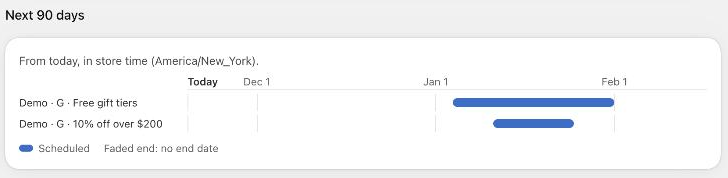
A timeline of the coming 90 days, from today, in store time. Each switched-on campaign is a bar from its start to its end (blue for scheduled, green for live, yellow for paused). A campaign without an end date fades out at the right. Drafts aren't shown. Use it to spot gaps and overlaps between promotions.
Activity
The Activity button in the header opens alerts (repeat gifts, refunds below the goal) and the log of every change. See Activity, alerts and refunds.