
Wrong time or time zone
Fix a timer that ends, opens or appears at the wrong hour. See which time zone each setting uses, how to check it in the preview, and how to correct it.
When a timer ends, opens or appears at the wrong hour, the cause is usually a time zone. The app does not ask you for a time zone. It reads the times you type in the time zone of your browser, which is usually your computer's clock. This page shows which setting uses which clock, how to check your times before you publish, and how to fix them.
Where to find it: Oxify Countdown → your timer → Content tab → Timing and Publishing
Which time zone each setting uses
| Setting | Read in | What every shopper sees |
|---|---|---|
| Ends At on a Countdown to a date timer | The time zone of the browser you set it in. The app saves one exact moment | The countdown reaches zero at that same moment, wherever the shopper is |
| Publish at and Unpublish at | The time zone of the browser you set them in. Saved as exact moments | The timer appears and disappears at those same moments |
| Daily Starts Time, Daily Ends Time and Repeats On | The time zone saved with the timer. It is the zone of the browser where you last changed a time | The window opens and closes at the same moment for everyone. Monday means Monday in that zone |
| Start date and End date of a sales popup | UTC | A shopper far from UTC sees the popup start and end a few hours from their own midnight |
| The clock that counts down | The shopper's device clock | A device with the wrong date or time shows the wrong time left |
A countdown reaches zero at one exact moment for everyone, but each shopper reads that moment on their own watch. A sale that ends at 11:59 PM in your time zone ends at a different clock time for a shopper in another country.
Check your time before you publish
The preview in the editor counts down to the time you entered, so it shows whether the time is right.
Open the timer and go to the Content tab. Set Ends At to a time later today, for example 6:00 PM.
Look at the preview. At 10:00 AM it should show about 8 hours. If it shows something else, the browser's time zone is not the one you expect.
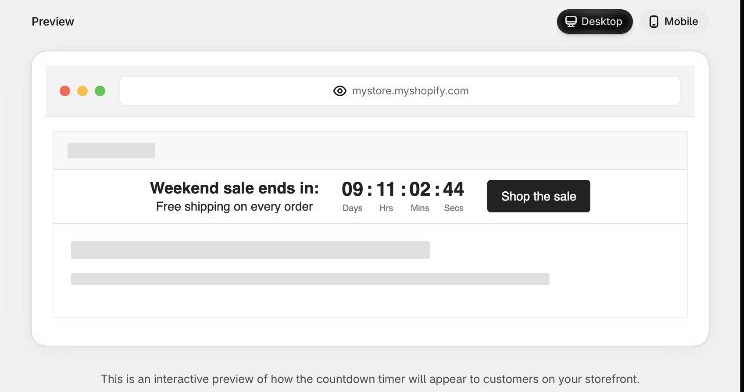
Set the real time and date. The preview shows the time left until then. Check that it matches what you expect from your own clock.
For a Daily recurring timer, the preview follows the same rules as your store. During the window it counts down to Daily Ends Time. Before it, it counts down to Daily Starts Time. See Daily recurring timer.
The timer ends at the wrong hour
Countdown to a date. If you set Ends At on a computer set to another time zone, the timer ends at that zone's clock time. For example, your store is in Dubai, and a teammate in India sets Ends At to Sunday 11:59 PM on their laptop. The countdown reaches zero at 11:59 PM India time. That is 10:29 PM on Sunday in Dubai, so a shopper in Dubai sees the sale end an hour and a half early.
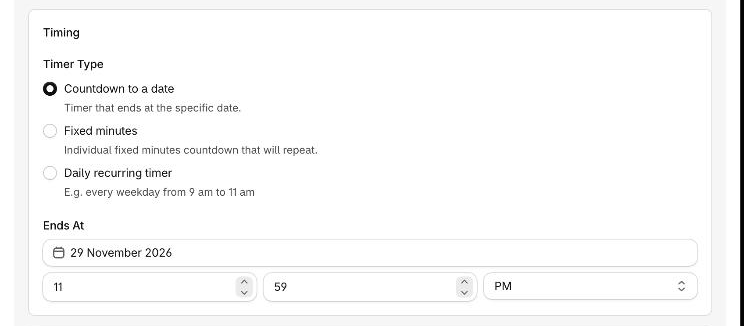
Opening the timer from another computer. The editor shows the saved moment in the time zone of the browser you are using now. Open a timer from a computer in another zone and the same Ends At shows a different clock time. The timer itself has not changed, and saving other changes, such as the title, leaves the moment as it was. If you change the date or the time from there, the new value is read in that zone.
A daily window opens at the wrong hour or day
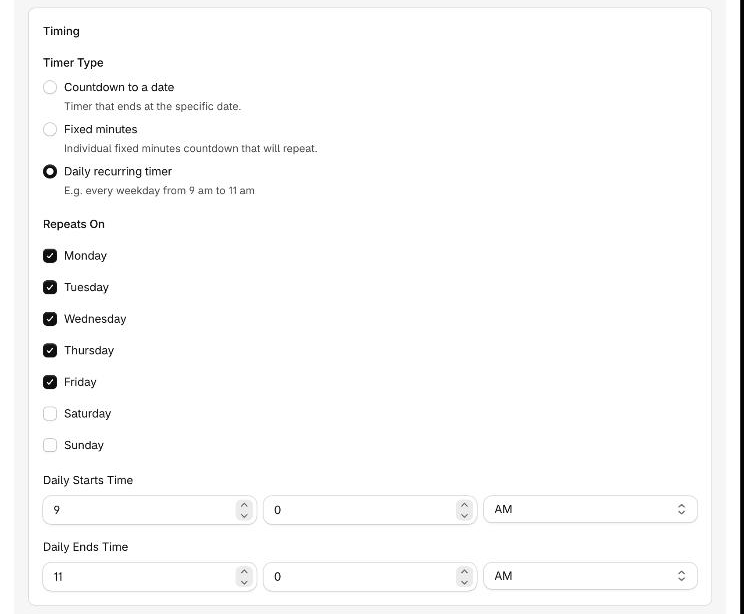
The hours and the ticked days of a Daily recurring timer follow the time zone saved with the timer. A shopper in another country sees the window open and close at the same moment you set. If it is still Monday in the saved zone and already Tuesday where the shopper is, the timer follows Monday.
- A window belongs to the day it starts on. A window from 10 PM to 2 AM that you tick for Friday runs from Friday 10 PM to Saturday 2 AM.
- Changing a time changes the saved zone. Each time you edit Daily Starts Time or Daily Ends Time, the app saves the zone of the browser you are using. If you edit one time from a computer in another zone, check both times afterwards.
- Older timers may have no saved zone. A timer made before the app saved a zone reads its window in each shopper's own time zone. Change each daily time to another value and back, so the app saves a zone.
- Daylight saving time is handled. The window keeps the same hours on the clock when the clocks change. Ends At is one exact moment, so a clock change does not move it.
A scheduled timer appears at the wrong hour
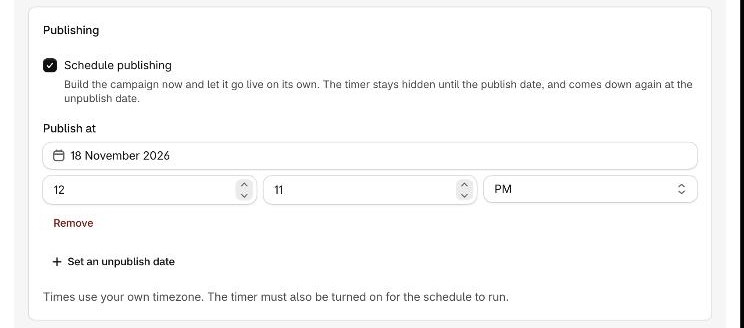
Publish at and Unpublish at are exact moments, set in the time zone of your browser. The card says so: Times use your own timezone. The dashboard works out Scheduled and Ended from the same moments, so reload the dashboard to see a change. See Schedule publishing.
A sales popup starts or stops at the wrong hour
A sales popup's Start date and End date are whole days in UTC. The popup shows from the start of the Start date to the end of the End date, in UTC. In India, a popup with the Start date 10 November and the End date 12 November runs from 5:30 AM on 10 November to 5:30 AM on 13 November. Plan the dates with that in mind. See Popup scheduling and frequency.
The shopper's clock is wrong
The countdown, and the publish dates, are checked against the clock of the shopper's own device. The app has no clock of its own on your storefront. A shopper whose device has the wrong date or time sees the wrong time left, and a scheduled timer can appear or disappear at the wrong moment for them. You cannot fix this from the app.
Fix it
Set your computer to the time zone you want your times in, or use a computer that already has it. Reload the app.
Open the timer and enter the time again: Ends At, Publish at, Unpublish at, or both daily times.
Compare the preview with what you expect. Then click Save.
If you cannot change your computer's time zone, enter the time that matches in your own zone. Use the preview to check the time left. For example, to end at 11:59 PM Dubai time while your computer is set to India time, enter 1:29 AM on the next day.
Nothing in the app shows the saved time zone
The editor does not display the time zone of a timer. The preview is the best check, because it counts to the same moment your storefront does.