
Add the timer to your theme
A published timer shows nothing until its app block is in your theme. Add the block, pick the timer, save the theme and check the In theme column.
Publishing a timer turns it on in the app. It does not put it on a page. To show a timer, you add the Oxify Countdown Timer app block to your theme and choose which timer the block shows.
An app block is a piece of your theme that an app supplies. Think of it as an empty frame. You hang the frame where you want the timer to appear, then pick the timer that goes in it.
Where to find it: Oxify Countdown → timers list → In theme → Not added, or timer editor → Not added in theme. Then Online Store → Themes → Customize in your Shopify admin.
What a timer needs before shoppers see it
A timer shows on your store only when all of these are true:
- The app embed is on. See Enable the app embed.
- The timer is turned on: its switch is on and its status is Published. See Preview and publish.
- The timer is in your theme: an Oxify Countdown Timer block with this timer selected, in your live theme, and the theme is saved. This page covers it.
- The timer's Placement and Market targeting match the page and the shopper, and the countdown has not ended.
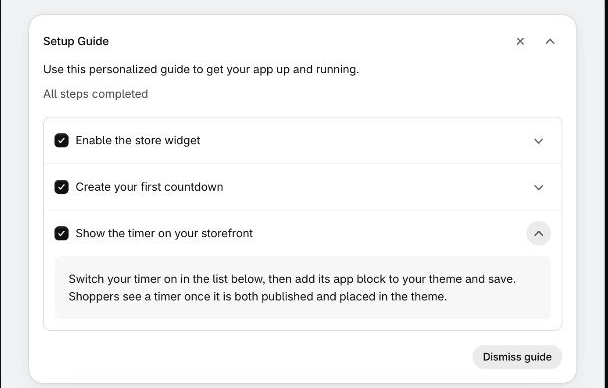
The third step of the Setup Guide on your dashboard, Show the timer on your storefront, says the same thing.
Add the block from the app
This is the quickest way. The app opens the theme editor for you with the block already added.
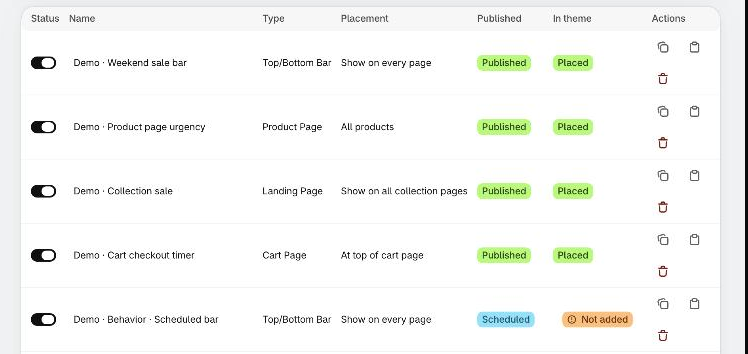
Open the app. In the timers list, click Not added in the In theme column of your timer's row.
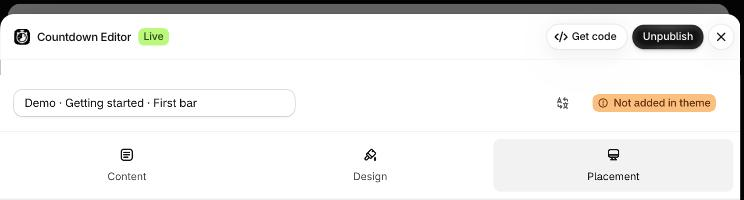
You can also open the timer and click the Not added in theme badge beside its name. The badge is not shown on a timer you have not saved yet, so save or publish first. While the app checks your theme, the badge reads Add to theme.
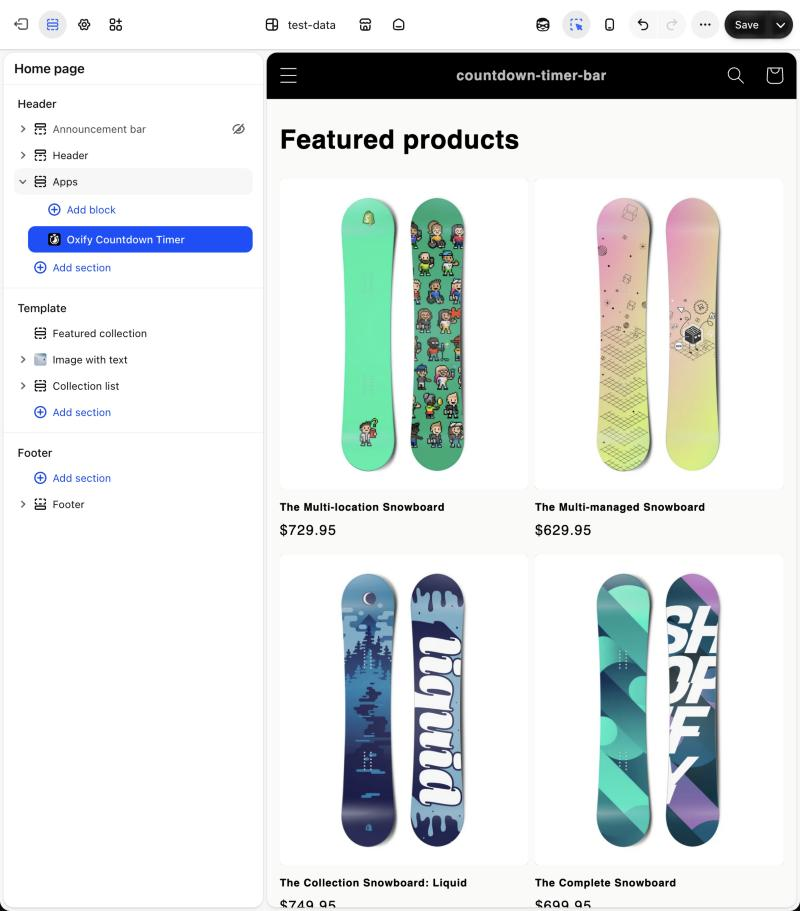
The theme editor opens in a new browser tab, on the page that fits your timer type, with the Oxify Countdown Timer block already added. The table below says where. If nothing opens, your browser may be blocking the new tab. Allow pop-ups for your Shopify admin and try again.
Select the block. Next to Select Countdown Timer, click Select and pick your timer from the list. The list shows your timers by name, and you can search it.
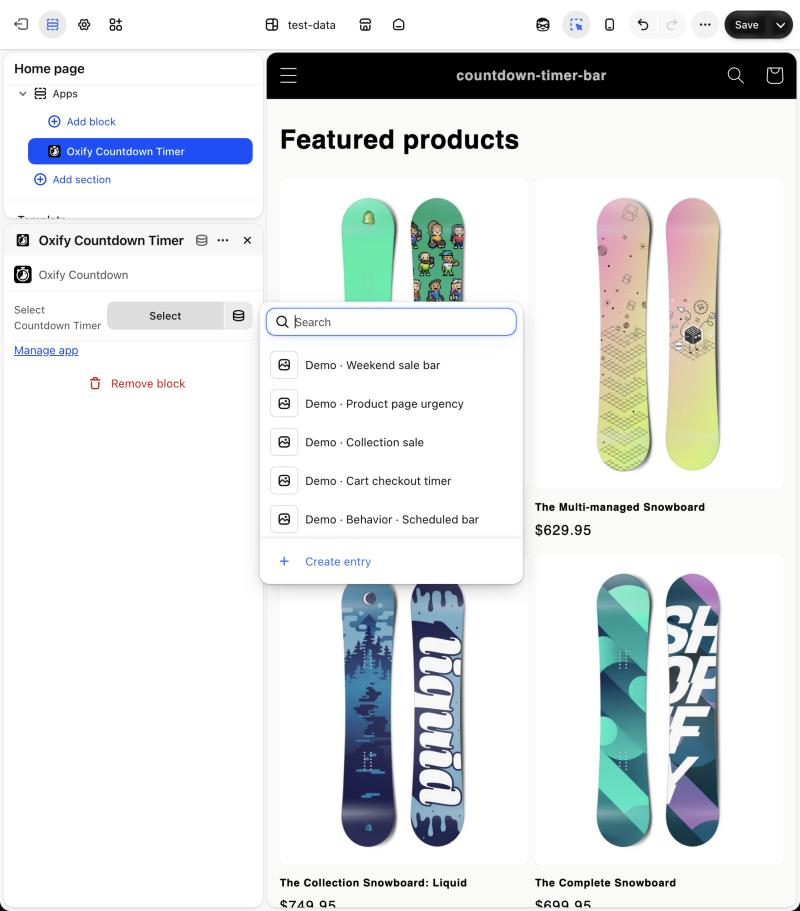
Do not use Create entry at the bottom of the list. Create timers in the app.
Check the preview. The timer shows in the page once you have picked it.
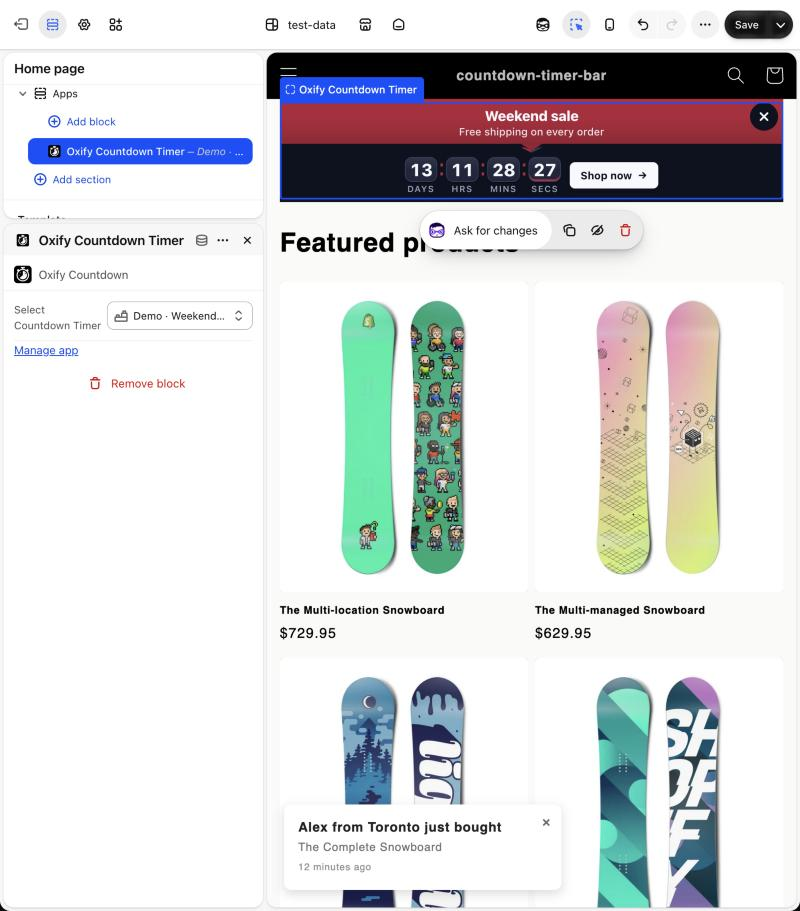
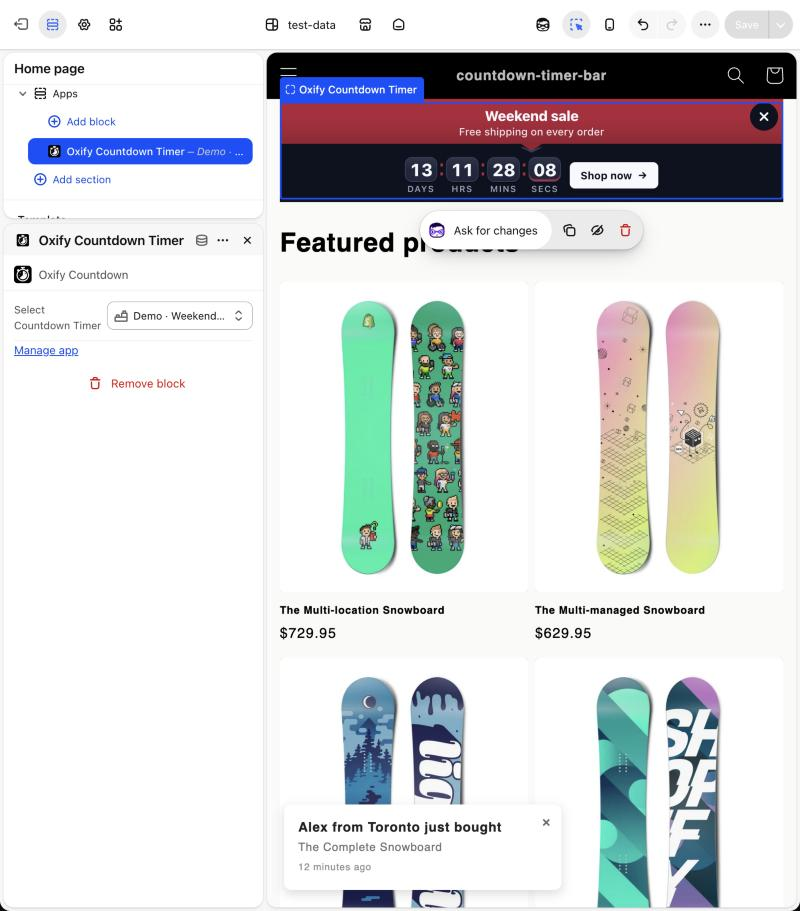
Click Save at the top right of the theme editor. The button turns grey when everything is saved.
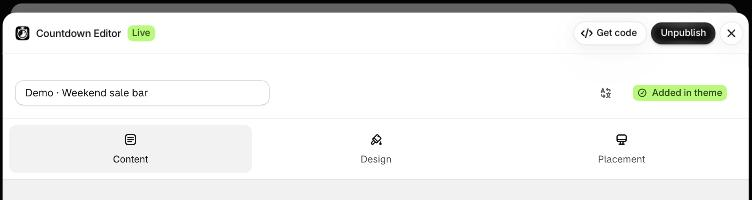
Go back to the app tab. The In theme cell now says Placed, and the badge in the timer editor says Added in theme.
Where each timer type goes
The link opens the theme editor on a page that fits the timer type and adds the block there. You can move the block afterwards.
| Timer type | The theme editor opens | Where the block is added |
|---|---|---|
| Top/Bottom Bar | Your Home page template | A new Apps section in the Header group, above the page content. |
| Product Page | Your Product template | The end of the page's main section, Product information. |
| Cart Page | Your Cart template | The cart page. In the test theme, a new Apps section after Subtotal. |
| Landing Page | Your Collection template, for the collection page choices | A new Apps section on the template. In the test theme, you add it yourself. |
Themes are built differently, so your editor may look different. The pictures below come from one test theme.
The block goes into the Header group, which sits above the page content, so the bar shows at the top of every page. The steps above are for a bar.
To show a bar at the bottom of the page, add the block to the Footer group yourself: use Add section in the Footer group, choose Apps, then Oxify Countdown Timer. A new bar has no top or bottom setting of its own. Its place is the section you put the block in. See Positioning and sticky bar.
Which pages the bar shows on is a separate setting, Placement. See Top/Bottom bar placement.
Add the block yourself
You can add the block without the app's link, on any page.
In your Shopify admin, go to Online Store → Themes and click Customize on your live theme.
Use the page picker at the top to open the page where the timer should show.
In the left panel, click Add section, open the Apps tab and choose Oxify Countdown Timer. To add the block inside a section that already has blocks, click Add block in that section instead.
Select the block. Next to Select Countdown Timer, click Select and pick your timer.
Drag the block or its section where you want it, then click Save.
The block can go on any page and in the Header and Footer groups. The timer's Placement settings still decide which pages it shows on. A timer set to Show on home page only stays hidden on every other page, even if a block is there.
Save the theme
The theme editor only changes your live store when you click Save. Two things matter:
- The block must be saved. A block you added but did not save does not count.
- The theme must be live. The app checks your published theme. A block in a draft theme shows as Not added until that theme is published.
Check that it worked
| Where | You see | What it means |
|---|---|---|
| In theme column of the timers list | Placed | Your live theme has an Oxify Countdown Timer block with this timer selected. |
| Not added | It does not. Click it to open the theme editor with the block ready. | |
| Badge beside the name in the timer editor | Added in theme | The same as Placed. |
| Not added in theme | The same as Not added. Click it to open the theme editor. | |
| Add to theme | The app is still checking, or could not check. | |
| App blocks on the Theme extension card | Active and a number | How many app blocks your live theme has. It counts blocks, not timers. |
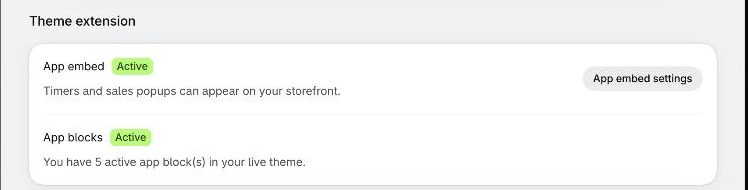
The app checks again each time you come back to its tab. If Not added stays, reload the page and check that you saved the theme and that the block has a timer selected. A block with no timer selected does not count.
You can use the same timer in more than one block. Each block shows the timer on its own page.
Remove a timer from your theme
Open the theme editor and select the Oxify Countdown Timer block.
Click Remove block, then click Save.
The timer still exists in the app. Its row goes back to Not added. If you only want to stop a timer for a while, turn its switch off in the timers list instead. See Manage your timers.
An older timer that still uses Automatic placement shows without a block. When you add its block to the theme, the app turns Automatic placement off. See Automatic placement.
Get code does not add the timer to your theme
The Get code button in the timer editor copies a one-line piece of HTML to your clipboard and shows Timer code snippet copied to clipboard! The snippet does not place the timer: pasting it into your theme does not show a timer. To add a timer to your theme, use the steps on this page. See Custom position for the details.
If the timer is in the theme but does not show
Check these in order:
- App embed on the dashboard says Inactive.
- The timer's row says Unpublished, Scheduled or Ended.
- You did not save the theme, or you saved a draft theme and not the live one.
- The block has no timer selected.
- The timer's Placement does not include the page you are looking at, or Market targeting does not include your market.
- The countdown has ended and Once Timer Ends hides the timer.
For the full list, see Timer not showing. If the timer shows in the wrong place, see Timer in the wrong place.