
Cart checkout timer
Add a 15-minute countdown message to the top of your cart page. Learn the timer placeholder, the safe end action, and why to avoid the delete option.
In this recipe you add a message to the top of your cart page with a countdown inside it, such as "Your cart is reserved for 14:59". Use it to nudge shoppers from the cart to checkout.
Where to find it: Oxify Countdown → Create timer → Cart Page
What you'll build
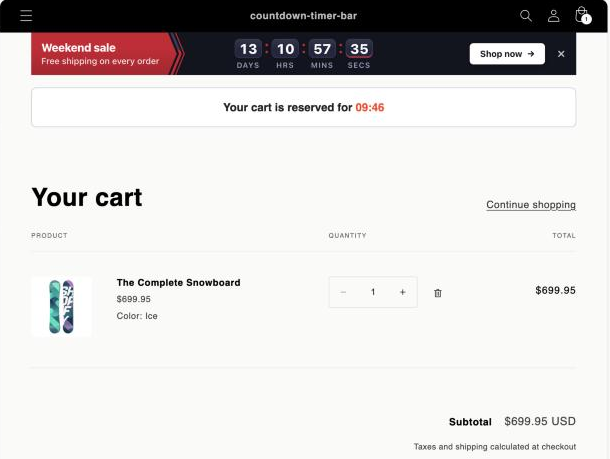
On a computer the message sits in a box above the cart. The clock is in red, inside your sentence. The sale bar above it is a different timer.
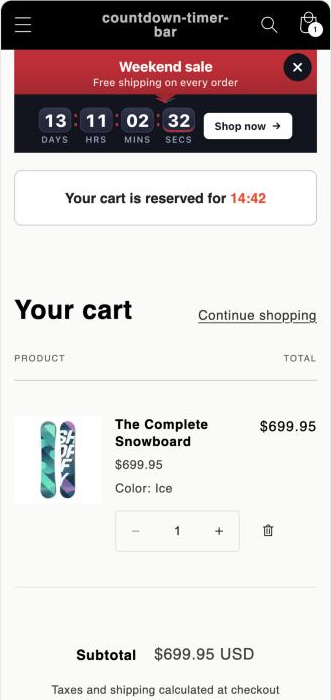
On a phone the box sits above the items in the same way.
Before you start
Check that the app embed is on. It is the master switch for every timer. See Enable the app embed.
How a cart page timer differs
- The clock lives inside your title. You write the sentence and type
{timer}where the clock should go. If you leave{timer}out, shoppers see your words but no clock. The clock shows minutes and seconds. - There is no Timing card. The countdown is fixed at 15 minutes and you can't change it in the editor. Each shopper has their own clock, as with Fixed minutes.
- It has no subheading, button or close button. Only the title.
The timer is a message, not a reservation
The timer counts down and runs the end action you choose. It does not hold stock for the shopper. Use words you can stand behind, such as Complete your order in {timer}.
Settings at a glance
Use these values as they are, or swap in your own words.
| Where in the editor | Field | Value |
|---|---|---|
| Create timer | Timer type | Cart Page |
| Name box at the top | Timer name | Cart checkout timer |
| Content tab → Template | Template | Default layout, as it starts |
| Content tab → Content | Title | Your cart is reserved for {timer} |
| Content tab → Timing | None. A cart page timer has no Timing card | |
| Content tab → When it ends | Once Timer Ends | Hide Timer From User |
| Placement tab → Select pages to display the timer | At top of cart page | |
| Placement tab → Market targeting | Whole World |
Build the timer
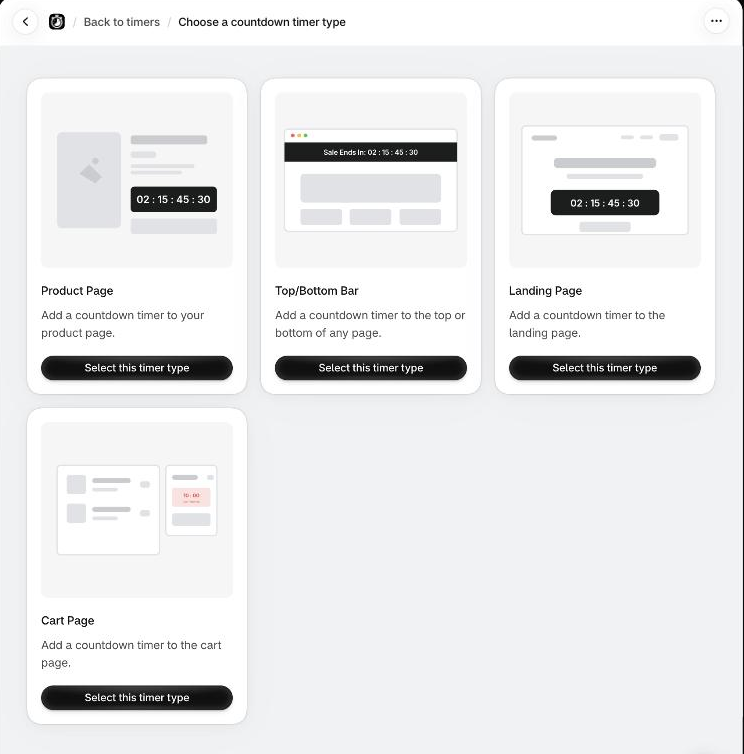
Create the timer. In the app, click Create timer. On Choose a countdown timer type, click Select this timer type under Cart Page. The Countdown Editor opens in a window over the page. See Choose a timer type and Cart page timer.
Name it. Select the text in the name box at the top of the editor and type Cart checkout timer. The name is only for your timer list. Shoppers never see it.
Keep the default layout. The Template card on the Content tab starts on Default layout. Leave it for this recipe. For a seasonal look, see "Make it your own" below.
Write the title. In the Content card, replace the Title with Your cart is reserved for {timer}. Type {timer} exactly as shown, with the curly braces. It marks where the clock goes. The help text under the box says the same. See Title and subheading.
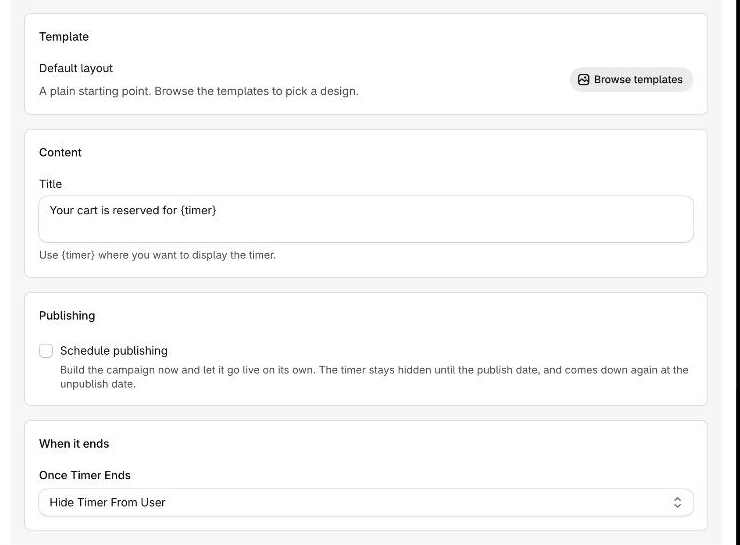
The preview at the top of the editor replaces the placeholder with the running clock, in red.
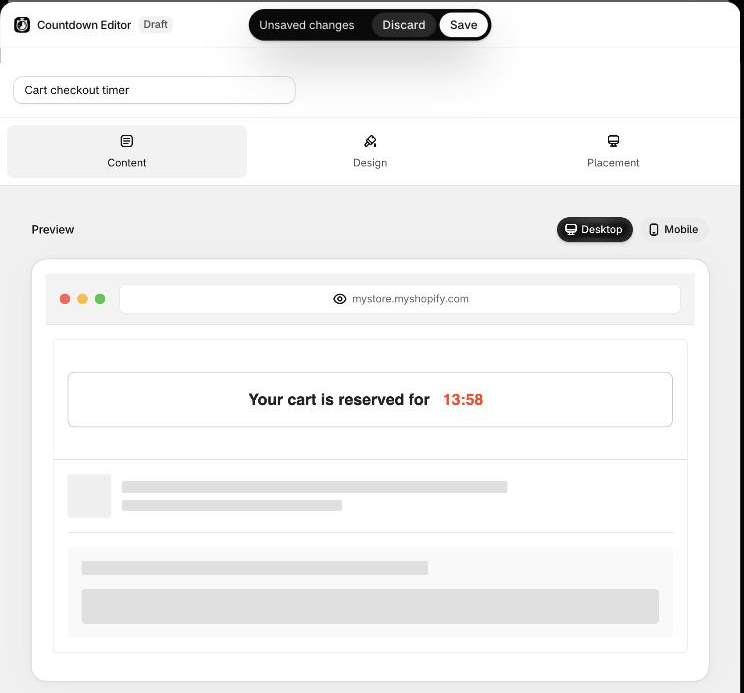
Choose what happens at zero. Scroll to the When it ends card. Once Timer Ends has three choices for a cart page timer. Keep Hide Timer From User. See Once the timer ends.
| Choice | What the shopper sees at zero | Use it when |
|---|---|---|
| Repeat Countdown | The clock starts again from 15:00 | You want a gentle nudge and no deadline |
| Hide Timer From User | The message goes away and stays hidden in that shopper's browser | You want a real deadline and nothing else to happen. Best for a real shop |
| Delete All the items in the cart | The shopper's cart is emptied | Almost never. Read the warning below |
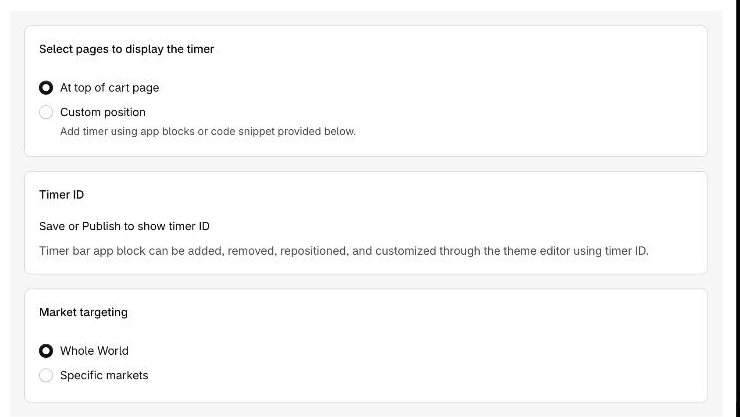
Choose where the timer shows. Open the Placement tab. Under Select pages to display the timer, keep At top of cart page. Keep Market targeting on Whole World. See Cart page placement and Market targeting.
Save to publish. Click Save in the Unsaved changes bar at the top of the editor. A new timer is published by its first save, so the badge next to Countdown Editor changes from Draft to Live. The timer is on in the app, but it is not on the cart page yet. See Preview and publish.
Add the timer to your theme. Publishing does not put the timer on a page. You place it with the Oxify Countdown Timer app block. Click the Not added in theme badge beside the timer name. The theme editor opens in a new browser tab on your Cart template.
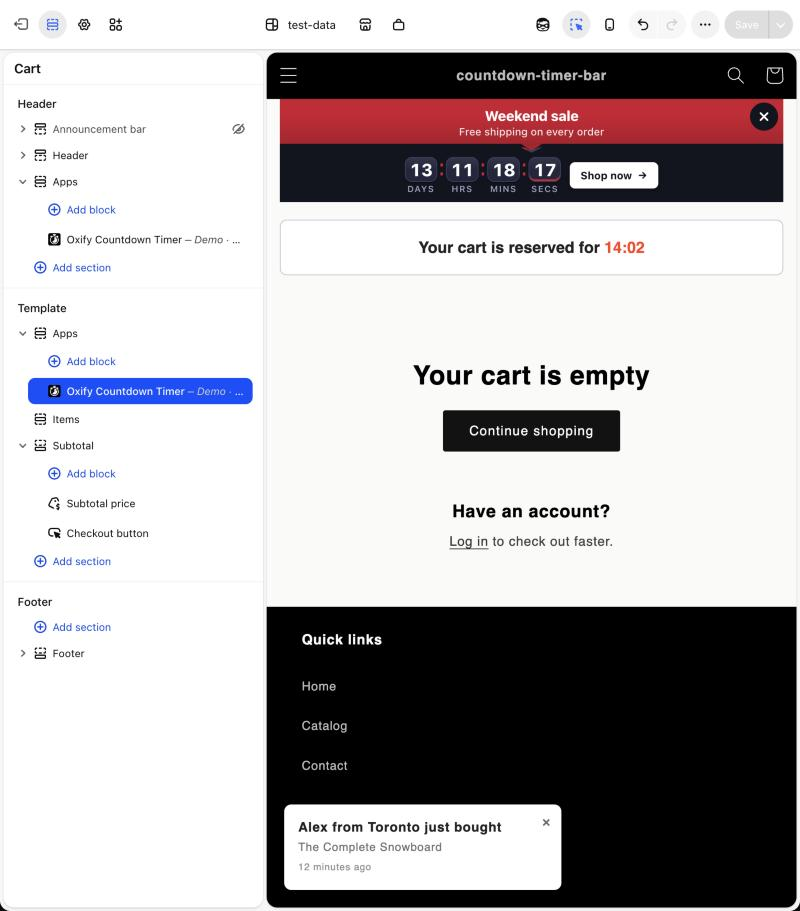
In our test theme the cart template has no main section to hold the block, so the theme editor added a new Apps section after Subtotal. Your theme may differ.
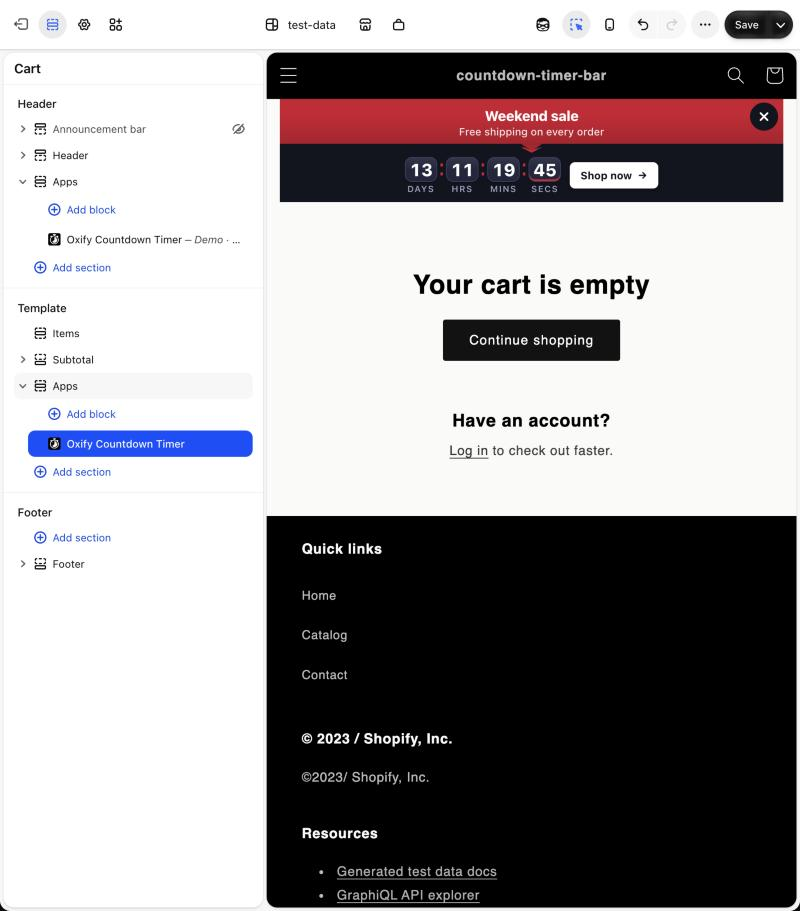
Click the block in the left panel. Next to Select Countdown Timer, click Select and pick Cart checkout timer. The message shows in the preview.
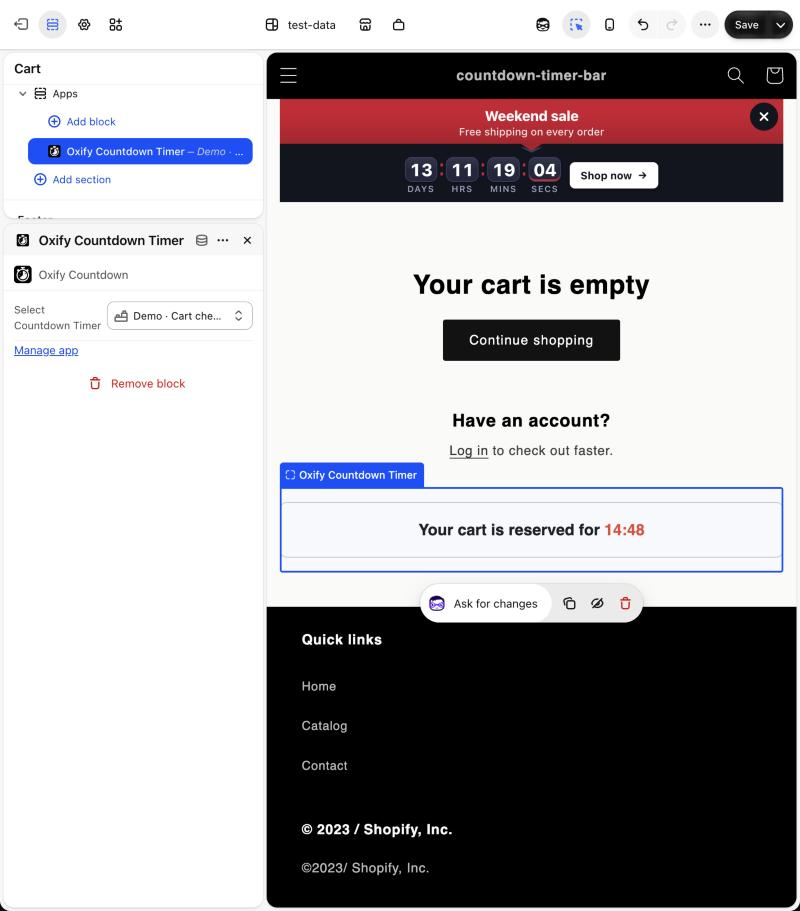
A section added this way sits at the bottom of the cart. To put the timer at the top, drag the Apps section above Items in the left panel. Then click Save at the top right of the theme editor. The full steps are in Add the timer to your theme.
Do not pick Delete All the items in the cart by accident
This choice empties the shopper's cart when the clock reaches zero while they are on the cart page. A shopper who loses a full cart seldom builds it again. Pick it only if your title says it will happen and you give shoppers enough minutes to check out. For almost every shop, Hide Timer From User is the safe choice.

Check it on your store
A timer reaches shoppers only when all of these are true: the app embed is on, the timer is Published, and its app block is saved in your live theme with the timer selected.
In the app, look at the timers list. The row for Cart checkout timer should show Published and Placed in the In theme column.
Open your store in a private browser window. A private window starts with no saved data, so you see a new shopper's clock. If your store is still password protected, you see the password page first.
Add a product to the cart, then open the cart page.
Look at the top of the cart. Your message is there with a red clock counting down from 15 minutes. Reload the page and the clock carries on from where it was.
Make it your own
- Change the words. Any sentence works if it contains
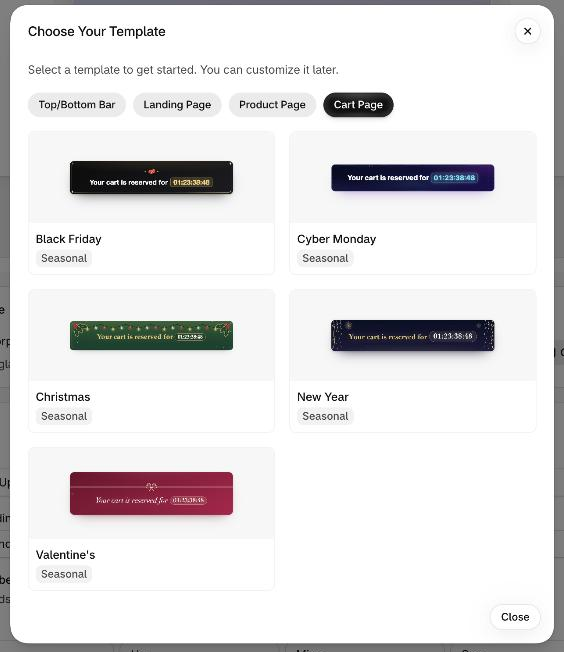
{timer}. For exampleComplete your order in {timer}orHurry, check out in {timer}!. If you sell in more than one language, keep{timer}in every translation. See Translate timer text. - Try a seasonal look. Click Browse templates in the Template card. For a cart page timer the gallery offers Black Friday, Cyber Monday, Christmas, New Year and Valentine's.
- Keep the clock on screen. Set Once Timer Ends to Repeat Countdown. The clock starts again from 15:00 every time it reaches zero, so there is no real deadline.
- Show it in some markets only. On the Placement tab, choose Specific markets under Market targeting and pick the markets.
- Change the text size and colors. Open the Design tab. The cart timer has Title and Timer rows in the Typography card. See Typography.
This is the gallery for a cart page timer:
If it doesn't show
Work through these first, then read Timer not showing.
- The app embed is off. On the dashboard, the Theme extension card shows App embed as Inactive. Turn it on, as in Enable the app embed.
- The timer is off. Its switch in the timers list is off, or its status is not Published.
- The block is not saved. The row says Not added, or the block has no timer selected. The block must be on the Cart template.
- The title has no placeholder. Without
{timer}in the Title, you see your words but no clock. - The clock ran out. With Hide Timer From User, the message stays hidden in that browser after it reaches zero. Use a new private window.
- Your market is not included. If Market targeting is set to Specific markets, view your store from one of those markets.