
Show or hide a timer with Shopify Flow
Use the Show countdown timer and Hide countdown timer actions in Shopify Flow to turn a countdown timer on or off from a workflow, by its name.
Shopify Flow is Shopify's app for automating tasks. You pick something that happens in your store, called a trigger, and Flow runs the steps you add after it. Oxify Countdown adds two actions to Flow: Show countdown timer and Hide countdown timer. Use them to turn a timer on or off without opening the app. For example, hide a "last chance" timer when a product sells out.
Where to find it: Shopify admin → Apps → Flow → Create workflow → Action → Show countdown timer or Hide countdown timer
What the actions do
| Action | What it does |
|---|---|
| Show countdown timer | Turns the timer on, so it can show on your storefront. It is the same as switching the timer on in your timer list. The action's own description reads Publish a countdown timer so it shows on your storefront. |
| Hide countdown timer | Turns the timer off, so it no longer shows. It is the same as switching the timer off in your timer list. The description reads Unpublish a countdown timer so it no longer shows on your storefront. |
Both actions have one field:
| Field | What to enter |
|---|---|
| Timer name (required) | The timer's name as it appears in the app. Not case-sensitive |
Copy the name from the Name column of your timer list on Oxify Countdown → Home.
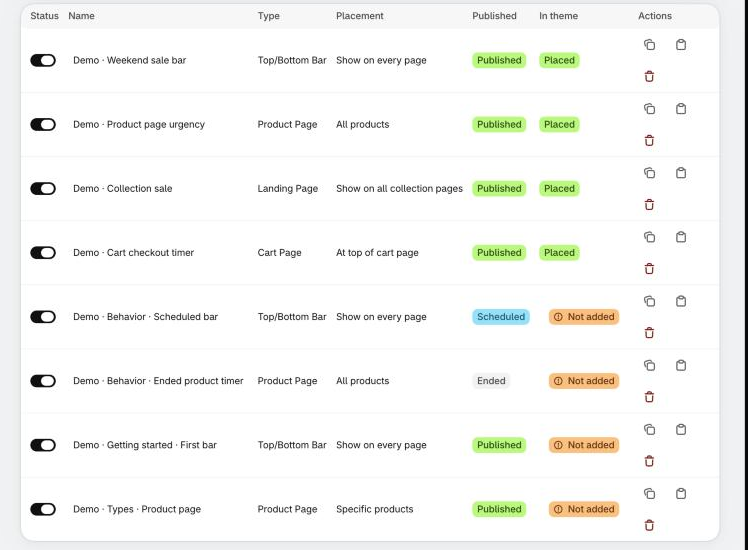
Flow finds the timer by its name. Capital letters and spaces at the start and the end don't matter. The rest of the name has to match all the way through, so Weekend sale doesn't find a timer named Weekend sale bar.
The actions change only whether the timer is on. Its text, design, dates, targeting and translations stay as you saved them, and so does its place in your theme.
What the actions don't do
- They don't place the timer in your theme and don't turn on the app embed.
- They don't create, edit, copy or delete a timer.
- They don't change the dates in Schedule publishing.
- They don't touch sales popups. The app has no Flow action for popups.
- They don't send anything back to the next step in your workflow.
Before you start
- Shopify Flow is installed. It appears in your Shopify admin under Apps. If it isn't there, install it from the Shopify App Store.
- The app embed is on. See Enable the app embed.
- The timer already exists and is placed in your theme. On the Home page, its In theme column says Placed. Show countdown timer only turns a timer on. It can't add the timer's app block to your theme. See Add the timer to your theme.
- Each timer has its own name. If two timers share a name, Flow stops with an error. A copy you make with the duplicate button in your timer list gets (copy) added to its name. Make a second copy of the same timer and both copies have the same name, so rename the ones you keep.
Example: hide a timer when a product sells out
This is an example
This workflow only shows how the pieces fit together. The app doesn't create it for you. Change the trigger, the condition and the timer name to suit your store.
Say you run a timer named Last chance sale for a product with limited stock. When the last unit sells, you want the timer to disappear on its own.
In your Shopify admin, open Apps → Flow and click Create workflow.
Click Select a trigger and choose Product variant out of stock.
Add a Condition that checks it is the right product. This trigger runs for every variant in your store, so without a condition the timer would hide when anything sells out.
On the condition's True path, add an Action and choose Hide countdown timer.
In Timer name, type Last chance sale, exactly as it appears in your timer list.
Click Turn on workflow.
To bring the timer back when the product is restocked, make a second workflow with the trigger Product variant back in stock and the action Show countdown timer, with the same Timer name.
For fixed dates, use Schedule publishing
If you only want a timer to switch on or off at a set date and time, use Schedule publishing in the app. It doesn't need Flow. Flow helps when something else decides, such as stock or an order.
What happens when the workflow runs
When it works, the timer's on or off setting changes and the step succeeds. The app also updates the copy of the timer that your storefront reads, as it does when you use the switch in the timer list.
When it can't do what you asked, Flow shows a short message and the timer stays as it was.
| Message in Flow | What happened | What to do |
|---|---|---|
| Enter the name of the countdown timer. | Timer name is empty, or has only spaces | Type the timer's name |
| No countdown timer is named "…". | No timer in your store has that name. The name may differ, or the timer was renamed or deleted | Copy the name from the Name column of your timer list and paste it into Timer name |
| More than one countdown timer is named "…". Give each one a different name. | Two or more timers have the same name, so Flow can't tell which one you mean. It changes none of them | Rename all but one in the app |
| Countdown timer "…" can't be shown: … | Show countdown timer only. The timer has a setting the app wouldn't let you turn on. The end of the message says which | See the next table |
| Timer saved, but it may not appear on the storefront yet. or Failed to save timer | A temporary problem saving the change or updating the copy your storefront reads | Flow tries again on its own. If the timer still hasn't changed, use the switch in your timer list |
The first four messages are not retried, because trying again would give the same answer. Hide countdown timer never shows the fourth message. It has no such check.
When Show countdown timer says it can't show a timer
The app runs the same check as when you switch a timer on in the list. The end of the message tells you what to fix. Open the timer in the app, fix it, click Save, then run the workflow again.
| The message ends with | What to fix |
|---|---|
| End date/time must be in the future. | The countdown's Ends At has already passed. Pick a later date |
| End date/time is invalid. | Pick the Ends At date again |
| Select at least one day for the recurring timer. | Tick at least one day under Repeats On |
| Select at least one market, or show the timer to the whole world. | Under Market targeting, pick a market or choose Whole World |
| Unpublish date/time must be in the future. | The Unpublish at date in Schedule publishing has passed. Pick a later date or remove it |
| Unpublish date/time must be after the publish date/time. | Move Unpublish at after Publish at |
| Publish date/time is invalid. or Unpublish date/time is invalid. | Pick the date again |
If the step worked but the timer isn't on your storefront
Show countdown timer turns the timer on. A shopper sees it only when the app embed is on, the timer is placed in your theme, the timer's targeting matches the page and the countdown hasn't ended (unless Once Timer Ends keeps a message on screen). In your timer list, the Published column should say Published. Scheduled and Ended mean the dates in Schedule publishing are keeping it hidden. See Timer not showing.
About the steps in Flow
The steps for building a workflow come from Shopify's Flow help, and this page has no pictures of Flow's own screens. What the two actions do comes from the app itself. If a button in Flow is named a little differently, look for the same step in Shopify's Flow help.
Related
- Manage your timers: the switch in the timer list does the same job by hand.
- Schedule publishing
- Use Sidekick with Oxify Countdown