
Timer differs between visitors
Why a timer shows a different time, or nothing, on another phone, browser or private window, and how to test as a new shopper.
Two shoppers, or you on two devices, can see different things from the same timer. Your timer is not broken. A few timer settings are remembered in the shopper's own browser, so each browser has its own clock and its own history. This page lists what is remembered, how long it lasts, and how to see your timer the way a new shopper does.
Where to find it: Oxify Countdown → your timer → Content tab → Timing, When it ends and Show close button
What each browser remembers
| What is remembered | Used by | How long | What resets it |
|---|---|---|---|
| The moment the shopper first saw the timer | Fixed minutes timers, and Cart Page timers, which are always Fixed minutes | With no time limit | You change the number of Fixed minutes, or the shopper clears site data |
| That the shopper closed a bar with its X | Top/Bottom Bar timers with Show close button | Up to 7 days | You change Ends At, Publish at or Unpublish at, or the shopper clears site data. A Daily recurring timer comes back the next day |
| How often a sales popup was shown, and whether it was closed | Sales popups | As each popup's settings say | See Popup scheduling and frequency |
A Countdown to a date timer and a Daily recurring timer keep no clock in the browser. Every shopper sees the same moment of ending, and the same daily window. Only a closed bar is remembered, as in the second row.
Browsers keep this memory separately for each web address. A shopper who opens your store at your own domain and at its myshopify.com address has two separate memories. A private window starts with none, and forgets everything when it closes.
Fixed minutes is a clock for each browser
A Fixed minutes timer starts counting the first time a browser shows it. The browser saves that moment. From then on:
- On the next page and after a reload, the countdown carries on from where it was.
- In another browser, on another device or in a private window, a new, full countdown starts.
- When the countdown ends, Once Timer Ends decides what that browser sees. Repeat Countdown starts it again. Hide Timer From User hides it in that browser from then on. Show Custom Title and Do Nothing leave it at zero.
- When you change the number of minutes, every browser starts a fresh run on its next visit.
So two shoppers who arrive at different times see different times left, and a shopper whose run has ended can see nothing while everyone else still sees the timer.

If you want one deadline that is the same for everyone, use Countdown to a date. See Fixed minutes.
A closed bar stays closed
On a Top/Bottom Bar with Show close button, a shopper who clicks the X does not see that bar again in that browser for up to 7 days. That includes you, on your own store.
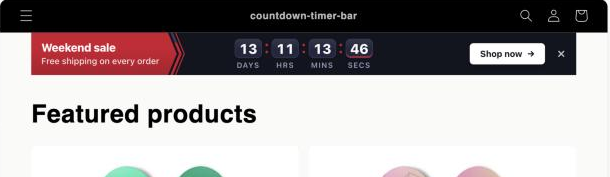
The bar comes back sooner when you start a new campaign on the same timer: change Ends At, Publish at or Unpublish at, and everyone who closed the old campaign sees it again. See Close button.
Things you may notice
| What you see | Why |
|---|---|
| Your bar is gone, but a colleague still sees it | You closed it in your browser |
| Your product timer shows 3 minutes left, and your phone shows 29 | Each browser started its own countdown |
| A timer disappeared for you after it reached zero, but others still see it | Its run ended in your browser, and Hide Timer From User is on |
| Every shopper's countdown started again after you edited the timer | You changed the number of Fixed minutes |
| The timer is full length every time in a private window | The window has no memory of an earlier visit |
See your timer as a new shopper
Open your store in a private window. It has no memory, so a fixed-minutes timer starts full and a closed bar is back. Close the window and open a new one to start over.
Or use another browser, or another device, that has never opened your store.
Or clear the site data for your store in your browser's settings. This resets the timer in that browser for good, so use it only when you want that.
The editor preview is not a shopper's clock
The preview in the timer editor does not use the memory above. A Fixed minutes preview counts down from the moment you opened the editor. Check the real clock on your storefront.
What you cannot do
The app does not show you any shopper's clock or history, and it has no button to reset one shopper. To restart every shopper's Fixed minutes countdown, change the number of minutes, for example from 30 to 31, and click Save. Each browser starts again from the new length on its next visit.