
Use Sidekick with Oxify Countdown
Ask Shopify's Sidekick to find your timers and popups, or to fill in a new one for you. You review it and press Save. What it can set and what it can't.
Sidekick is Shopify's AI assistant in your admin. Oxify Countdown works with it, so you can describe a timer or a sales popup in plain words. Sidekick finds the ones you already have, or opens the app's editor with a new one filled in. You review it and press Save. Sidekick never saves for you.
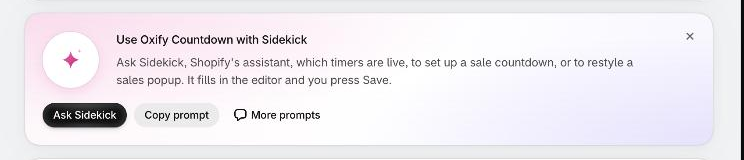
Where to find it: Oxify Countdown → Home → Use Oxify Countdown with Sidekick
You can also type in the Work with Sidekick bar at the bottom of any Shopify admin page. Ask about your countdown timers or sales popups, and Sidekick asks your permission to use this app.
Check what Sidekick writes
Sidekick is an AI assistant. It can misread a request or word something in a way you didn't mean, and shoppers read what it writes. Check the text, the dates and where the timer shows before you press Save.
What you can ask for
| You want to | Example | What Sidekick does | What happens next |
|---|---|---|---|
| Find timers or popups | Which of my countdown timers end this week? | Searches your timers and sales popups by name, wording, published or draft, and timer type | It answers in the chat. Nothing in your store changes |
| Create one | Create a top bar countdown timer for my weekend sale. | Opens the editor with a new timer or popup, filled in with what you described | You review it and press Save |
| Change one | Change the colors of my top bar timer to match my store. | Finds the timer or popup, opens it in the editor and applies the change | You review it and press Save |
Ask Sidekick from the Home page
Open Oxify Countdown → Home and find the card Use Oxify Countdown with Sidekick.
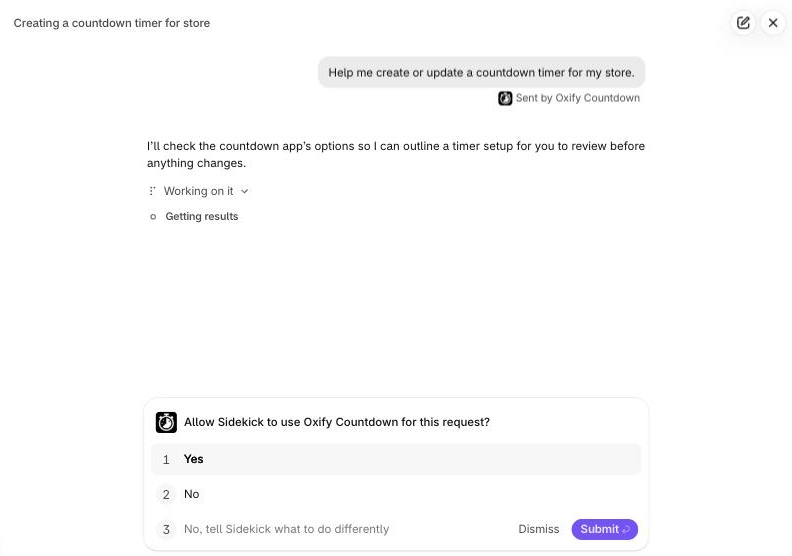
Click Ask Sidekick. Sidekick opens and sends this first message for you: Help me create or update a countdown timer for my store. The message is marked Sent by Oxify Countdown.
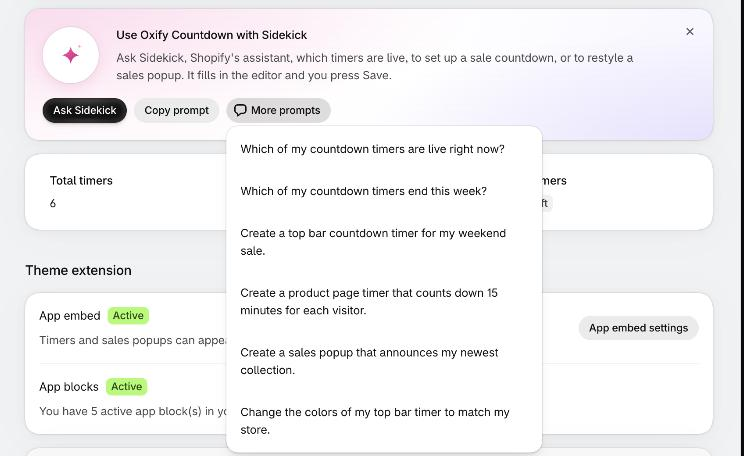
To start with something more specific, click More prompts and pick one. Sidekick opens and sends it.
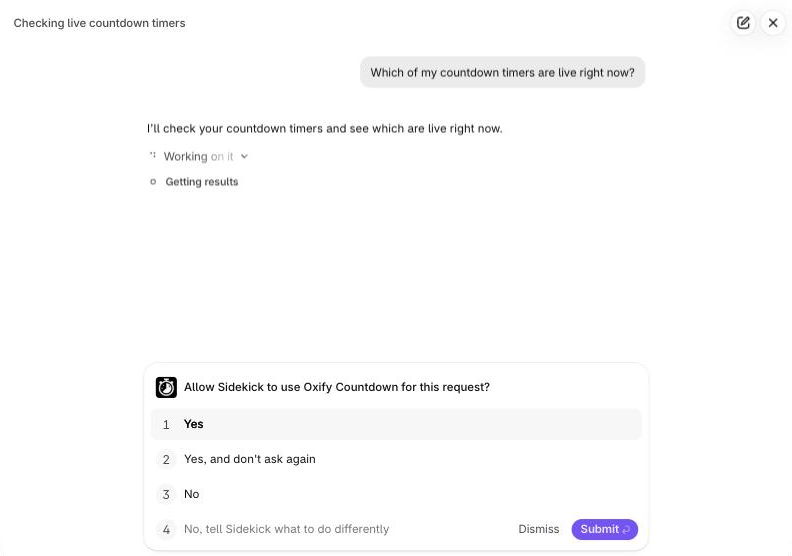
Sidekick asks Allow Sidekick to use Oxify Countdown for this request? Choose Yes.
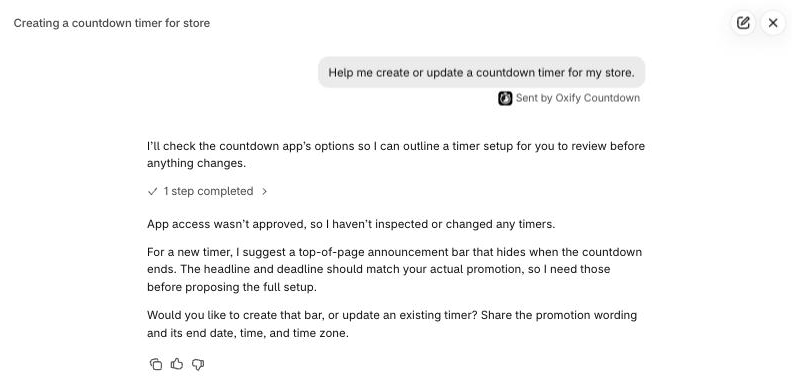
Answer Sidekick's questions. For a new timer, expect it to ask for the wording and the end date, time and time zone.
When you ask for a new or changed timer or popup, Sidekick opens the app's editor in a window, with your answers already filled in. Review it, then press Save. See Review and save.
The permission question
Sidekick asks this before it uses Oxify Countdown. Each choice does what it says:
| Choice | What it does |
|---|---|
| Yes | Sidekick can use Oxify Countdown for this request |
| Yes, and don't ask again | The same as Yes, and Sidekick doesn't ask you again. Sidekick offers this choice on some requests |
| No | Sidekick doesn't use the app |
| No, tell Sidekick what to do differently | You type what you'd like instead |
| Dismiss | Closes the question. Sidekick carries on without the app |
If you don't allow it, Sidekick can't look at or change your timers. It tells you so, answers in general terms, and asks what you want to create.
If you type in the Work with Sidekick bar instead, you get the same question.
The other buttons on the card
| Button | What it does |
|---|---|
| Ask Sidekick | Opens Sidekick and sends Help me create or update a countdown timer for my store. |
| Copy prompt | Copies that same sentence, so you can paste it into Sidekick yourself. A message says Prompt copied |
| More prompts | Lists six starting points. Click one to send it |
| The × in the corner | Hides the card for your whole store. The app then adds an Ask Sidekick button to the title bar at the top of the page |
The six starting points are:
- Which of my countdown timers are live right now?
- Which of my countdown timers end this week?
- Create a top bar countdown timer for my weekend sale.
- Create a product page timer that counts down 15 minutes for each visitor.
- Create a sales popup that announces my newest collection.
- Change the colors of my top bar timer to match my store.
The card only shows when Sidekick is available
The app shows the card and the Ask Sidekick button only when Shopify says Sidekick is available for your store. If you click Ask Sidekick and Sidekick can't open, the app shows Couldn't open Sidekick. Try again., or a more specific message from Shopify.
Review and save
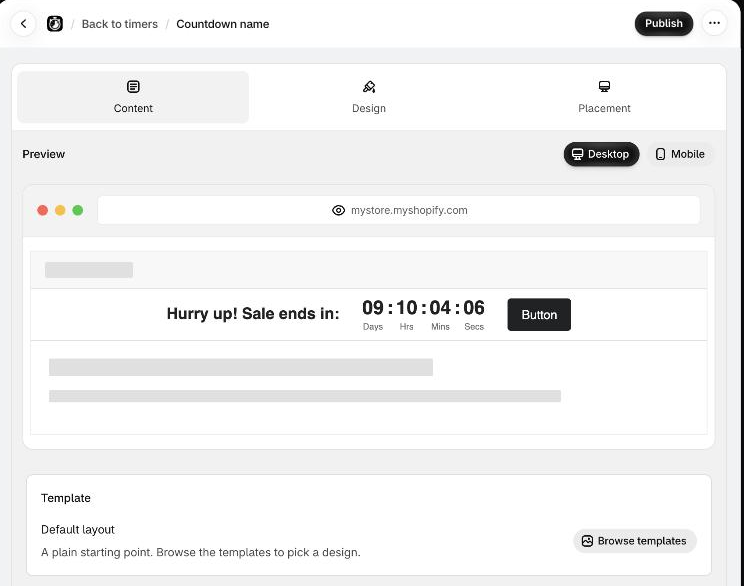
When the editor opens, Sidekick has already filled in what you asked for. It is the same timer editor you get from Create timer, with a few buttons missing (see below). The popup editor is the one you get from Sales Popups → Create Sales Popup.
When Sidekick opens a timer you already have, the title bar shows its name, with a Delete button and an Unpublish button. A timer that is off has Publish instead.
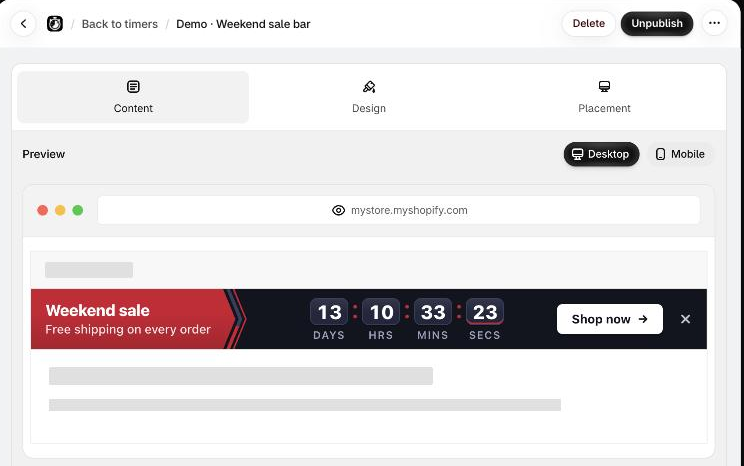
In a timer, look through the Content, Design and Placement tabs. In a popup, scroll through the cards. When something changed, a bar with Discard and Save appears at the top.
What each button does:
| Button | Timer | Sales popup |
|---|---|---|
| Save | A new timer is created and turned on. An existing timer is saved and stays as it was, on or off | A new popup is saved as Draft. An existing popup is saved and stays as it was |
| Publish or Unpublish | Saves your changes and turns the timer on (Publish) or off (Unpublish) | Publish saves and turns the popup on. It shows only on drafts |
| Discard | Throws away what Sidekick filled in | The same |
| Back to timers (Back in a popup) | Closes the editor without saving | The same |
When you save, the editor window closes and you are back in the Sidekick conversation.
A new timer goes live when you press Save
The first Save of a new timer also turns it on. A live timer you change goes live with the change when you save, because it was already on. A popup is different: a new popup stays a draft until you press Publish.
Delete has no confirmation here
On a timer you already have, Delete in the title bar removes the timer as soon as you click it. The app doesn't ask you to confirm. Don't click it unless you mean it.
What the Sidekick editor leaves out
The timer editor in Sidekick's window has no Timer name box, no Get code button and no Added in theme badge.
- The name: Sidekick sets it from your request, and it shows at the top of the editor. If you didn't give one, the timer is saved as Countdown name. Tell Sidekick what to call it, for example Call it Weekend sale bar.
- Placing the timer: a saved timer reaches shoppers only after it is placed in your theme with the app block. On Oxify Countdown → Home, check the In theme column: Placed or Not added. See Add the timer to your theme.
What Sidekick can fill in
Sidekick can set the fields below, and only these. Everything else you change in the editor yourself. The tables show the label to look for in the editor.
When Sidekick creates a timer or popup, it has a shorter list than when it changes an existing one. To set something marked No under New, set it yourself in the editor before you save. Or save, then ask Sidekick to change the saved item. Remember that the first Save of a new timer turns it on.
Three popup settings need a tick from you
- A link on a popup. The link works only when Make the whole popup clickable is ticked. Sidekick can tick it only when it changes an existing popup, so after it creates one, tick the box yourself.
- Views per visitor. Sidekick sets the number under Lifetime impressions, but the limit applies only when Enable lifetime cap is ticked. Tick it yourself.
- Dates. Sidekick ticks Enable date range when you give an end date. If you give only a start date, tick the box yourself.
What Sidekick can't do
- Delete a timer or a popup.
- Turn a timer or a popup on or off for you. You press Save, Publish or Unpublish.
- Place a timer in your theme, turn on the app embed or change your theme.
- Choose specific products, collections or vendors. Use the pickers in the editor.
- Upload a picture, write a custom template, or set gradients, spacing, border styles, digit colors, button colors or icons on a timer.
- Set a popup's background picture or gradient, shadow, exit animation, mobile settings, timestamp line, visitor type, traffic source, language or product IDs.
- Translate your timer text.
Get good results
- Say which kind it is. Product page timer, top bar timer or sales popup. Sidekick asks if it can't tell.
- Name it. Call it Weekend sale bar. Timers named clearly are easy to find later, for Sidekick and for you.
- Give the date, the time and the time zone. The end date is the one thing Sidekick can't guess. Check Ends At in the editor afterwards.
- Ask for one change at a time when you change an existing timer, then check the preview.
- Use a template by its gallery name. See Templates. Each timer type offers only some of them.
- Don't expect made-up offers. Sidekick is told not to invent discounts, deadlines or purchase and stock numbers. Check anyway.
Requests that work well:
- Create a top bar countdown timer called Weekend sale bar. The title is "Weekend sale ends in", it ends this Sunday at 11:59 PM Eastern time, and the button says Shop now and links to /collections/sale.
- Create a product page timer that counts down 15 minutes for each visitor.
- Create a sales popup that announces my newest collection. Show it bottom left on collection pages for 10 seconds.
- Change the background of my Weekend sale bar to #1B365D and the title color to white.
If something doesn't work
| What you see | Why | What to do |
|---|---|---|
| No card on the Home page | You dismissed it with the ×, or Sidekick isn't available for your store | If you dismissed it, use the Ask Sidekick button in the title bar at the top of the page. If that button isn't there either, Sidekick isn't available for your store: use Create timer |
| Couldn't open Sidekick. Try again. | Sidekick didn't open. The message can also name a reason, for example that the app is turned off in Sidekick | Click Ask Sidekick again, or type in the Work with Sidekick bar. If the message names a reason, deal with that first |
| Sidekick says access wasn't approved | You chose No or Dismiss on the permission question | Ask again and choose Yes |
| Sidekick calls a timer live, but the Published column says Scheduled or Ended | For Sidekick, published means the timer's switch is on. It doesn't look at the dates in Schedule publishing | Check the Published column on the Home page. See Schedule publishing |
| Sidekick can't change a timer | The timer shows Needs update on the Home page | Click Update next to it, then ask again |
| Sidekick says a template or a page option isn't available | Each timer type offers its own | Pick one of the options Sidekick lists |
| The popup link does nothing | Make the whole popup clickable is off | Tick it |
| A popup's view limit has no effect | Enable lifetime cap is off | Tick it |
| A saved timer doesn't show on the storefront | It isn't placed in your theme, or the app embed is off | See Timer not showing |