
Daily collection sale
Show a Black Friday style countdown card on your collection pages that counts down today's sale hours and comes back every day. A copy-this recipe.
In this recipe you add a black and gold sale card to your collection pages. It counts down the hours left in today's sale and comes back by itself every day. Use it for daily deals, or for a long sale where the offer starts again each morning.
Where to find it: Oxify Countdown → Create timer → Landing Page
What you'll build
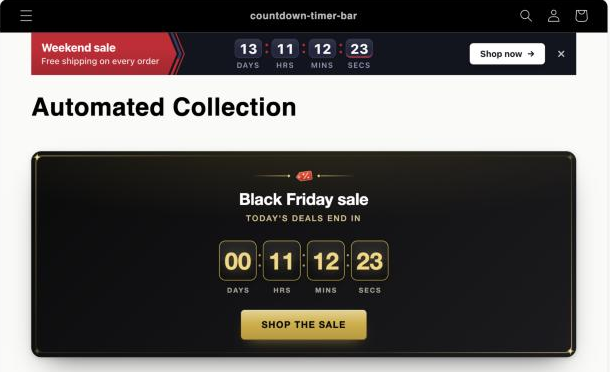
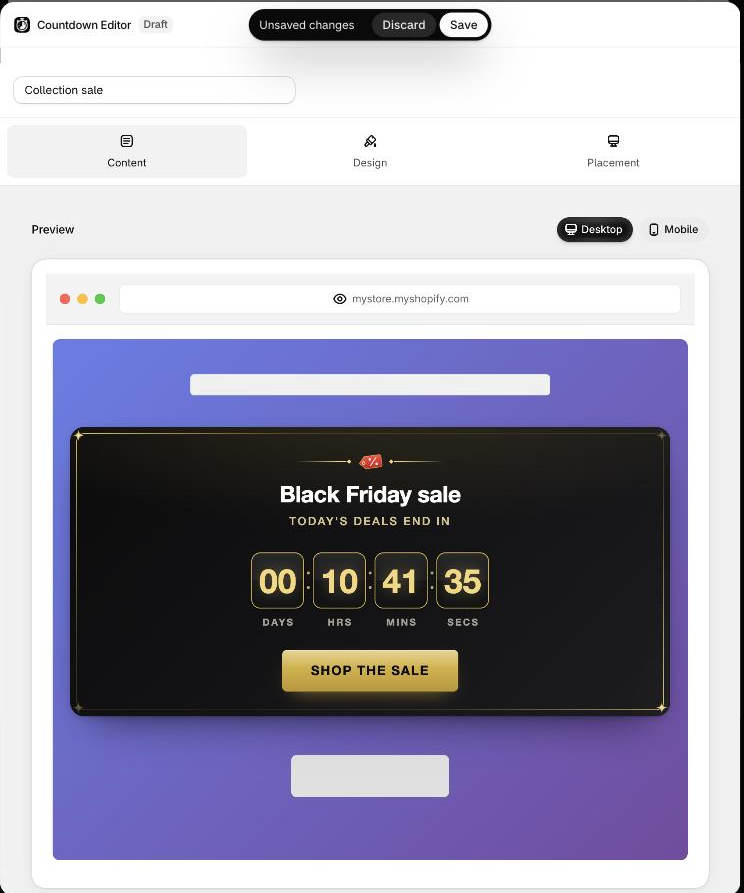
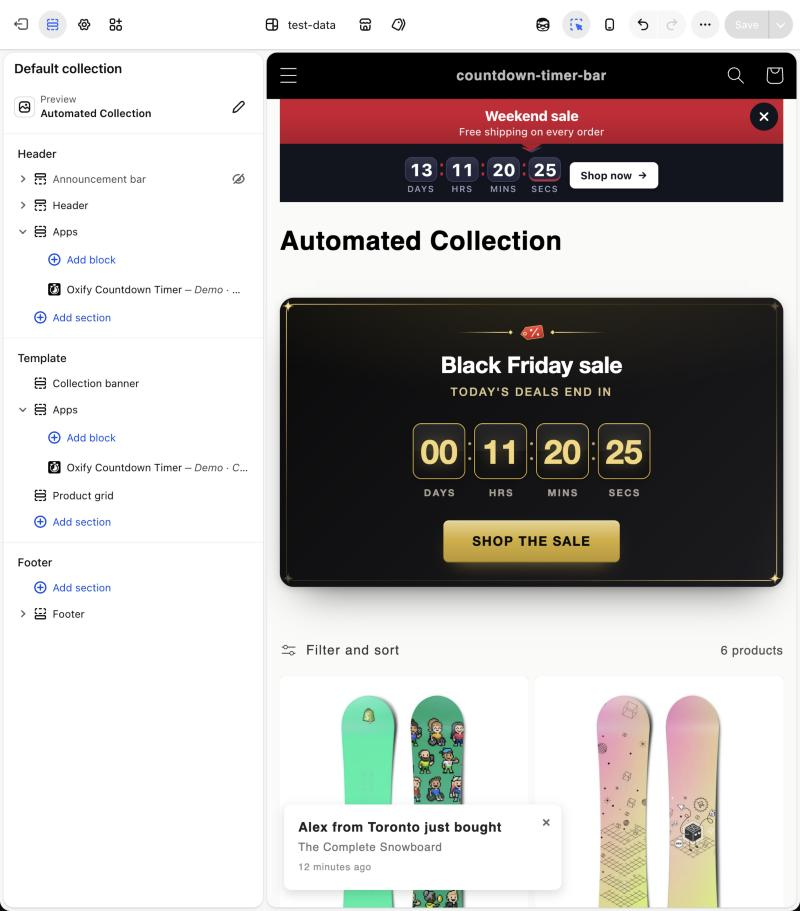
On a computer the card sits under the collection title. It has a title, a short line, a countdown and a Shop the sale button. The sale bar above the page is a different timer.
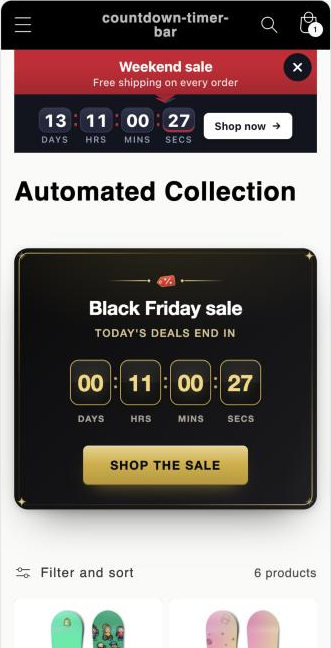
On a phone the card fills the width of the screen, above the product list.
Before you start
Check that the app embed is on. It is the master switch for every timer. See Enable the app embed.
How a daily timer works
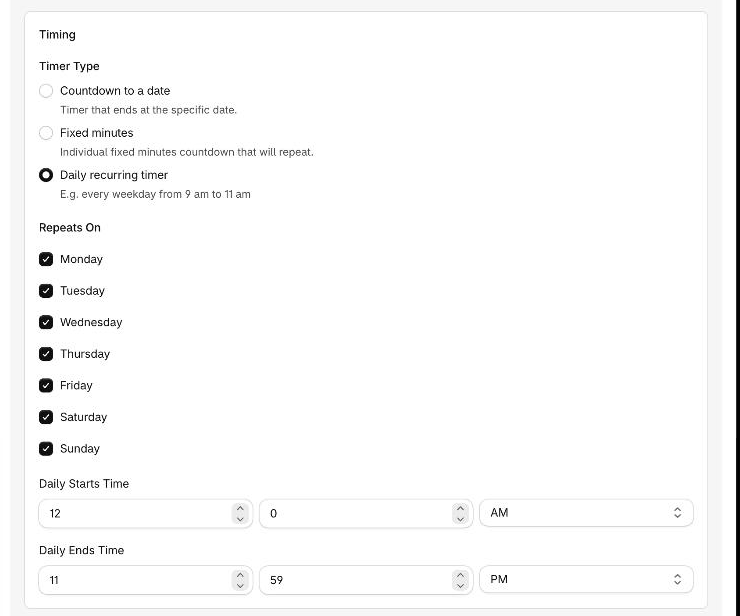
A Daily recurring timer repeats one time window on the days you tick. In this recipe the window runs from 12:00 AM to 11:59 PM on all seven days. During the window the clock counts down to the end of the window, so a shopper at noon sees about 12 hours left. For the last minute of the day the timer hides itself, and it returns at 12:00 AM.
The times you enter use your browser's time zone, and the app saves that time zone with the timer. A shopper in any country sees the window open and close at the same moment. See Daily recurring timer.
Write a title that works all day
On a ticked day, before the window opens, a daily timer counts down to the opening time. A window that starts at 12:00 AM has no time before it, so Today's deals end in is always true. If you start the window later, for example at 9 AM, a shopper at 7 AM sees a clock counting down to 9 AM. Then use a title that reads well in both cases, such as Daily deals.
Settings at a glance
Use these values as they are, or swap in your own words and hours.
| Where in the editor | Field | Value |
|---|---|---|
| Create timer | Timer type | Landing Page |
| Name box at the top | Timer name | Collection sale |
| Content tab → Template | Template | Black Friday |
| Content tab → Content | Title | Black Friday sale |
| Subheading | Today's deals end in | |
| Timer labels | Leave as they are: Days, Hrs, Mins, Secs | |
| Call to action | Button | |
| Button Text | Shop the sale | |
| Call to action URL | /collections/all | |
| Content tab → Timing | Timer Type | Daily recurring timer |
| Repeats On | All seven days ticked | |
| Daily Starts Time | 12 : 0 AM | |
| Daily Ends Time | 11 : 59 PM | |
| Content tab → Publishing | Schedule publishing | Off |
| Content tab → When it ends | Once Timer Ends | Hide Timer From User |
| Placement tab → Select pages to display the bar | Show on all collection pages | |
| Placement tab → Market targeting | Whole World | |
| Design tab | Everything | Leave as the template sets it |
Build the card
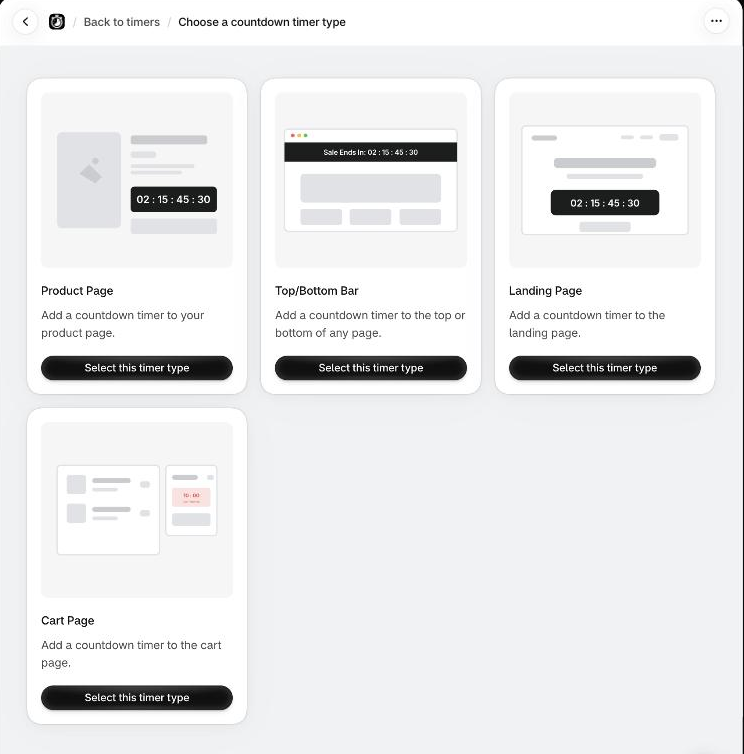
Create the timer. In the app, click Create timer. On Choose a countdown timer type, click Select this timer type under Landing Page. The Countdown Editor opens in a window over the page. See Choose a timer type and Landing page timer.
Name it. Select the text in the name box at the top of the editor and type Collection sale. The name is only for your timer list. Shoppers never see it.
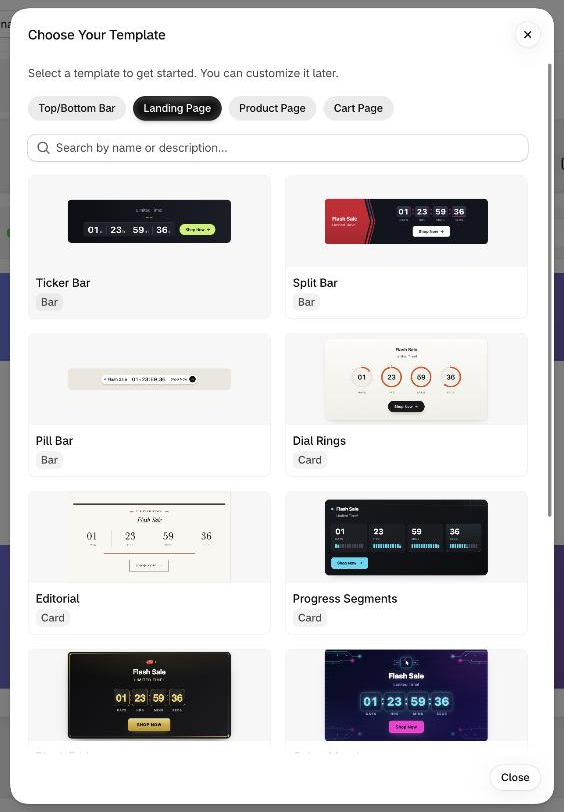
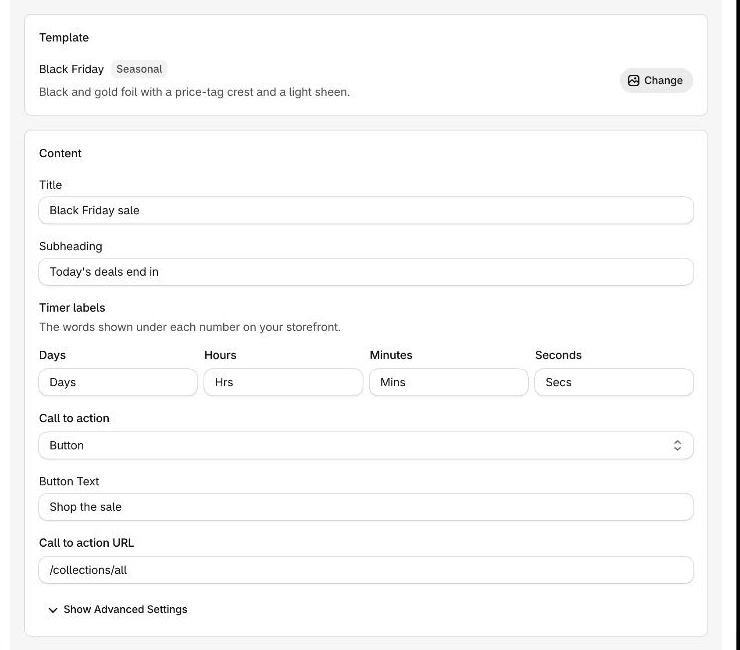
Pick the Black Friday template. On the Content tab, click Browse templates in the Template card. The gallery opens on Landing Page. Scroll down to Black Friday, which has the Seasonal badge, and click it. The window closes by itself and the Template card shows the new name. See Templates.
Write the words and the button. In the Content card, fill in these fields. Leave Timer labels as they are. A landing page timer has a button but no close button.
- Title:
Black Friday sale - Subheading:
Today's deals end in - Call to action: keep Button. Set Button Text to
Shop the saleand Call to action URL to/collections/all.
Details are in Title and subheading and Call to action.
The preview at the top of the editor shows the card and the time left in today's window.
Set the daily window. Scroll to the Timing card. Under Timer Type, choose Daily recurring timer. Repeats On lists the seven days, all ticked. Keep them all. Set Daily Starts Time to 12, 0 and AM. Set Daily Ends Time to 11, 59 and PM. The editor starts with a window already filled in, so replace both times. Leave Once Timer Ends in the When it ends card on Hide Timer From User. See Daily recurring timer and Once the timer ends.
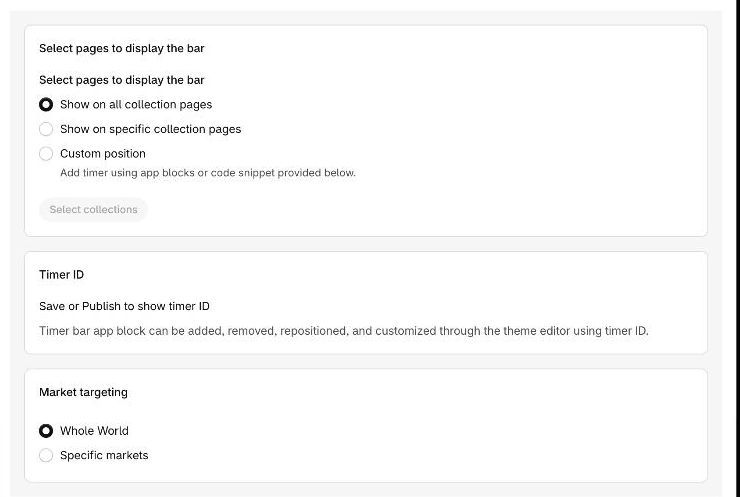
Choose where the card shows. Open the Placement tab. A landing page timer offers Show on all collection pages, Show on specific collection pages and Custom position. Keep Show on all collection pages. Keep Market targeting on Whole World. See Landing page placement and Market targeting.
Save to publish. Click Save in the Unsaved changes bar at the top of the editor. A new timer is published by its first save, so the badge next to Countdown Editor changes from Draft to Live. The card is on in the app, but it is not on a page yet. See Preview and publish.
Add the card to your theme. Publishing does not put the card on a page. You place it with the Oxify Countdown Timer app block. Click the Not added in theme badge beside the timer name. The theme editor opens in a new browser tab on your Collection template.
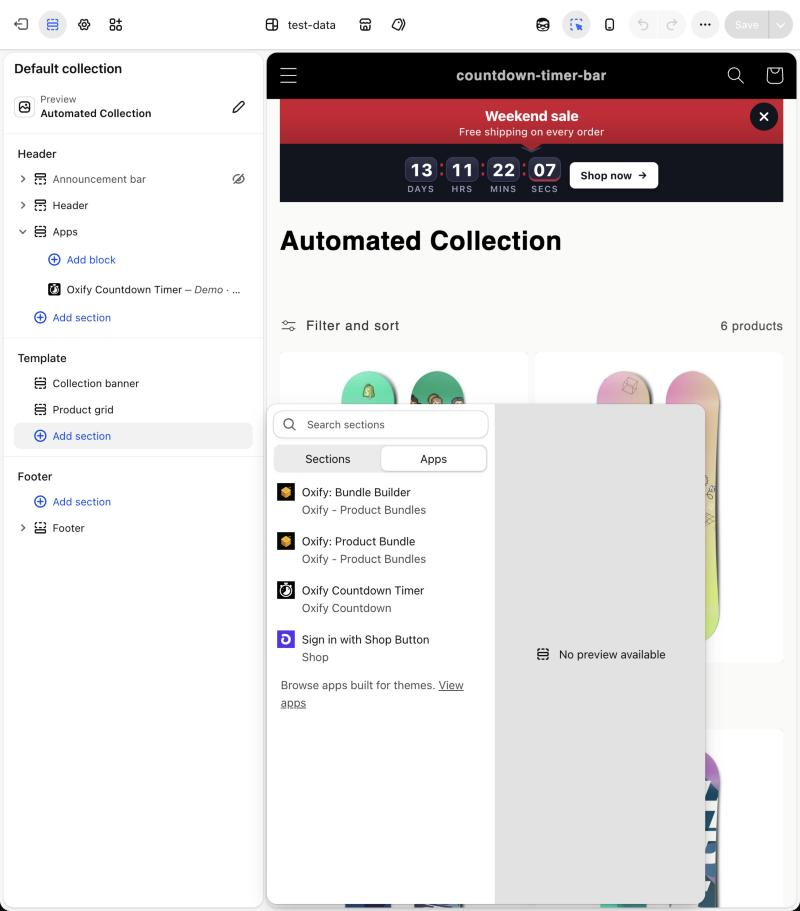
If the left panel has no Oxify Countdown Timer block yet, the link opened the template without adding it. That happened in our test theme. Add the block yourself: click Add section, open the Apps tab and choose Oxify Countdown Timer.
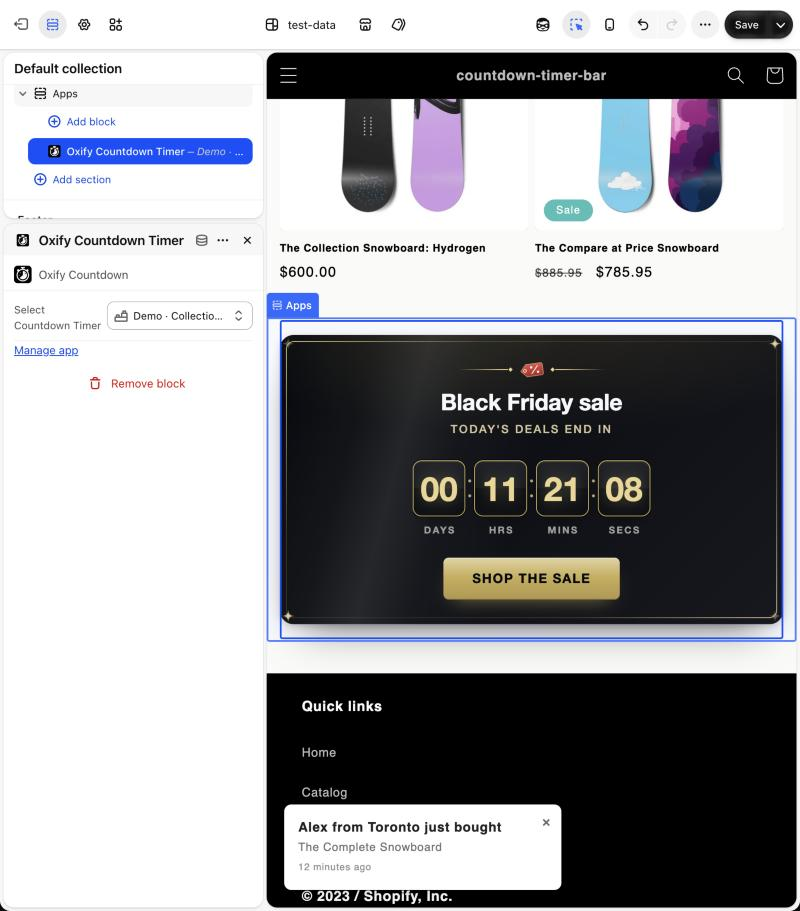
Click the block. Next to Select Countdown Timer, click Select and pick Collection sale. The card shows in the preview, below the product grid.
A section added this way goes to the bottom of the page. Drag the new Apps section above Product grid in the left panel, so the card sits under the collection title. Then click Save at the top right of the theme editor. The full steps are in Add the timer to your theme.
Check it on your store
A timer reaches shoppers only when all of these are true: the app embed is on, the timer is Published, and its app block is saved in your live theme with the timer selected.
In the app, look at the timers list. The row for Collection sale should show Published and Placed in the In theme column.
Open your store in a private browser window. If your store is still password protected, you see the password page first.
Open any collection page. The card is under the collection title. The clock shows the time left until the end of today's window. At noon that is about 12 hours.
Click Shop the sale to make sure it opens your products.
Make it your own
- Pick other days or hours. Untick days in Repeats On, for example Saturday and Sunday for a weekday sale. Change the start and end times for office hours. If the start is later than midnight, change the title to something that works before the window opens, such as
Daily deals. - Run past midnight. Set Daily Ends Time earlier than Daily Starts Time, for example
10:0PM to2:0AM. The window belongs to the day it starts on. - Show it on some collections only. On the Placement tab, choose Show on specific collection pages and pick the collections.
- Run it only during your campaign. On the Content tab, tick Schedule publishing in the Publishing card and set Publish at and Unpublish at. The daily window then only runs on the days in between. See Schedule publishing.
- Try another look. Click Change in the Template card. A landing page timer offers Ticker Bar, Split Bar, Pill Bar, Dial Rings, Editorial, Progress Segments and the five seasonal templates.
If it doesn't show
Work through these first, then read Timer not showing.
- The app embed is off. On the dashboard, the Theme extension card shows App embed as Inactive. Turn it on, as in Enable the app embed.
- The timer is off. Its switch in the timers list is off, or its status is not Published.
- The block is not saved. The row says Not added, or the block has no timer selected. The block must be on the Collection template.
- Today is not ticked, or the window is closed. Check Repeats On and the two times. The timer is hidden after the window closes.
- You are on a collection the card does not cover. If you chose Show on specific collection pages, open one of those collections.
- Your market is not included. If Market targeting is set to Specific markets, view your store from one of those markets.