Different discounts for each market
Give each box size its own discount in each of your Shopify markets, from the Quantity as an option card.
Sell one builder in several markets and give each market its own offer: 20% off the 6-pack in India, a fixed price for the 12-pack, no discount in the United States. Your box sizes stay the same everywhere. Only the discount changes from market to market.
Where to find it: Bundle Builder → your builder → Products tab → Quantity as an option → Discounts for market
Before you start
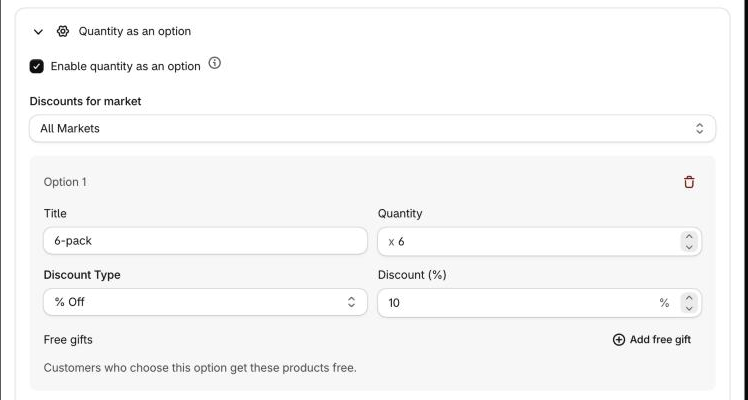
- Tick Enable quantity as an option. The dropdown is part of that card and shows only while the box is ticked. See Box sizes and discounts.
- You need an active market that is based on countries or regions. Create and manage markets in your Shopify admin, under Markets. Without one, the Discounts for market dropdown doesn't appear. Draft markets, and markets for B2B (company locations) or retail, aren't listed. The list shows up to your first 50 markets.
- Start with the default. All Markets is the default. Fill in your options there as usual. Every market follows those discounts until you give it its own.
Give a market its own discount
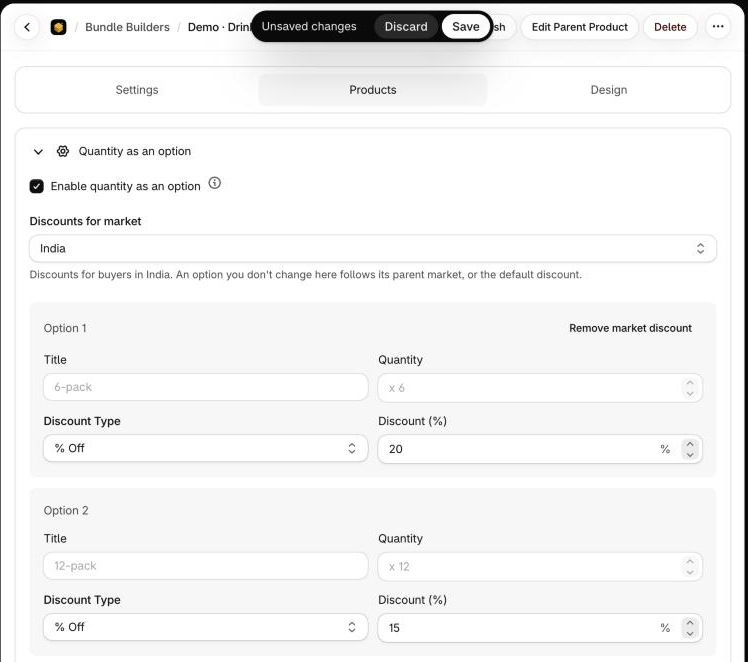
Open the Discounts for market dropdown and pick a market, for example India. The dropdown starts on All Markets, which is the default for everyone.
A line under the dropdown says who you're editing: Discounts for buyers in India. An option you don't change here follows its parent market, or the default discount. Each option shows the discount buyers in that market get right now.
On the option you want to change, choose the Discount Type first, then type the value. All three types work: No Discount, % Off and Fixed Price. Changing the type resets the value to 0, just as it does for the default discount.
Pick another market from the dropdown to set it up, or go back to All Markets to change the default.
Click Save in the bar that appears at the top of the editor.
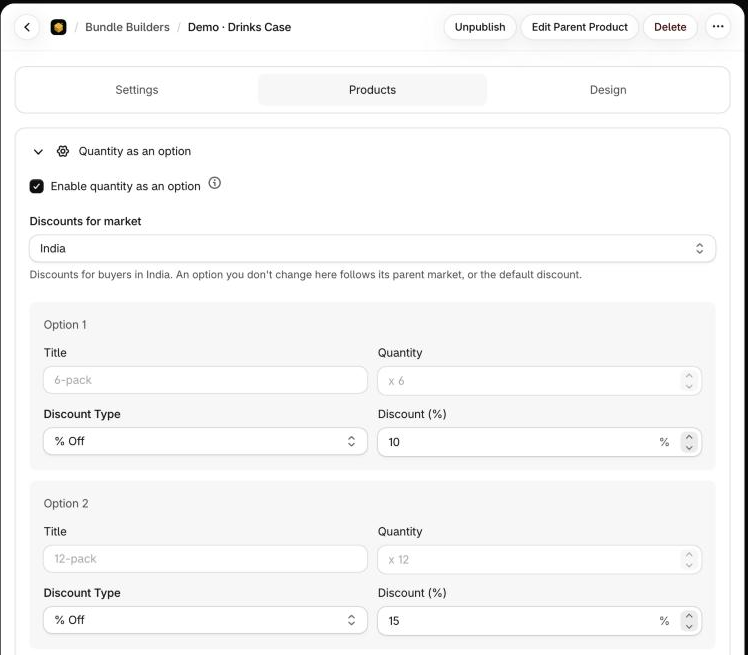
An option you don't change isn't copied into the market. It keeps following the default, or a parent market, so if you change the default later, those options change with it.
What a market can change
A market changes the discount and nothing else.
| You can change in a market | Stays the same in every market |
|---|---|
| Discount Type: No Discount, % Off or Fixed Price | Title and Quantity of each option |
| The discount value | The list of options: Add Option and the trash icon are hidden |
| Free gifts: the row is hidden |
In a market, Title and Quantity are greyed out and Add Option is gone. To change them, go back to All Markets. The Advanced settings under the options, extra items and Combinations, apply to every market as well.
Remove a market's discount
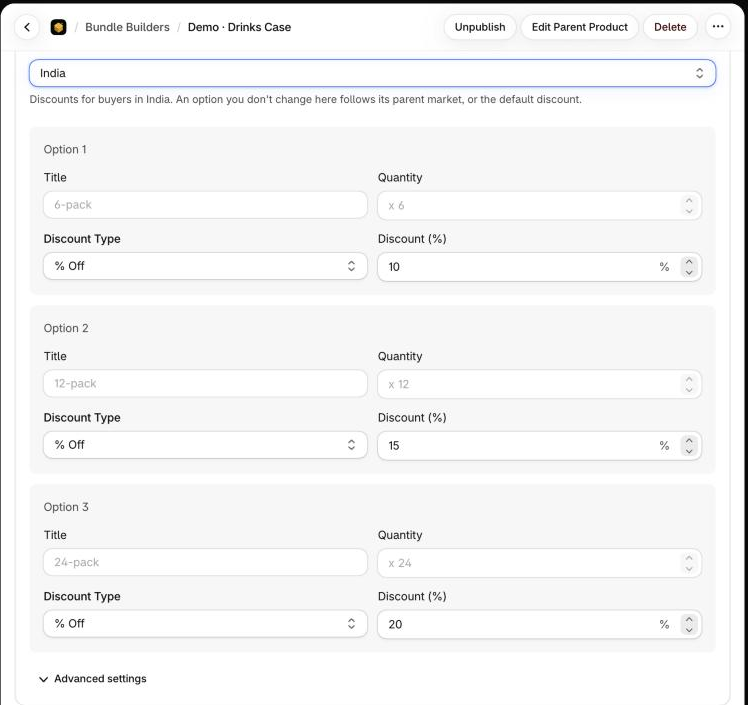
An option that has its own discount in the selected market shows a Remove market discount button at the top right of its panel. Click it and the option goes back to following the parent market, or the default.
Use a different discount type in a market
Each option can use a different type in each market. In this example India gets 20% off the first option and a fixed price on the second. The third option isn't changed, so it keeps following the default.
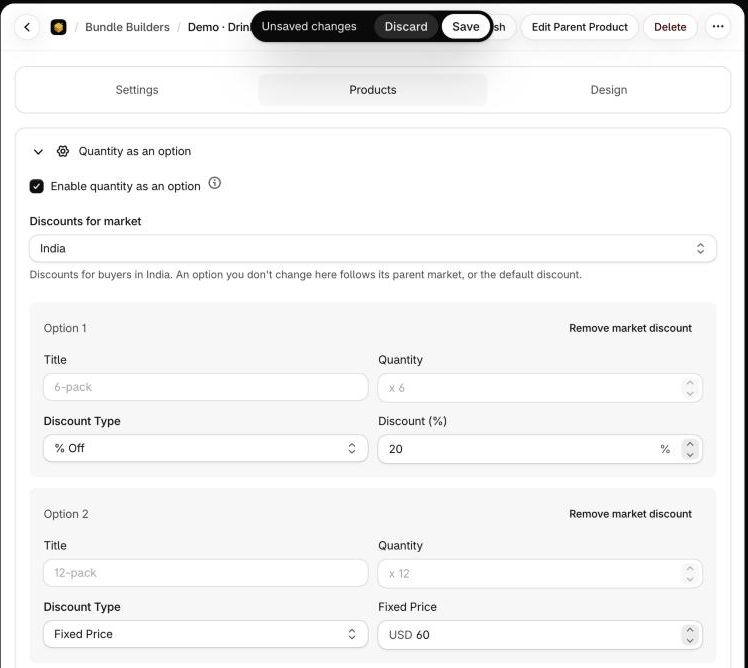
| Option | All Markets (default) | India |
|---|---|---|
| 6-pack | 10% off | 20% off |
| 12-pack | 15% off | Fixed Price of 60 |
| 24-pack | 20% off | 20% off, the default |
Enter a Fixed Price in your store currency
The Fixed Price field starts with your store's currency code (here USD), even when the market uses another currency. Type the amount in that currency. As with any Fixed Price, shoppers paying in another currency are charged the amount converted at Shopify's exchange rate. A percentage needs no conversion.
Parent markets
Shopify lets markets overlap: a market for Germany can sit inside a bigger Europe market. Oxify calls the bigger market the parent. An option's discount in a market is the first of these that exists:
- The option's own discount in that market.
- The discount of the nearest bigger market that contains all of this market's countries and has its own discount for that option.
- The default discount, from All Markets.
For example, you give the 6-pack 15% in Europe and set nothing for Germany, which is inside Europe. In the Germany view the 6-pack shows 15% with the line Uses the discount of Europe under it, and shoppers in Germany get 15%. Set a discount in the Germany view and that one wins for Germany.
What shoppers get
- The shopper's country picks the market. On your storefront it's the country Shopify has the shopper in, which your store's country selector sets. At checkout it's the buyer's country.
- The most specific market wins. If a shopper's country is in more than one market that has its own discounts, the market with the fewest countries is used.
- No match, default discount. Shoppers whose country isn't in any of those markets get the All Markets discount.
- The page shows what the cart charges. The builder shows the market's discount on each box, and the cart and checkout charge the same amount.
- Only the discount changes. The box a shopper has reached still depends on how many items they pick, and free gifts are the same everywhere. A Fixed Price still scales per item when extra items are allowed.
- It works in both cart modes: one merged bundle line, or individual lines.
Keep in mind
- Save, and keep the builder published. Shoppers get the discounts you last saved. The preview in the editor always shows the All Markets discounts, so check a market from your storefront.
- Quantity as an option has to stay ticked. Unticking it stops the market discounts from applying. They're kept, and apply again when you tick the box.
- Changes to your markets are picked up for you. When you add, edit or delete a market in Shopify, Oxify updates its list of countries by itself, so you don't need to save the builder again. A market that is deleted, or turned into a draft, is ignored: its shoppers get the default discount.
- To test a market, open your store with a country from that market selected, add a box to the cart, and compare the price on the page with the one in the cart.
If a market discount isn't applying
Work through these first, then Discount not applying at checkout.
- The dropdown isn't there: Enable quantity as an option is unticked, or you have no active market based on countries. See Before you start.
- The shopper is in another market. Check Markets in your Shopify admin: the shopper's country has to be one of this market's countries.
- The option has no discount of its own in that market. Open the market's view. It shows exactly what that market's shoppers get, whether the discount is the option's own, one from a parent market, or the default.
- You haven't saved, or the builder isn't published.
Selling with Quantity Break too?
Quantity Break bundles have a market setting as well, but there you make one bundle per market. See Give each market its own offer.