Free gifts on a box
Give a product away free when shoppers reach a box size — each quantity option can carry its own gifts.
Each quantity option can give products away free. Shoppers who fill a Box of 12 might get a tote bag; a Box of 6 gets nothing, or a smaller gift. Gifts are set per option, in the Free gifts row at the bottom of each option panel.
Where to find it: Bundle Builder → your builder → Products tab → Quantity as an option → an option → Free gifts
Needs quantity options
Gifts belong to quantity options, so they only work while Enable quantity as an option is ticked. See Box sizes and discounts.
Add a free gift
In the option's Free gifts row, click Add free gift. Shopify's product picker opens.
Tick the product you want to give away. For a product with several variants, expand it and tick the exact variant.
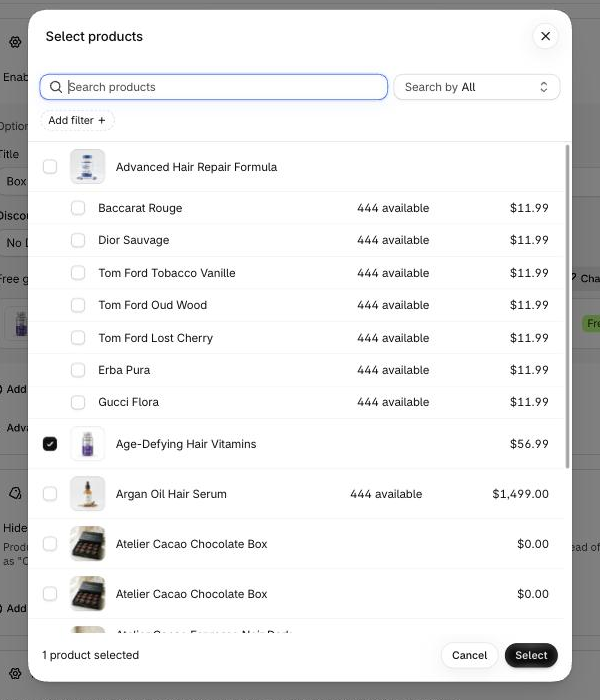
Click Select. The gift appears in the row with its picture, its title, a green Free badge and an × button.
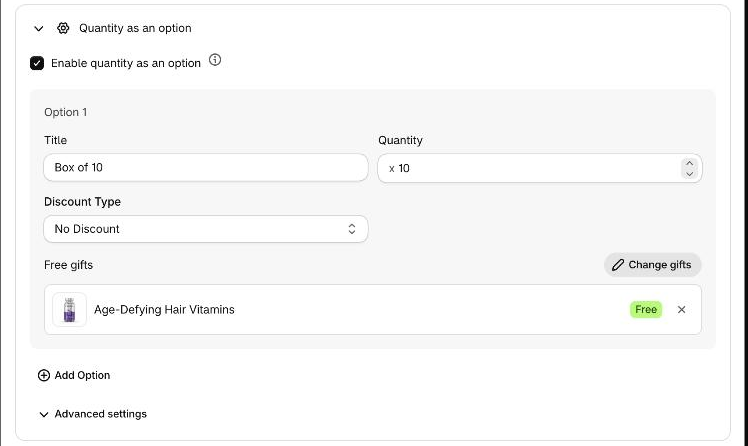
Click Save.
Until you add a gift the row reads Customers who choose this option get these products free.
Change or remove gifts
- Click Change gifts to reopen the picker with the current gifts already ticked. Whatever is ticked when you click Select becomes the new list.
- Click the × on a gift row to remove just that gift.
One gift is one variant
A gift is a specific variant, one unit per bundle. If you tick every variant of a multi-variant product, only its first variant becomes the gift — so tick the exact variant you mean. If you tick some variants, each ticked variant becomes its own gift. The same variant listed twice is only given once.
What shoppers get
- Only the box they reach. Gifts are not cumulative: the Box of 12's gifts replace the Box of 6's, they don't add to them.
- Shown before they're earned. The sidebar lists the selected box's gifts, locked until the box is full. With extra items allowed it shows the reached box's gifts plus how many more items the next gift-bearing box needs. Size tabs and pills carry a small gift icon, and a Tiered Offers card shows Free gift with up to three gift pictures.
- A gift never fills a place. It isn't a slot in the box and doesn't count towards the box quantity.
- Free at cart and checkout. Each gift is given at 100% off, one unit per bundle.
- Any discount type. A No Discount box still gives its gifts. With Fixed Price the fixed price covers the paid items only, and the gifts come free on top.
- The same in every market. Market discounts change a box's discount, not its gifts. You edit gifts with Discounts for market on All Markets.
If a gift doesn't show up
- The builder must be published and saved. The discount settings reach Shopify when you save a published builder. Until then, a gift is left out rather than charged for.
- The gift variant must be sellable. A gift that's sold out, unpublished or deleted in Shopify is skipped, so the sidebar never promises something the cart would refuse.
- Quantity options must be on — see the note at the top.
Still stuck? Work through Discount not applying at checkout.