
Selection rules
Cap how many items customers can take from each category, and move them on to the next category automatically.
By default customers can take any mix of products from any category. Selection rules let you say no more than 3 candles, or send customers on to the next category as soon as they've taken enough.
Rules are per category — each rule belongs to one category and controls how many items the customer takes from it.
Turn rules on
Open your builder and go to the Products tab.
Scroll to the Rules Configuration card.
Select Step rules instead of No rules. This immediately creates a rule on your first category.
Click Add Rule to attach a rule to the next category that doesn't have one yet. Rules are handed out in category order — there's no picker.
Step rules only become available once you've added categories. Until then the card shows Add categories above to configure selection rules.
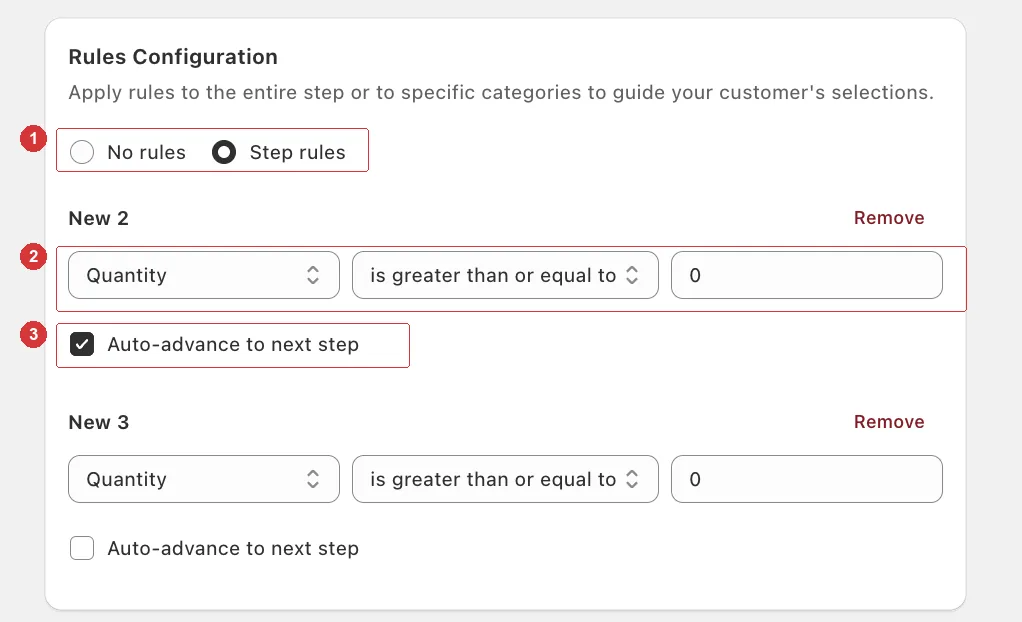
Here 1 is the Step rules option, 2 is a rule row for the category New 2, and 3 is the Auto-advance to next step checkbox. Notice each rule sits under its own category name.
Build a rule
Each rule is a row of three unlabelled controls, plus a checkbox. Left to right:
Metric — the first dropdown. Quantity is the only option.
Condition — the second dropdown. How the quantity is compared.
Value — the number field. A new rule starts at 0.
Auto-advance to next step — the checkbox below. See below.
Conditions
| Condition | What it does on your page |
|---|---|
| is less than or equal to | Caps the category. Its add buttons switch off once the customer has this many items from it. |
| is equal to | Works as a cap too: customers can add up to this many from the category and no more. |
| is greater than or equal to | Doesn't block anything. It's the target that Auto-advance waits for. |
Rules limit — they don't require
Nothing stops a customer from checking out with fewer items from a category than your rule mentions, as long as the box itself is full. Use rules to cap a category, and the box size to set the total.
Auto-advance
Tick Auto-advance to next step and the customer is moved to the next category tab the moment they have as many items from this category as the rule's Value — no clicking required. It works with any of the three conditions, only while the customer is on that category's tab, and only moves forward: the last category never advances.
It makes a multi-category builder feel like a guided flow rather than a form. Turn it on for step-by-step boxes; leave it off when you want customers browsing freely.
Set a Value above 0 first
A new rule starts at 0, which counts as already met. With Auto-advance ticked, customers would be moved on the moment they open that category. Enter the number you actually want before you tick the checkbox.
Start on the first category
Auto-advance doesn't run on the All tab. For a guided flow, turn on Hide "All Products" Tab under Design → Tab Button Template so customers start on your first category — see Category tabs.
Remove a rule
Click Remove on the rule. Once you remove the last one, the card flips back to No rules on its own.
Which mode to use
| Mode | Best for |
|---|---|
| No rules | Pick-any boxes, sample kits, general mixes. |
| Step rules | Capped mixes — up to 3 candles and 2 soaps — and guided, category-by-category boxes. |
Rules and box sizes work together
Box sizes control the total number of items. Rules cap the split between categories. Make sure your caps leave room to fill the box: if every category is capped and the caps add up to fewer items than the box size, customers can never complete it.