
What are custom templates?
Replace a built-in Bundle Builder template with your own JSX markup — for merchants comfortable with React.
Custom templates are the deepest level of customization the Bundle Builder offers. You write the markup for a piece of the builder; the app keeps handling products, prices, the cart, and analytics underneath it.
Who this is for
This feature is for people comfortable with React/JSX. If you only want to change colors, sizes, or text, use the normal Design tab settings instead — you don't need this. If you only want to restyle the built-in templates, use Custom CSS. Our support team can help with everything else in the app, but can't write or debug your custom templates.
The idea in one paragraph
The Bundle Builder does all the work: it loads products, resolves prices for the shopper's market, formats money, tracks what's in the kit, adds to the cart, and records analytics. It then hands your template a single bag of ready-to-use values and functions — props. Your template only decides how it looks. You never fetch data, hold state, or touch the cart directly, which is also why a broken template is harmless: if it doesn't compile, it can't be switched on and the storefront keeps the last version that did; if it fails while a shopper is looking at it, the app quietly falls back to the built-in design and your store keeps working.
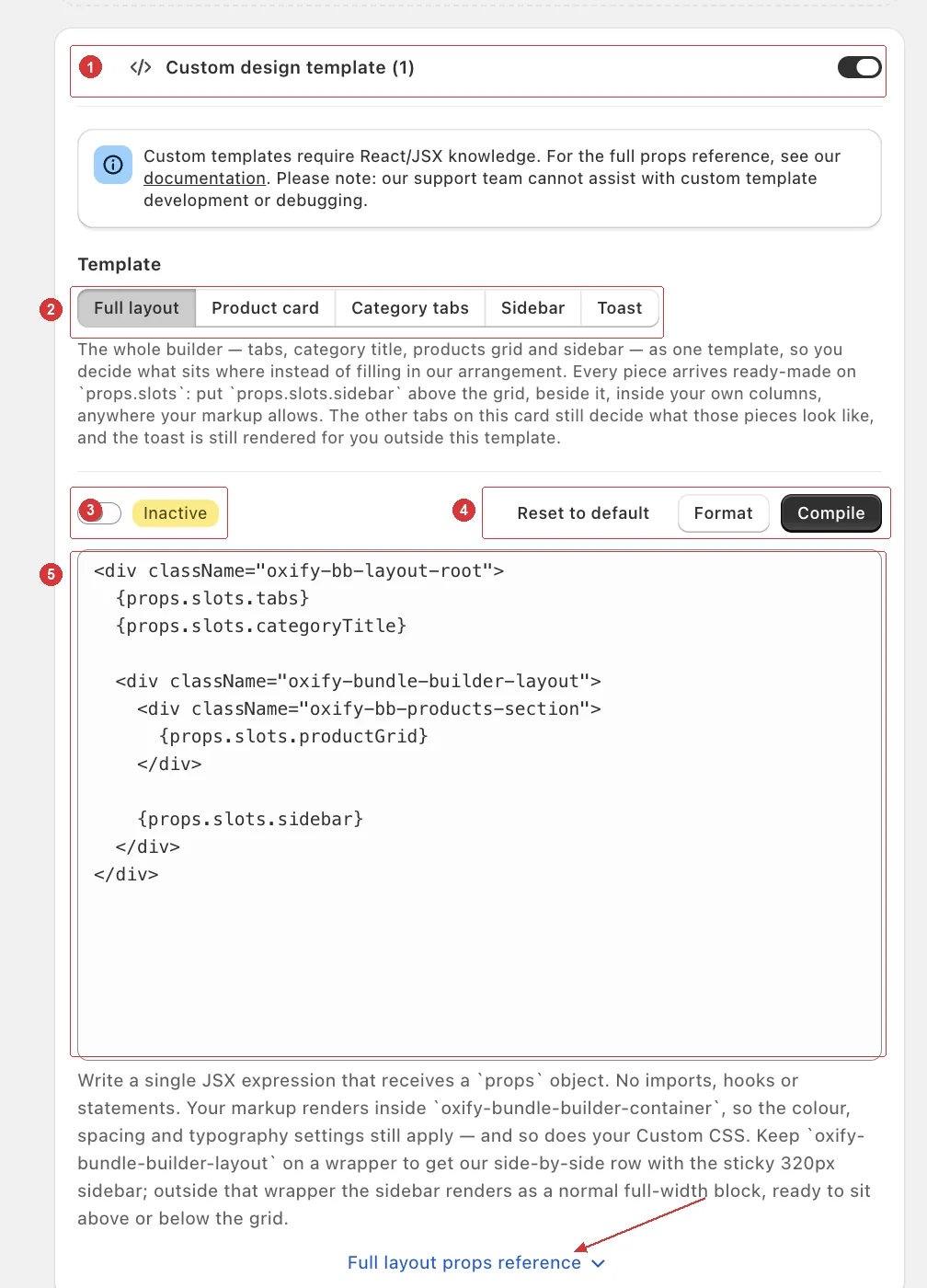
The five templates
You can customize any combination of five pieces. Each is independent — customize one and leave the rest on the built-in design.
| Template | Replaces | Root class |
|---|---|---|
| Full layout | The whole arrangement — where the tabs, category title, product grid, and sidebar sit relative to each other. | oxify-bundle-builder-layout |
| Product card | One card in the products grid, rendered once per product. | oxify-bb-product-card |
| Category tabs | The category switcher above the grid. | oxify-bb-tabs |
| Sidebar | The kit summary and add-to-cart panel. | oxify-bb-kit-sidebar |
| Toast | The "added to bundle" confirmation message — the one you set up under Add to Cart Message. | oxify-bb-toast |
Full layout is different from the other four — it doesn't replace one element, it replaces the arrangement of all of them. If you just want to move the sidebar above the grid instead of beside it, that's the one you need. It has its own guide; the other four are covered in The five templates.
Where to find it
Open your bundle builder and go to the Design tab.
Find the Custom design template row, just below Add to Cart Message. Switch it on, then click its title (or the arrow at the end of the row) to open it.
It's off by default — nothing about your builder changes until you turn it on.
Next
Turn it on and save
The editor, the two switches, and the buttons that compile and reset.
The rules
What a template can and can't do.
CSS variables and styling
Keep the merchant's Design-tab settings working in your markup.
Full layout
Rearrange the whole builder — the sidebar, grid, and tabs.
The five templates
Every prop each template receives.
Recipes
Copy-paste starting points for common jobs.