
Box sizes and discounts
Offer several bundle sizes, each with its own discount, so bigger boxes save more.
Box options let customers choose how big their bundle is — Box of 6, Box of 10, Box of 12 — with a different discount on each.
Turn box sizes on
Open your builder and go to the Products tab.
Find the Quantity as an option section at the top.
Make sure Enable quantity as an option is ticked. It's on by default.
Untick it if you want a single fixed bundle size instead of a choice. Customers then see no box selector and the builder works from your box settings as saved. The box fields are hidden while the checkbox is off, so first edit your first box to the size and discount you want and delete any others, then untick it.
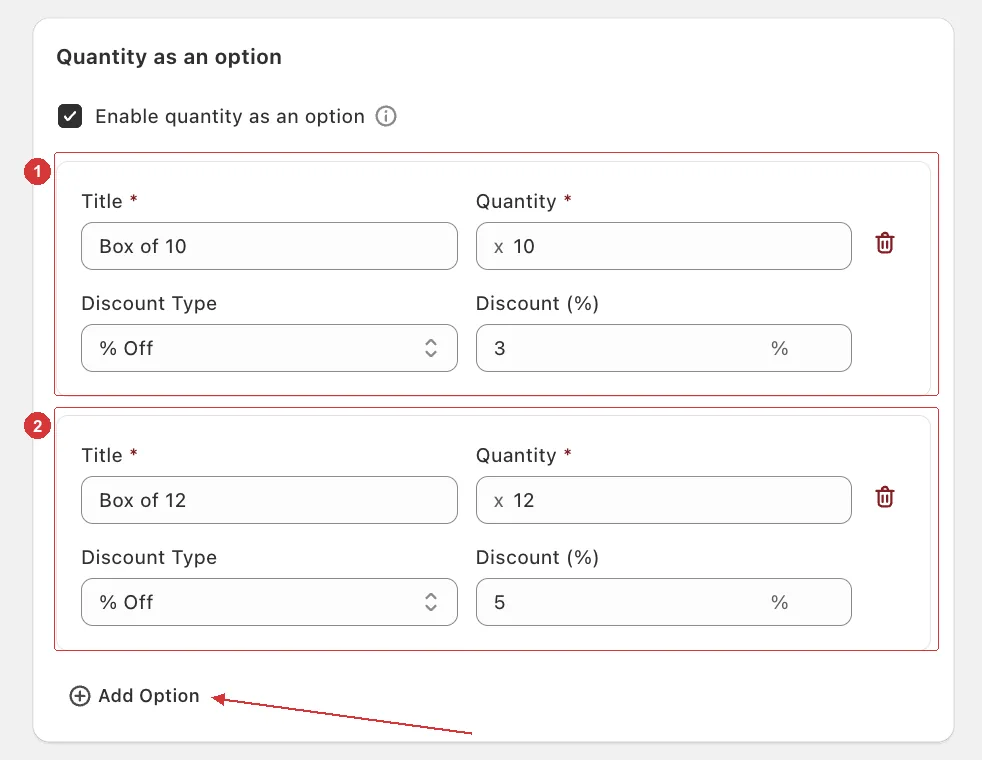
Two box sizes set up: 1 a Box of 10 at 3% off, 2 a Box of 12 at 5% off. The arrow points to Add Option, which adds the next one.
Add a box size
Click Add Option. A new Option N panel appears.
Title — what customers read, for example Box of 10.
Quantity — how many items go in this box, 1 or more. Every item counts, so the same product added three times fills three places.
Discount Type — No Discount, % Off, or Fixed Price. Choose the type before you enter a value: changing the type resets the value to 0.
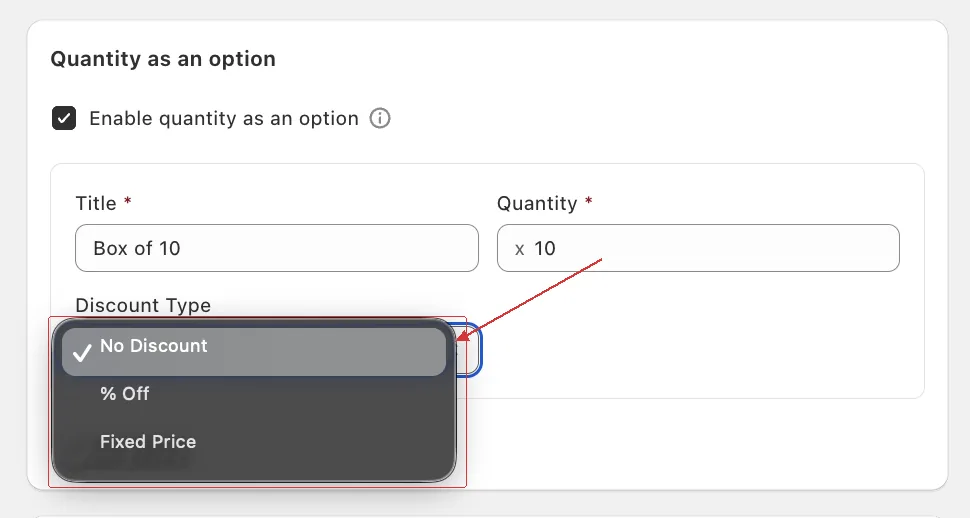
Enter the value in the field that appears — Discount (%) for % Off, Fixed Price for Fixed Price.
Click Save.
Each new box is pre-filled with a title of Box of N and a quantity that steps up in sixes — so you'll usually want to change both to your own numbers.
Fields
| Field | What it does |
|---|---|
| Title | The name shoppers see in the box selector. |
| Quantity | How many items fill the box. Shown prefixed with x. |
| Discount Type | No Discount, % Off, or Fixed Price. |
| Discount (%) | Shown for % Off. From 0 to 100 — anything higher is set back to 100. |
| Fixed Price | Shown for Fixed Price. The amount is in your store's currency, and the field is prefixed with that currency's code. |
Use the trash icon at the top of an option to remove it. You need at least one box. Option 1 is the one pre-selected for customers — there's no separate setting for it, and options can't be reordered, so edit Option 1 to be the size you want people to start on.
Fixed Price is the price of the whole box
Set Fixed Price to 40 on a Box of 10 and the customer pays $40 for all ten items, not $40 each. % Off works the other way — it's a percentage off the box's normal total.
Fixed Price only ever lowers the total. If the items a customer picks cost less than your fixed price, they simply pay the normal price — so set it below what a full box would normally cost.
How the boxes behave on your page
- The box selector is a dropdown in the List Sidebar and a row of tabs in the Grid Sidebar. The Buy Box has no selector.
- Add to Cart waits for a full box. The button stays switched off until the selected box has its full quantity of items.
- Boxes move up on their own. When the selected box is full and the customer adds one more item, the builder switches to the smallest bigger box that fits. Removing items steps back down to the smallest box that still fits. The largest box is the limit — once it's full, nothing more can be added.
- Switching to a smaller box by hand drops the extra items, starting with the ones added last.
Want customers to go past the box size instead? See Allow extra items in a box.
A ladder that works
| Box | Quantity | Discount |
|---|---|---|
| Box of 4 | 4 | No discount |
| Box of 6 | 6 | 10% off |
| Box of 10 | 10 | 15% off |
Three sizes is plenty. Put the size you want people to start on first (it's pre-selected), and make the largest one clearly the best value per item.
Show the saving on the box
With the Grid Sidebar, each box tab can carry a discount badge: choose that template, then turn on Design → Sidebar Widget → Discount Badge and use {{discount_percentage}} in the badge text. The List Sidebar shows boxes as a plain dropdown of titles, so put the saving in the title instead — Box of 10 — save 15%. More in Sidebar widget.
Curious what customers actually pay for each discount type? See How box discounts are calculated.