
Add to cart message
The small toast that confirms a product went into the bundle.
Every time a customer adds a product, a short message pops up at the bottom of the screen to confirm it, then disappears after about three seconds. Edit it in Design → Add to Cart Message.
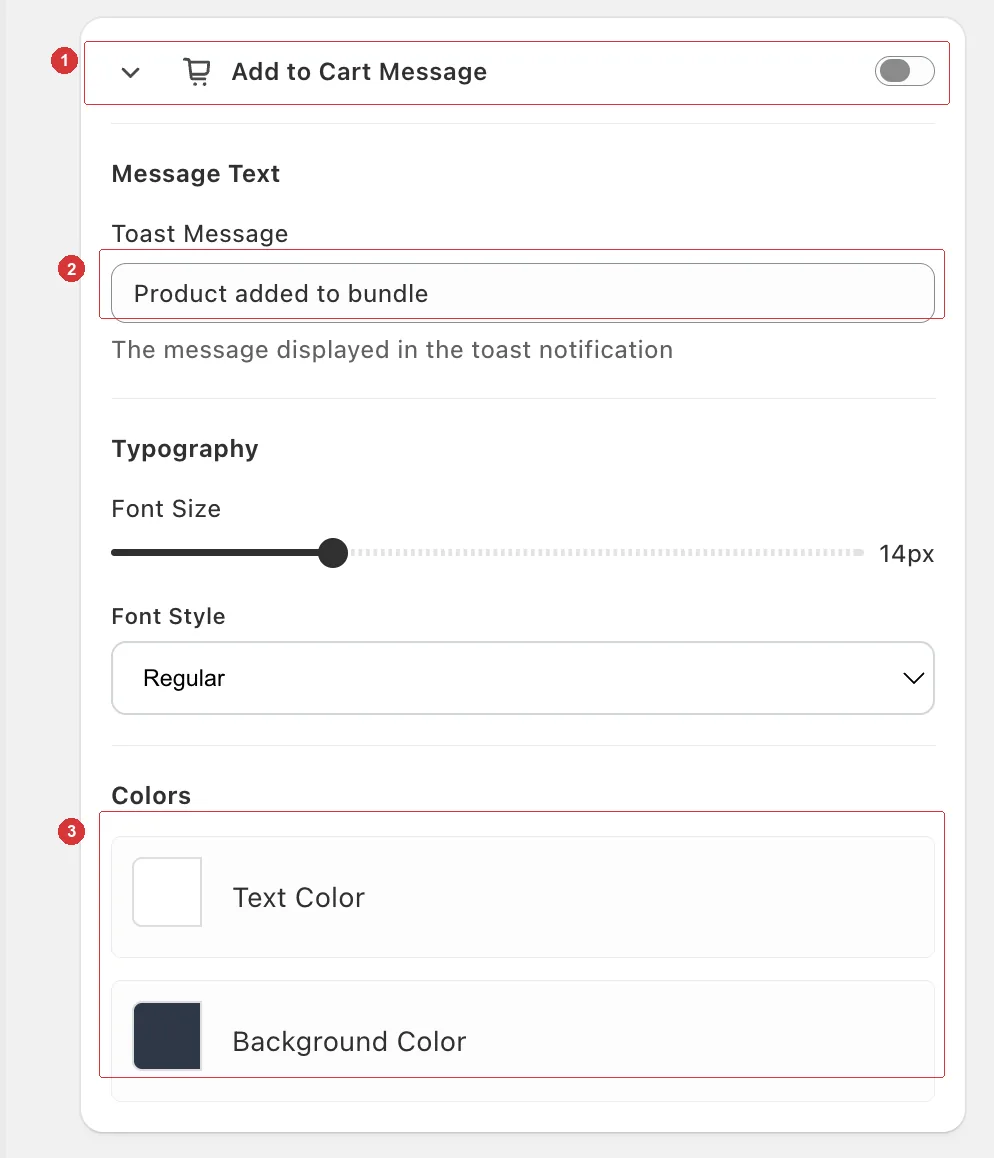
1 the card's on/off toggle, 2 the message text, 3 the text and background colours.
Change the message
Open your builder and go to the Design tab.
Click Add to Cart Message to expand it. Check its toggle is on — switch it off and no message appears when a product is added.
Type your text into Toast Message. The default is Product added to bundle.
Click Save.
Style it
| Section | Options |
|---|---|
| Typography | Font Size (10–24px, default 14) and Font Style — Light, Regular, Medium, or Bold. |
| Colors | Text Color and Background Color. |
The default is white text on a dark background, which reads clearly over any product image. On screens up to 768px wide the text is always 13px, whatever the slider says.
Keep it short
The message stays on one line and is on screen for a moment. Three or four words is the limit:
Added to your boxNice pick!Added — keep going
Anything longer can run past the edge of the message box on a small screen.
Same text every time
The message is the same for every product. It can't hold live numbers such as {remainingItems} — for a running count like 2 more to go, use the sidebar's Instruction Text instead. See Sidebar widget.