
Translate announcement text
Add a version of your bar's text for each of your store's languages.
If your store sells in more than one language, you can translate the bar's text so each visitor sees it in their own. Translations are added per field, using the translation icon next to it.
Add a translation
Open the announcement and go to the Content tab.
Find the field you want to translate — for example Title.
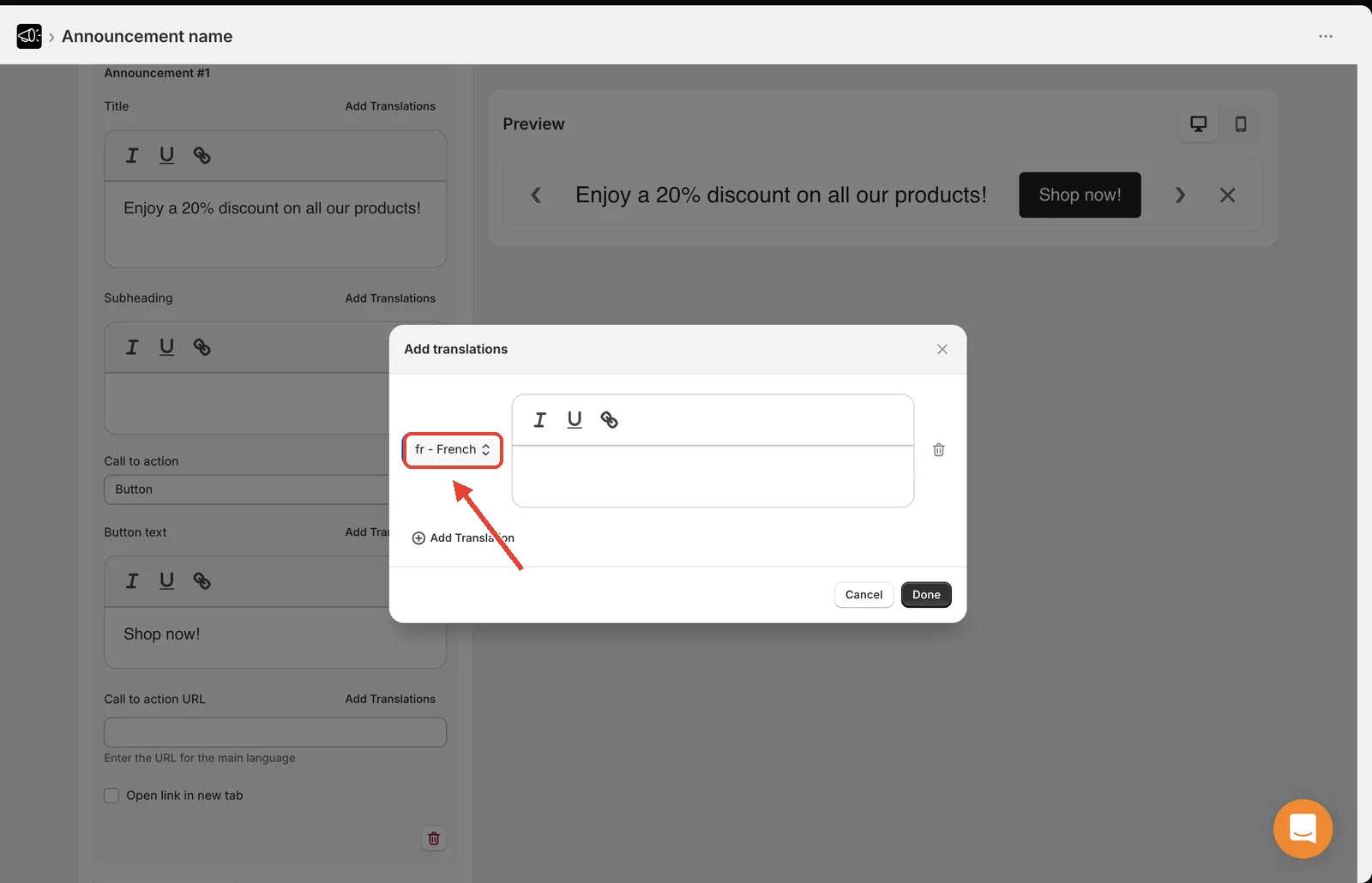
Click the translation icon next to the field. The Add translations modal opens.
Select a language.
Type the translated text.
Repeat for each language you sell in.
Click Done, then Save.
Which fields can be translated
- Title
- Subheading
- Button text
- Call to action URL — see Translate CTA URLs
- Free shipping success message
On a rotating announcement, each announcement in the set has its own translations.
Edit a translation
Click the translation icon next to the field again.
Change the text for the language you want.
Click Done, then Save.
What happens if a translation is missing
The bar falls back to the main-language text. Nothing breaks — the visitor just sees the untranslated version.
Tip
Adapt, don't just translate. Free shipping over $50 needs the right currency and a realistic local threshold, not a literal word-for-word conversion.
Keep translations roughly the same length as the original. German and French text often runs 20–30% longer than English, which can push a one-line bar onto two lines on mobile.