
Placement & targeting
Choose where the bar appears
Pick which pages of your storefront show the announcement bar.
The Select pages to display the bar card is the first card on the Placement tab. It decides which pages the bar renders on.
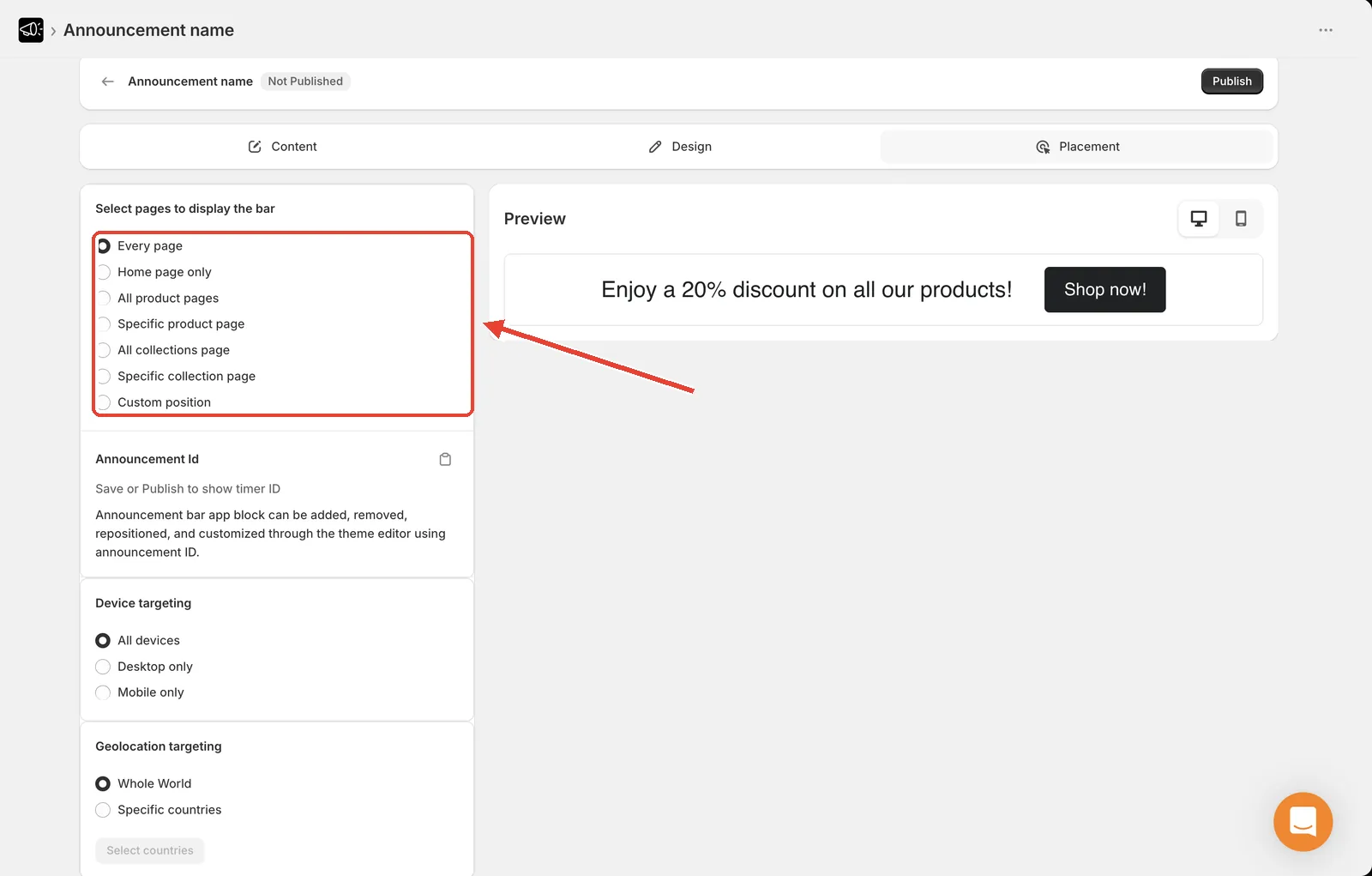
Set the placement
Open the announcement and go to the Placement tab.
Under Select pages to display the bar, choose an option.
If you pick a "specific" option, select the products or collections it applies to.
Click Save.
The options
| Option | Where the bar shows |
|---|---|
| Every page | Everywhere on your storefront. The default. |
| Home page only | Your home page and nothing else. |
| All product pages | Every product page. |
| Specific product page | Only the products you select. |
| All collections page | Every collection page. |
| Specific collection page | Only the collections you select. |
| Custom position | Wherever you place the app block or code snippet in your theme. |
Choosing well
- Every page for anything universal — free shipping, store-wide sales, holiday cutoffs
- All product pages for messages about the buying decision — returns policy, delivery time
- Specific product page for a promotion on one product line
- Home page only for a seasonal welcome or campaign banner
- Custom position when the top or bottom of the page isn't where you want it
Tip
Match the message to the page. A Free returns on all orders bar earns its space on a product page, but on the home page it competes with your hero for attention.
Placement, device targeting, and geolocation targeting all have to pass for the bar to show. If you set Home page only and Mobile only, the bar appears only for mobile visitors on the home page.