
Templates
Apply a ready-made color and typography preset in one click.
A template applies a full set of colors, font sizes, weights, alignment, and button styling at once. It's the fastest way to get a good-looking bar without adjusting each setting by hand.
Apply a template
Open the announcement and go to the Design tab.
Find the Template card.
Pick a template from the dropdown.
The live preview updates immediately.
Click Save.
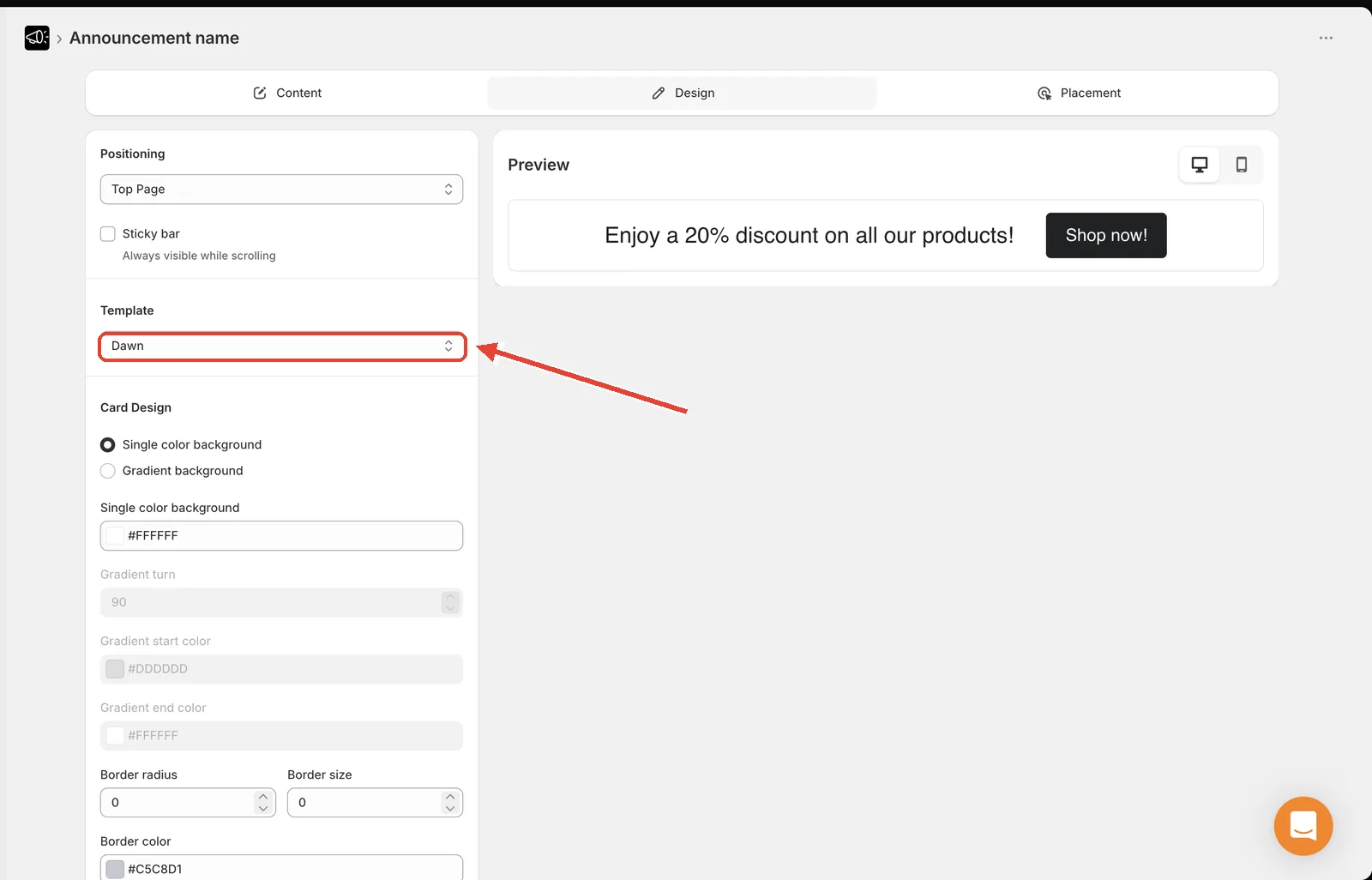
Available templates
Dawn is the default. There are 23 presets plus Custom:
Dawn · Electric · Forest · 50 Shades of Grey · Vibrant · Neon · Vanila · Love · Earth · Valentine · Bubble Gum · Black and Yellow · Sophisticated · Fire · Frost · Sunny Evening · Red Moon · Dark Ocean · Minimal · Mint · Split · Stacked · Spotlight
Three templates change the layout
Most templates only restyle the bar — same arrangement, different colors and type. Three rearrange the bar's structure:
| Template | Layout |
|---|---|
| Split | Splits the bar into distinct left and right areas |
| Stacked | Stacks the elements vertically instead of in a row |
| Spotlight | Emphasizes one element as the focal point |
Every other template uses the default layout.
Tip
If you've been fighting the standard arrangement — a long title crowding the button, or a subheading that never sits where you want — try Split, Stacked, or Spotlight before reaching for Custom CSS. They solve layout problems the color settings can't.
The Custom option
Selecting Custom changes the label only — it leaves every one of your current style settings exactly as they are. Use it when you've hand-tuned your design and want the dropdown to reflect that.
What a template changes
A template overwrites:
- The layout arrangement
- Background type, color, and gradient
- Border radius, size, and color
- Title and subheading size, color, weight, style, and alignment
- Button background, text color, size, and radius
- Close and navigation icon colors
It leaves untouched:
- Your Custom CSS
- Your chosen Font
Applying a template replaces your current colors and typography. If you've spent time customizing, either note your hex codes first or pick Custom to keep what you have.
Tip
Start from the template closest to your brand, then tweak two or three values — usually the background color and the button color. That's faster than building from scratch and gives a more coherent result.