
Running line announcement
Scroll your message across the bar marquee-style, and control speed and spacing.
A Running line announcement scrolls text continuously across the bar. You can add up to 6 titles and they scroll one after another in a loop.
Set it up
Open the announcement and go to the Content tab.
Under Announcement Type, select Running line announcement.
Set Scroll duration (seconds) — any value from 1 to 50. The default is 8.
Set Gap between two text to control the spacing between repeats.
Fill in Title 1. Click Add Title to add more messages.
Click Save.
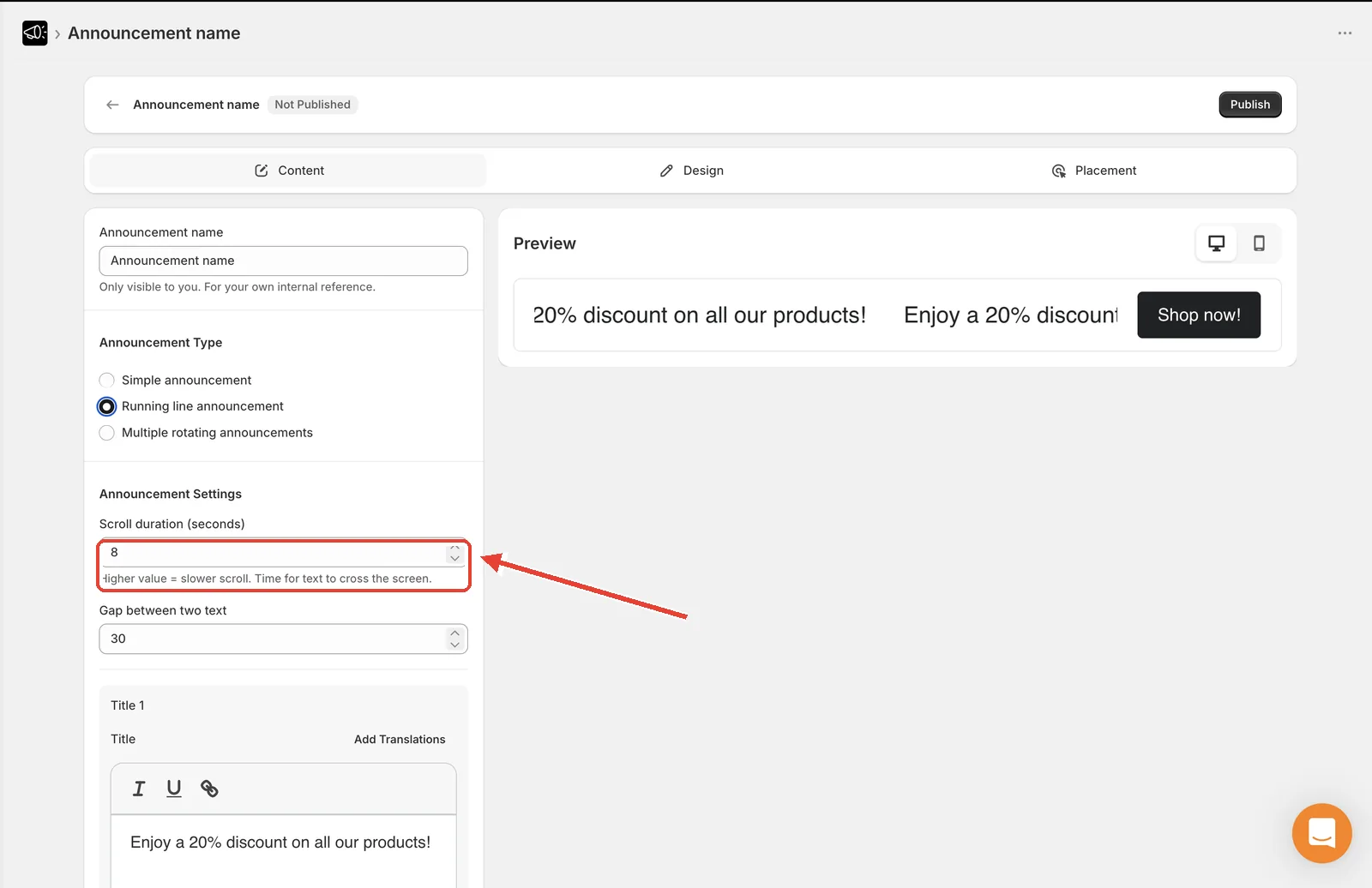
Scroll duration
Scroll duration is how long the text takes to cross the screen, so a higher value means a slower scroll.
| Value | Result |
|---|---|
| 1–5 | Very fast — hard to read, use sparingly |
| 6–12 | Comfortable reading speed (recommended) |
| 13–50 | Slow, relaxed drift |
Gap between two text
The space between one repeat of your text and the next. Increase it if your messages run together; decrease it to keep the bar looking full.
Multiple titles
Click Add Title to add another message.
Type the message into the new Title field.
Use the delete icon on any title card to remove it.
The limit is 6 titles. Once you reach it, the Add Title button is disabled and the app shows "Maximum of 6 titles allowed".
Tip
Running lines are attention-grabbing but tiring to read. Use them for short, urgent messages, and switch to a Simple announcement for anything a customer needs to read carefully.