
Custom position
Place the bar anywhere in your theme using an app block or a code snippet.
Custom position lets you drop the announcement bar anywhere in your theme instead of the top or bottom of the page — between two sections, inside a product page, or wherever you need it.
Turn it on
Open the announcement and go to the Placement tab.
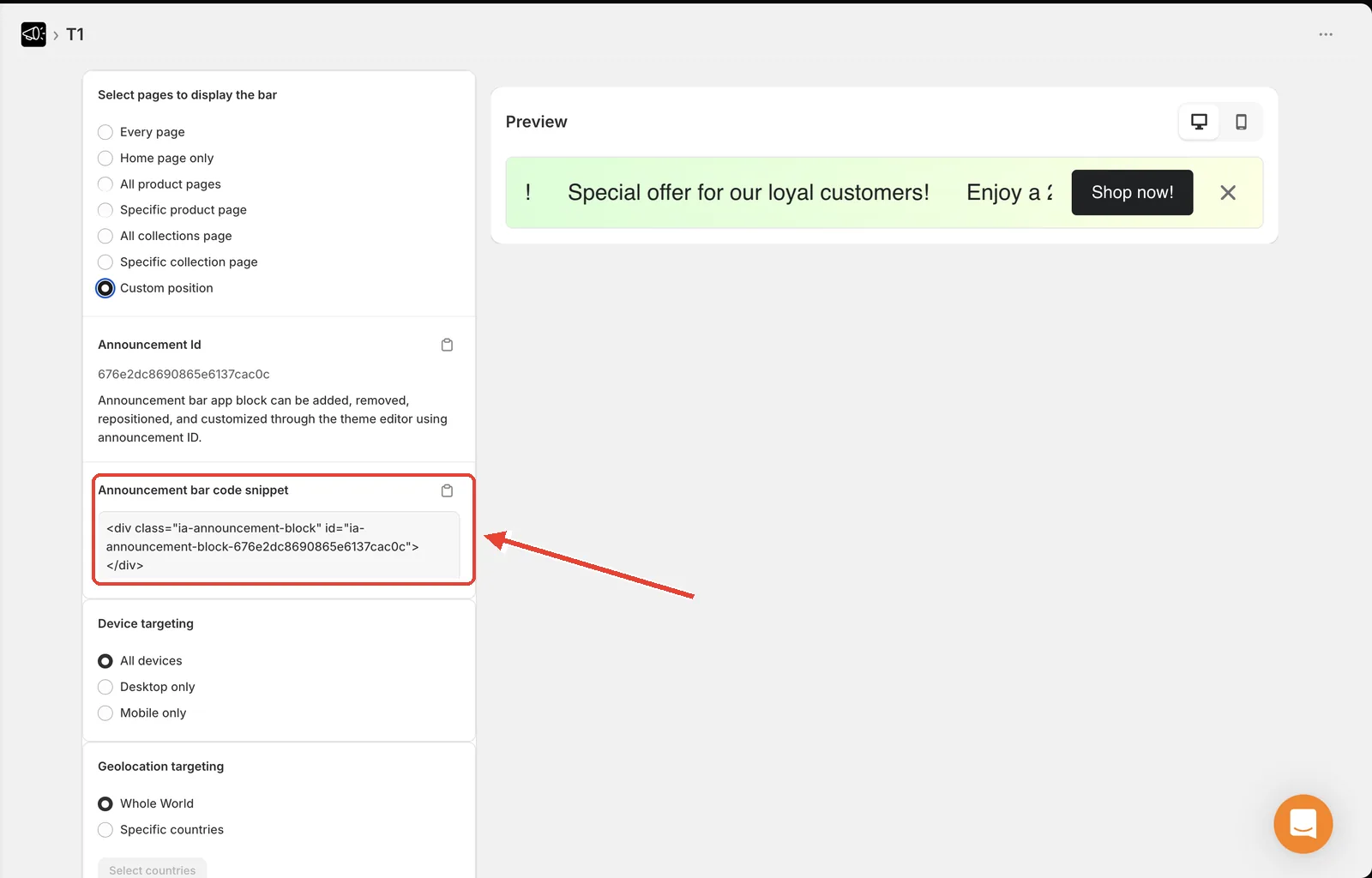
Under Select pages to display the bar, choose Custom position.
Click Save, then Publish. The Announcement Id appears.
The announcement ID only shows after you save or publish. If the field says "Save or Publish to show timer ID", save first.
Option 1 — Add it with the theme editor (recommended)
Copy the Announcement Id from the Placement tab.
Go to Online Store → Themes → Customize.
Navigate to the page and position where you want the bar.
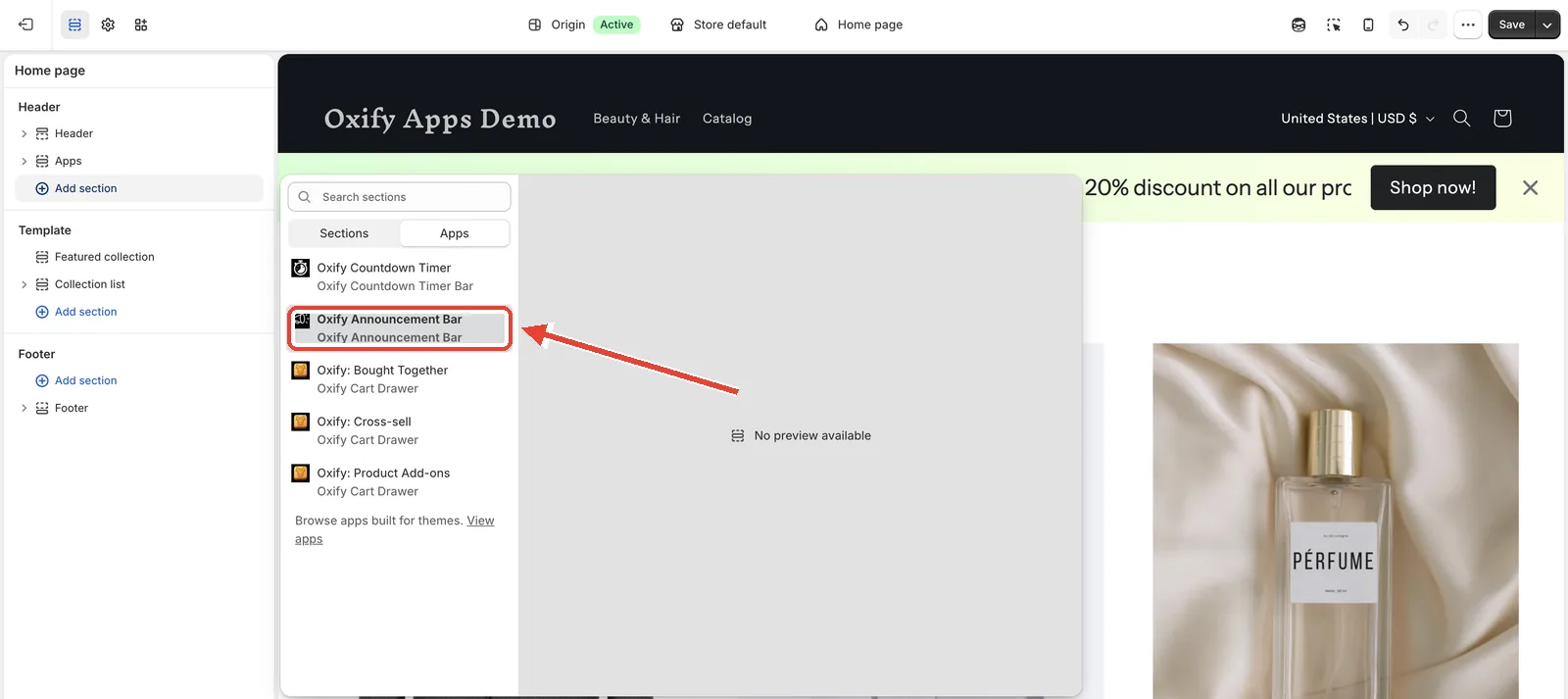
Click Add block (or Add section), open the Apps tab, and choose Oxify Announcement Bar.
Paste the announcement ID into the block's Announcement ID field.
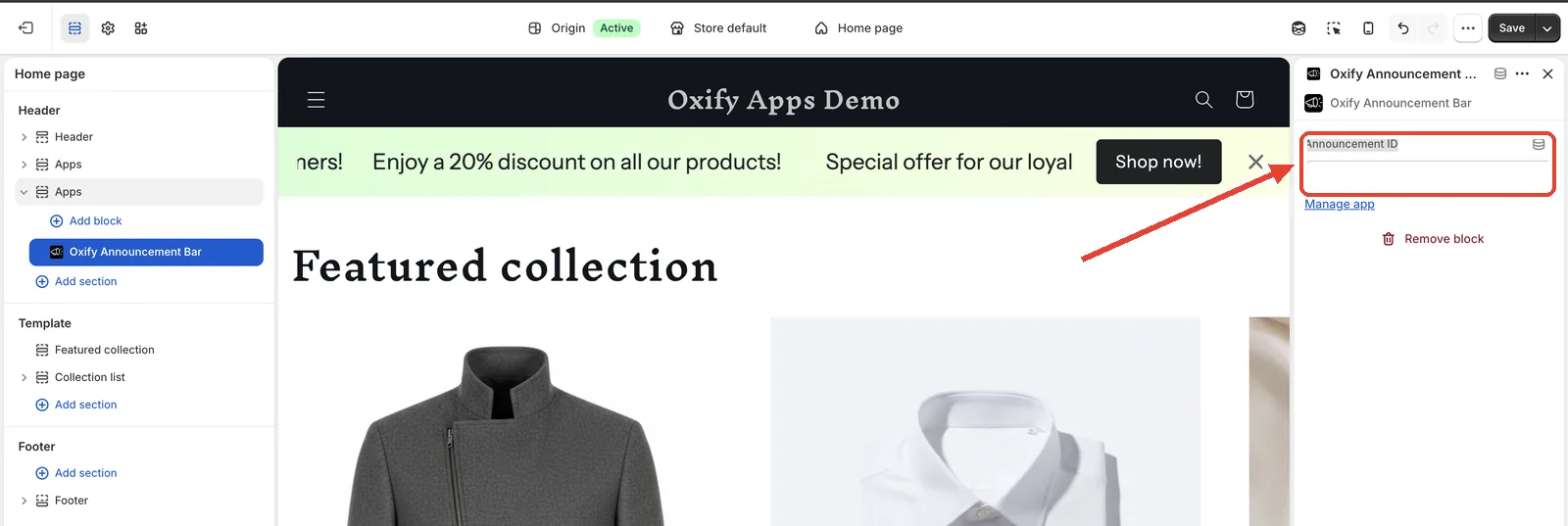
Drag the block to the exact position you want.
Click Save.
Using the app block means you can move, remove, and reposition the bar later from the theme editor — no code changes.
Option 2 — Paste the code snippet
On the Placement tab, find Announcement bar code snippet.
Click the copy icon. You'll see "Snippet copied to clipboard successfully!".
Go to Online Store → Themes → Edit code.
Open the template or section file where you want the bar.
Paste the snippet at the exact spot it should render.
Click Save.
The snippet looks like this, with your own announcement ID:
Back up your theme before editing code
Duplicate your theme before pasting anything into Edit code. If something goes wrong you can publish the copy and be back online immediately.
Tip
Prefer the app block. Editing theme code means your change is lost the next time you switch or update your theme, and it has to be redone by hand.