
Advanced settings (Z-Index)
Control which page elements the announcement bar stacks above or below.
Z-index decides what the bar layers above and below on your page. The default works for almost every theme — only change it if the bar is hidden behind something, or covering something it shouldn't.
Open advanced settings
Open the announcement and go to the Content tab.
Scroll to the bottom of Announcement Settings.
Click Show Advanced Settings.
The Z-Index field appears.
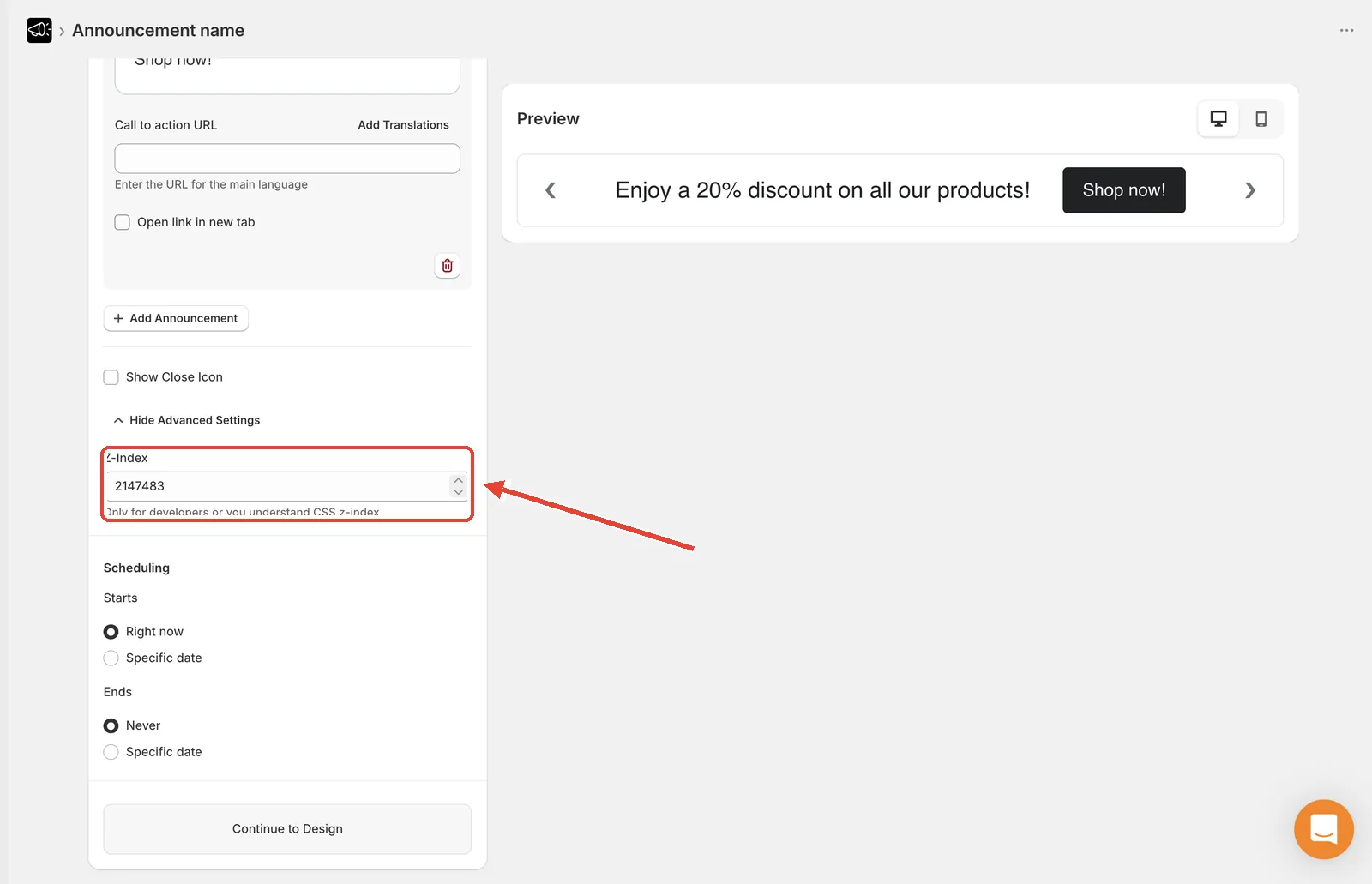
Change the Z-Index
Enter a new value in the Z-Index field.
Click Save.
Check your storefront to confirm the layering is right.
The default is 2147483 — high enough to sit above nearly every theme element.
Which direction to go
| Problem | Fix |
|---|---|
| Bar is hidden behind your header or a popup | Increase the value |
| Bar covers a dropdown menu, cart drawer, or modal | Decrease the value |
Change it in large steps — try 999 or 99999 rather than nudging by 1.
This is a CSS setting. If you aren't comfortable with how z-index works, leave it at the default and contact support instead — a wrong value can hide the bar entirely or break your navigation.
Tip
Before touching z-index, try switching the bar from Top Page to Bottom Page. Overlap problems are usually caused by a sticky header, and moving the bar solves it without any CSS.