
Positioning and sticky bar
Put the bar at the top or bottom of the page, and keep it visible while scrolling.
The Positioning card is the first card on the Design tab.
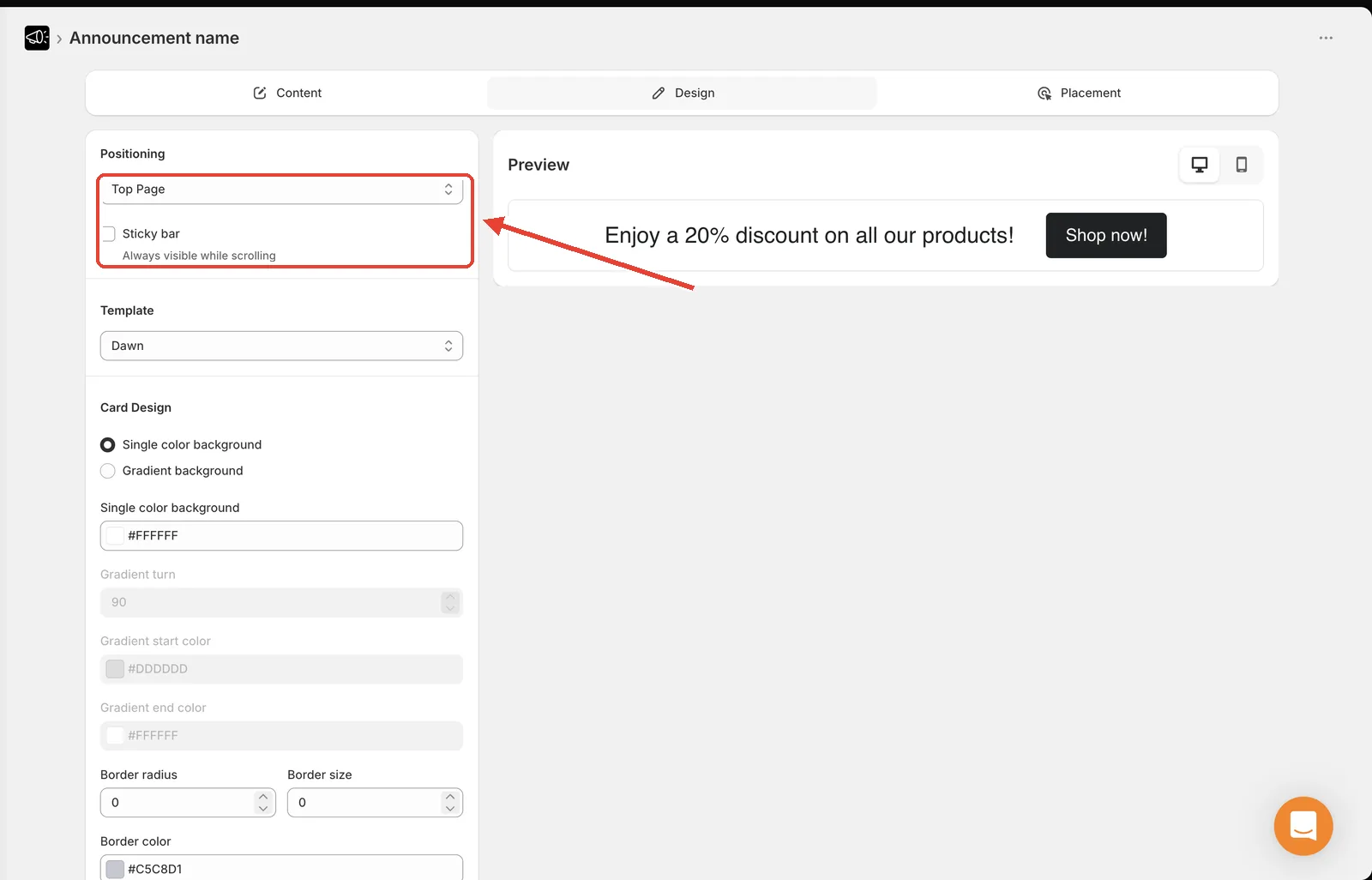
Set the position
Open the announcement and go to the Design tab.
In the Positioning card, open the Position dropdown.
Choose Top Page or Bottom Page.
Click Save.
| Position | Where it renders | Best for |
|---|---|---|
| Top Page | Above your header, first thing a visitor sees | Promotions, urgent notices |
| Bottom Page | Pinned to the bottom of the page | Secondary info, less intrusive messages |
Make it sticky
A sticky bar stays visible as the visitor scrolls, instead of scrolling away with the page.
In the Positioning card, tick Sticky bar.
Click Save.
Open your storefront and scroll to confirm the bar follows.
Sticky works with both Top Page and Bottom Page.
Tip
A sticky bottom bar is a good compromise — always visible, but it never fights with your theme's sticky header.
If a sticky top bar overlaps your header or hides your navigation, try moving it to Bottom Page first. If you still need to fix the layering, see Advanced settings (Z-Index).