
AI assistant (Claude and ChatGPT)
Connect Claude, ChatGPT or another AI assistant to your store so it can read your bundle analytics and create, edit and publish quantity breaks for you.
The app can connect to an AI assistant — Claude, ChatGPT, or any assistant that supports custom connectors (the Model Context Protocol, or MCP). Once connected, you can ask it to suggest offers from your sales and bundle analytics, and to create, design and publish quantity-break bundles for you.
The assistant saves through the same pipeline as the bundle editor, so what it builds appears on Home and in the editor like any bundle you made yourself.

The card above sits at the top of Home. Click the X to hide it — that hides it in this browser only. The connection details always live in Settings → AI assistant (MCP).
Connect an assistant
In the app, click Connect now on the Home card. You can also click Settings in the app menu and scroll to the AI assistant (MCP) section.
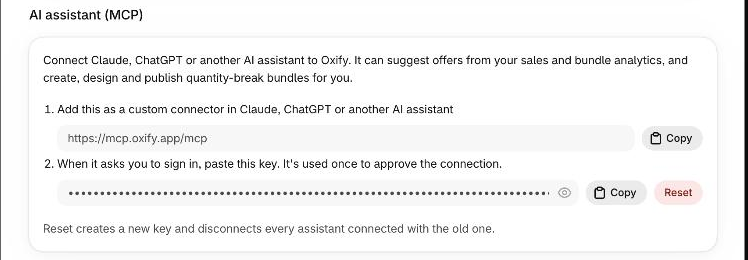
Next to step 1 (Add this as a custom connector in Claude, ChatGPT or another AI assistant), click Copy. It copies the connector URL. At the time of writing it reads https://mcp.oxify.app/mcp — always copy it from the app rather than typing it.
In your assistant, add a new custom connector (some assistants call it a custom MCP server) and paste the URL. Where that setting lives depends on the assistant and your plan with it, so follow the assistant's own instructions for adding a custom connector.
The assistant opens an Oxify page titled "Connect (your assistant's name) to Oxify Bundles". It shows the address the connection will return to, and says the assistant will be able to read your bundles, analytics and products, and create, edit and publish bundles on your store.
Back in the app, click Copy next to step 2 (When it asks you to sign in, paste this key). Paste the key into Your Oxify key on the sign-in page and click Connect. Click Cancel instead if you didn't start this connection.
The assistant returns and confirms it is connected. Try a question such as "Which of my products do customers often buy two of?" or "Suggest a quantity break for my best seller".
The key is masked in the app on purpose, and the Copy button is the way to use it. It is used once, to approve the connection. The assistant doesn't keep it: it receives its own access, which renews by itself while you keep using it.
Treat the key like a password
Anyone who has it can approve a connection that creates, edits and publishes bundles on your store. If you pasted it somewhere you shouldn't have, click Reset (see Disconnect assistants).
If the sign-in page warns that the connection returns to a site that isn't Claude, ChatGPT or an app on your own computer, continue only if you started the connection yourself and trust that site. The assistant gets full access to your bundles.
What the assistant can do
Read, without changing anything
| It can… | Details |
|---|---|
| List your bundles | Quantity Break bundles and Bundle Builders, with their type, whether they are live, when they were created and how many offers or boxes each has. |
| Report bundle performance | Additional revenue, bundle orders, average order value, conversion rate, unique visitors, free gifts and top bundles, for a date range or all time. |
| Show one bundle's offers | Each offer's type (quantity break, Buy X get Y or Mix & Match), discount, free gifts and upsells, and whether progressive gifts, subscriptions or a scratch deal are on. |
| Summarize the offer types you use | How many offers of each type exist, and how many bundles use upsells, free gifts, progressive gifts, subscriptions or scratch deals. |
| Compare A/B variants | Visitors, orders, conversion rate, revenue and more for each version of a bundle. |
| Show tier performance | For one bundle, how each offer performs: orders, share of the bundle's orders, revenue, added revenue, discount given and more. |
| Read a bundle's full settings | Every editable setting of a bundle or a Bundle Builder, before it edits anything. |
| Check the app embed | Whether the app embed is on for your live theme, so bundles can show on your storefront. |
| Search your products | By title, SKU, tag, vendor or Shopify search syntax, with prices and inventory. |
| Look at recent sales | A per-product summary of up to about 300 of your latest orders from the last 60 days: revenue, units, units per order, and how often shoppers already buy 2, 3 or 4 or more of a product. It reads order dates, subtotals and line items only — no customer names, emails or addresses. |
| Look up design options | Every design setting with its default and allowed values, color presets and the CSS classes custom CSS can target. |
| Give you preview links | Links to the bundle in the editor and on a storefront product page, and whether it is live and inside its dates. |
Create and change
| It can… | Details |
|---|---|
| Create a quantity-break bundle | Quantity breaks, Buy X get Y and Mix & Match offers (up to 8 offers per bundle), with free gifts, upsells, subscriptions, progressive gifts, timer, live social proof, scratch deal, sticky add to cart, swatches, targeting, schedule, design and custom CSS. It is saved as a draft unless it is told to publish, and the checkout discount is created for you. |
| Change an existing quantity-break bundle | Only the fields it sends change. Offers it sends replace the whole offer list; an offer that matches an existing one keeps its image and analytics. |
| Change a Bundle Builder's design and settings | Names, how the bundle appears in the cart, page placement, boxes with their discounts and free gifts, category selection rules, every design setting, custom CSS, the Subscribe & Save card, the schedule, and the store-wide discount combinations. |
| Publish or unpublish a quantity-break bundle | Making it live changes prices on your store straight away. |
An assistant won't create a new bundle once your store already has 250 bundle sets. Delete unused ones in the app first.
What it can't do
- Delete a bundle.
- Create a Bundle Builder, add products or categories to one, publish one, or edit its custom templates. Do those in the app.
- Change translations, the app language, the Settings page or your plan.
- Read customer details.
Staying in control
- Drafts first. A bundle an assistant creates appears on Home as Inactive until it is published. Open it from the preview links, check it, then publish it yourself or tell the assistant to.
- The assistant is told to ask first. Its built-in instructions say to publish or edit a live bundle only with your go-ahead, because live changes alter prices. That is a rule for the assistant, not a lock: read what it proposes before you agree, and review what it changed on Home.
- An active plan is required to create, edit or publish. Without one the assistant is told to ask you to pick a plan. Reading data, and unpublishing, still work. See Plans and billing.
- Mistakes are easy to undo. Click Unpublish in the bundle's editor and then Save, or ask the assistant to unpublish it.
Disconnect assistants
- One assistant: remove the Oxify connector in that assistant. Its access also expires on its own if it isn't used for 90 days.
- Every assistant at once: in Settings → AI assistant (MCP), click Reset. The app creates a new key and disconnects every assistant connected with the old one. Reconnect the ones you still want, using the new key.
Each approved connection is separate. The app keeps the 20 most recently used connections, so approving a 21st disconnects the one used least recently.
If it isn't working
| What you see | What to check |
|---|---|
| The sign-in page says the key doesn't match | Copy the key again from Settings → AI assistant (MCP). If you reset it, only the new key works. |
| The sign-in page says the request isn't valid anymore | Remove the Oxify connector from the assistant and add it again, as the page says. |
| Copy shows "Couldn't copy" | Allow clipboard access for this page in your browser and try again. |
| The assistant says an active plan is required | Choose a plan — see Plans and billing. |
| A bundle the assistant created doesn't show on your store | It is probably still a draft. Publish it, then check that the app embed is on. |
| A price or discount looks wrong at checkout | Unpublish the bundle, then see Discount not applying at checkout. |
| Every assistant stopped working | Someone clicked Reset. Copy the new key and reconnect. |