
Add-ons overview
Where every add-on lives in the editor, and which page explains it.
Add-ons extend an offer beyond tiers and prices. They live on the Offers tab of your deal, in two places: six deal-wide cards at the top, and three per-tier buttons inside each offer card.
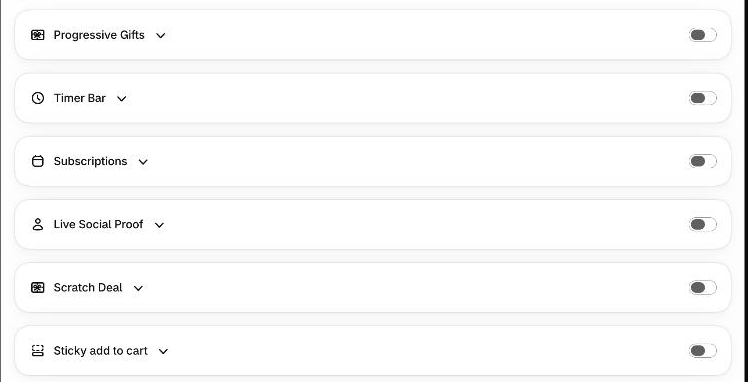
Deal-wide add-ons
These cards sit above the Offers heading. Each has a switch in its header and a title you click to open it. The settings you enter stay saved while the switch is off; switch it on to show the add-on on the product page.
| Card | What it adds | Read more |
|---|---|---|
| Progressive Gifts | A set of free gifts or free shipping that unlock as bigger tiers are picked. | Progressive gifts |
| Timer Bar | A countdown bar above the tiers. | Countdown timer |
| Subscriptions | A subscribe-and-save choice for the offer. | Subscription bundles |
| Live Social Proof | A line with real view and stock numbers. | Live social proof |
| Scratch Deal | A scratch card that hides your bigger tiers until revealed. | Scratch deal |
| Sticky add to cart | A pinned bar that takes customers back to the offer. | Sticky add to cart |
Per-tier add-ons
Open any offer card on the same tab and find the Add ons row. It has three buttons, each showing how many that offer already has:
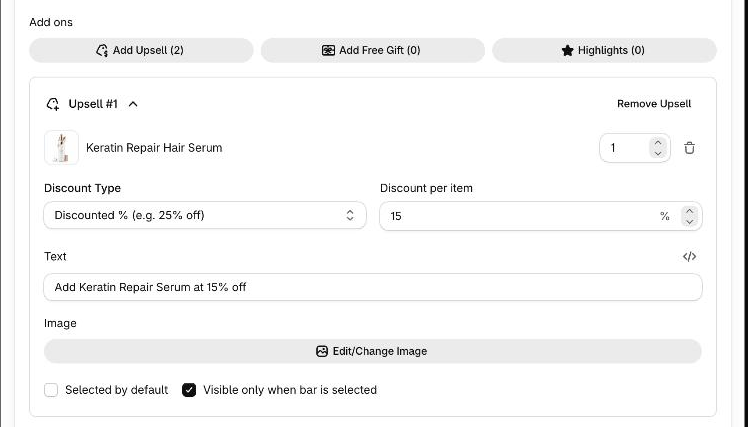
| Button | What it adds | Read more |
|---|---|---|
| Add Upsell | A discounted extra product the customer can tick. | Upsells |
| Add Free Gift | A free product that's added with the tier. | Free gifts |
| Highlights | A short checklist of selling points on the tier. | Highlights |
You can add as many upsells and free gifts to an offer as you like. Two other per-tier options sit on the offer card but aren't add-ons: Show quantity selector and Hide behind scratch-off (the latter appears once Scratch deal is on).
Try one safely
- Switch an add-on on and watch the live preview at the bottom of the page — it updates straight away, and nothing goes live until you click Save in the bar at the top.
- Changed your mind? Click Discard in that same bar to undo everything unsaved.
- Colors, fonts and sizes for every add-on are on the Design tab — see Colors and fonts. Add-on text can be translated on the Translations page.